
Sales
Make a bill
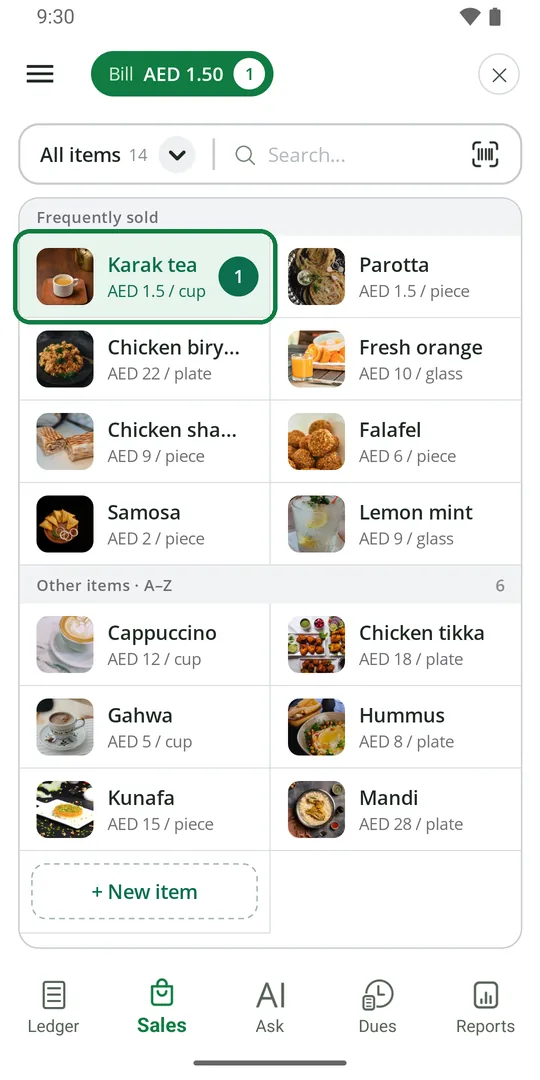
1Open the Sales tab and tap an item. Tap again to add one more 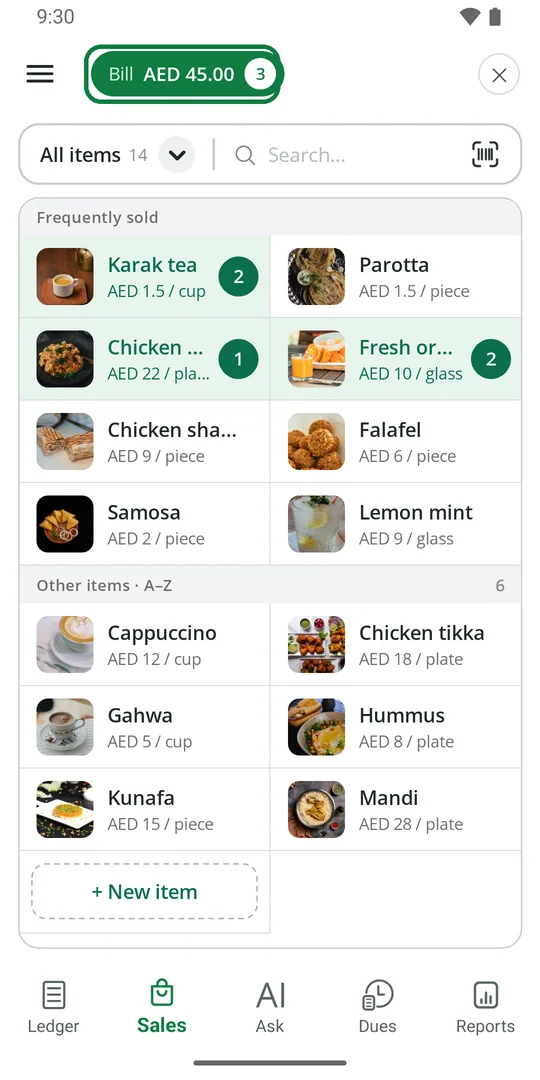
2The bill total shows at the top. When done, tap it 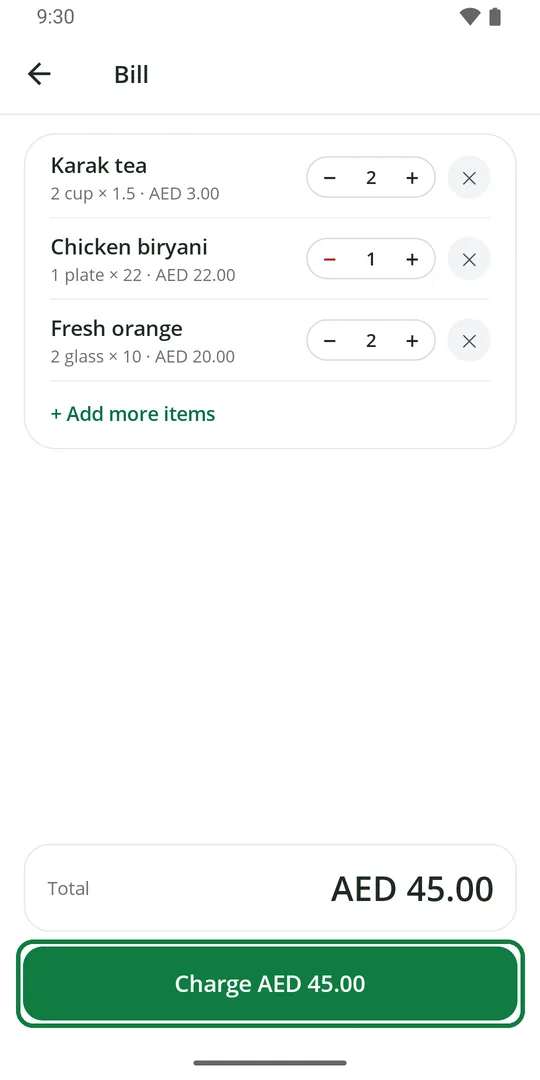
3Check the bill and tap Charge 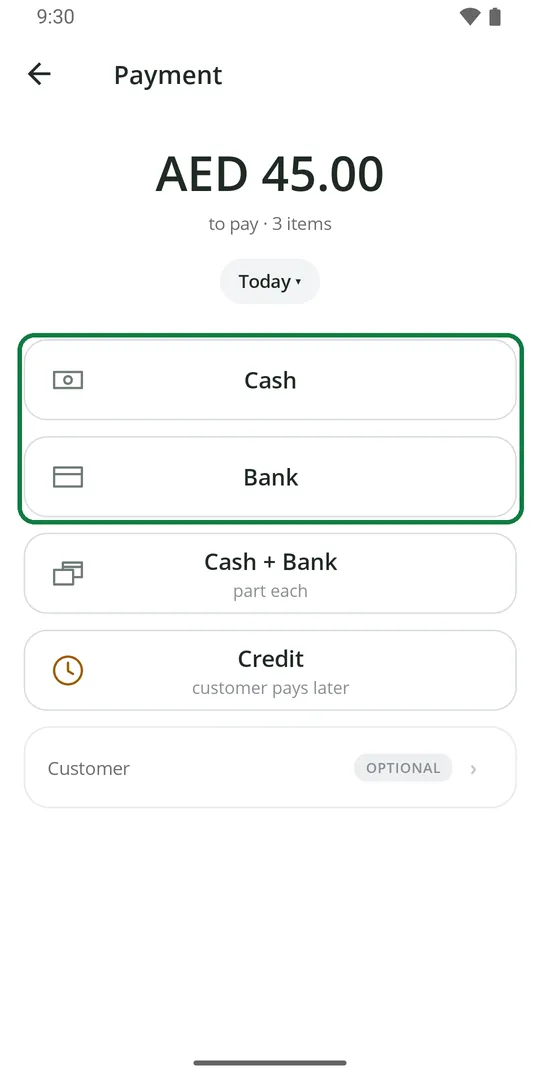
4Tap Cash or Bank 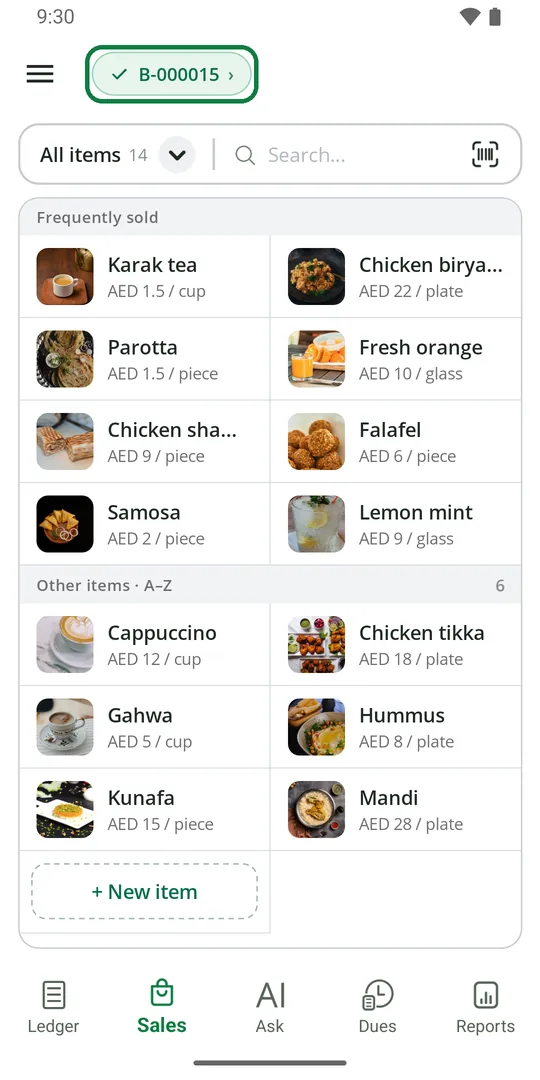
5The bill is saved. Tap the bill number to see it
Every bill goes into the Ledger by itself, as Cash or Bank income.
Change how many
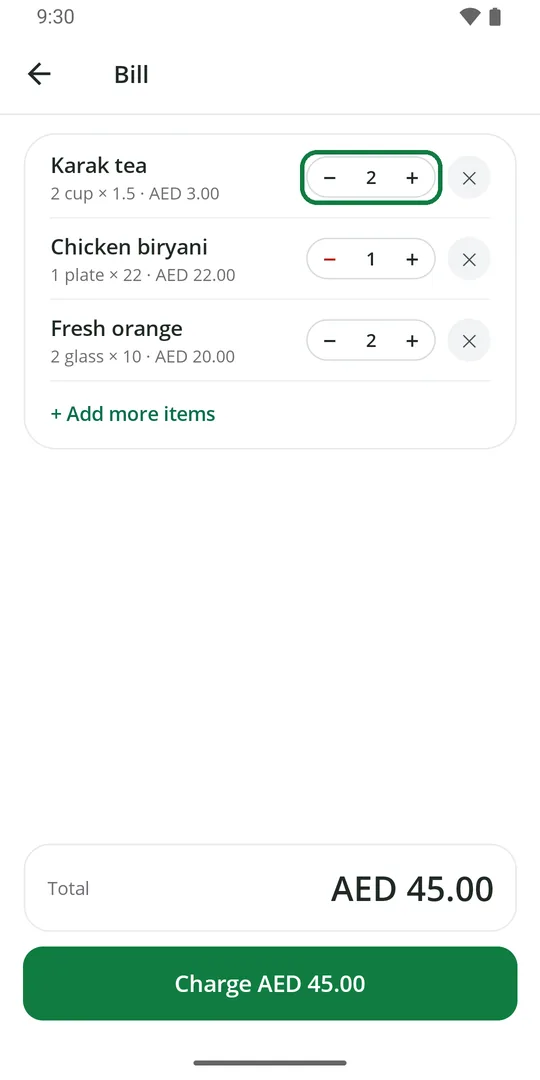
1On the bill, tap + or − 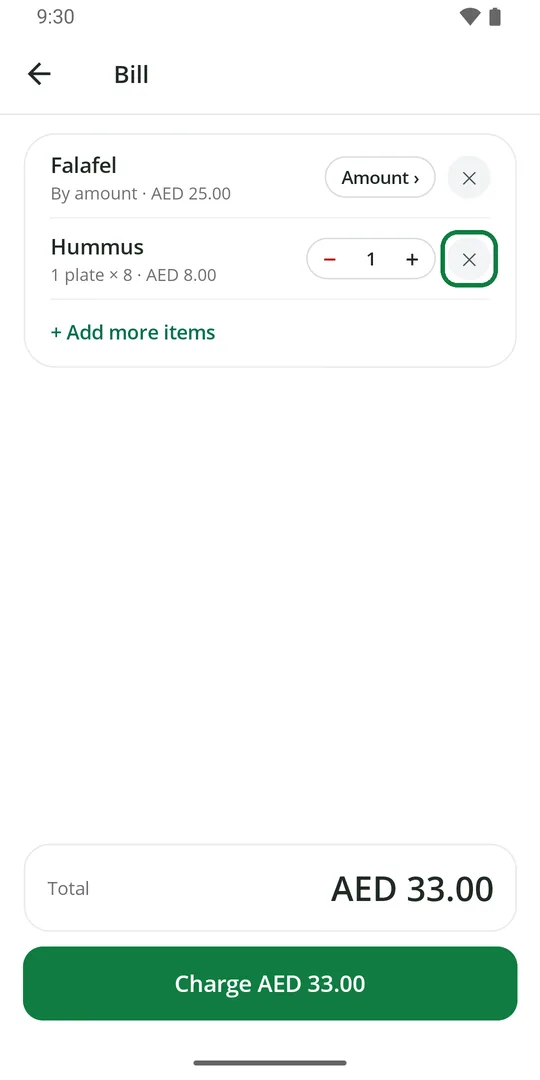
2Tap ✕ to take the item off the bill
Type a quantity or an amount
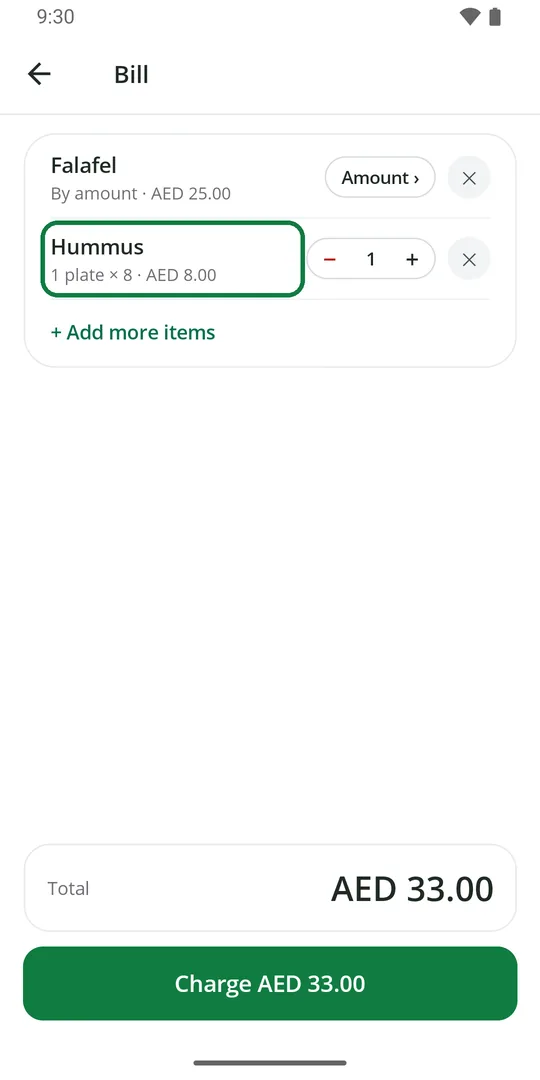
1On the bill, tap the item's name 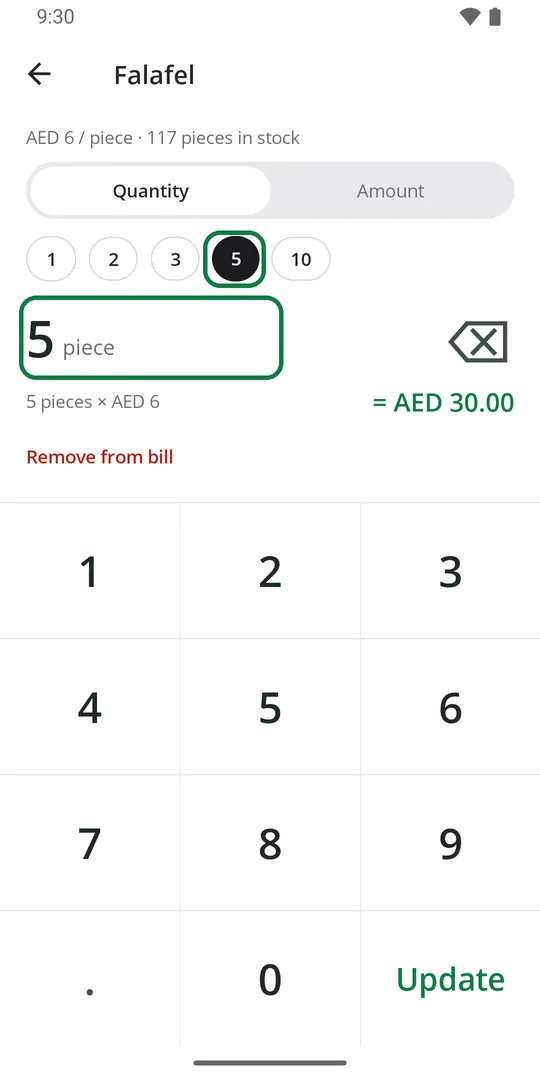
2Tap a number, or type the quantity 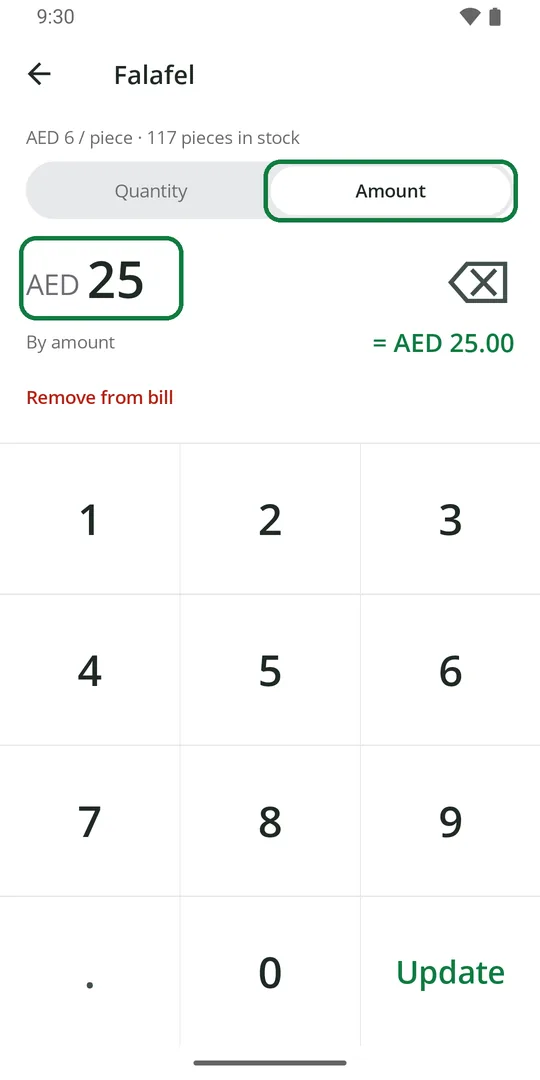
3Or tap Amount and type the money for this item 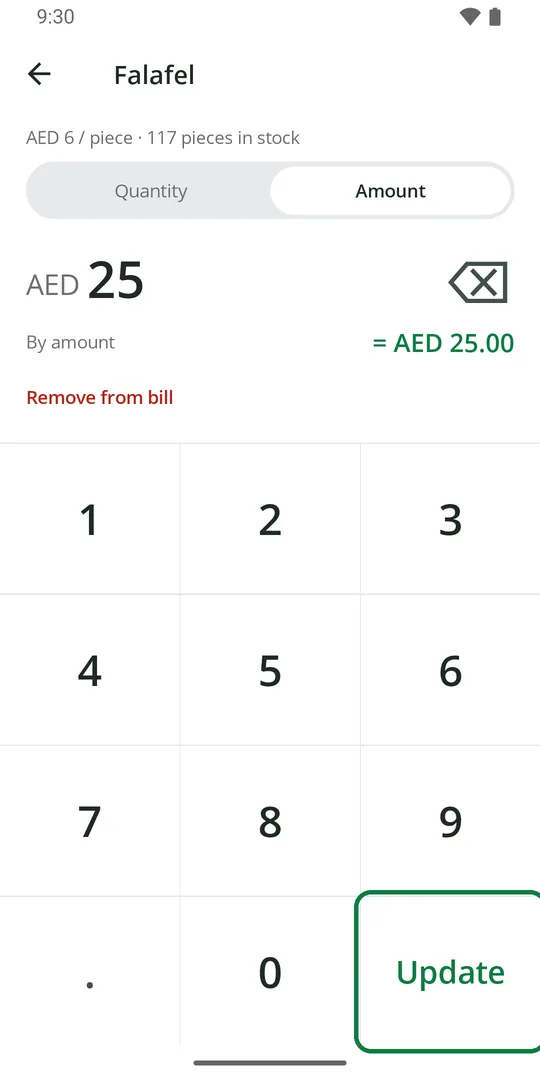
4Tap Update
Find an item
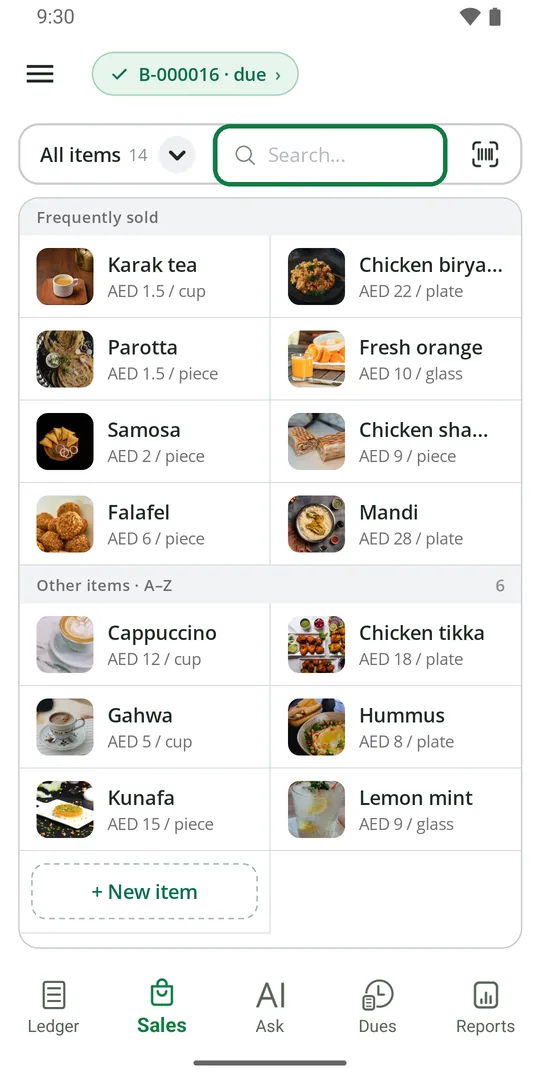
1Tap Search and type part of the name 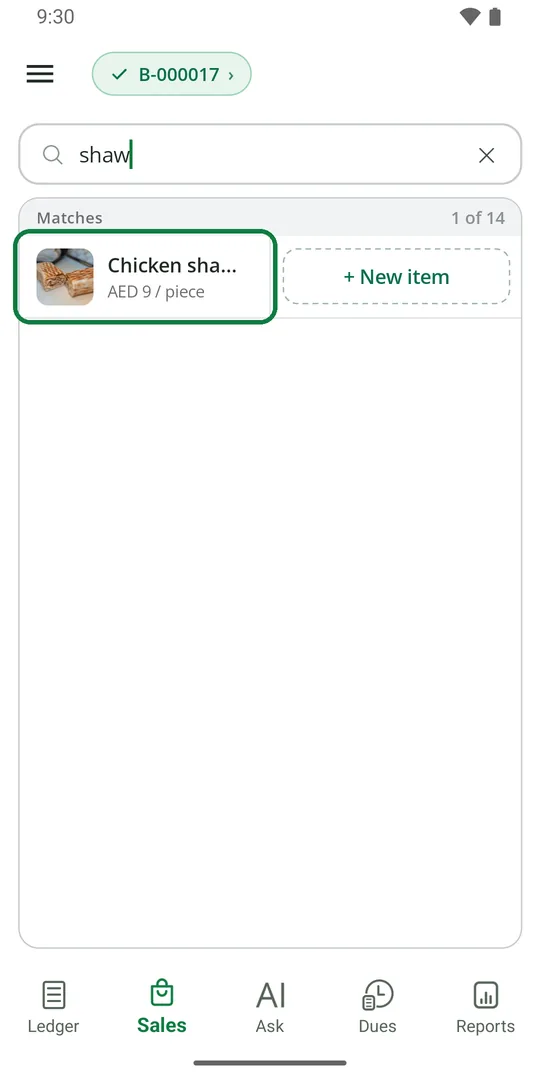
2Tap the item to add it
Show one category
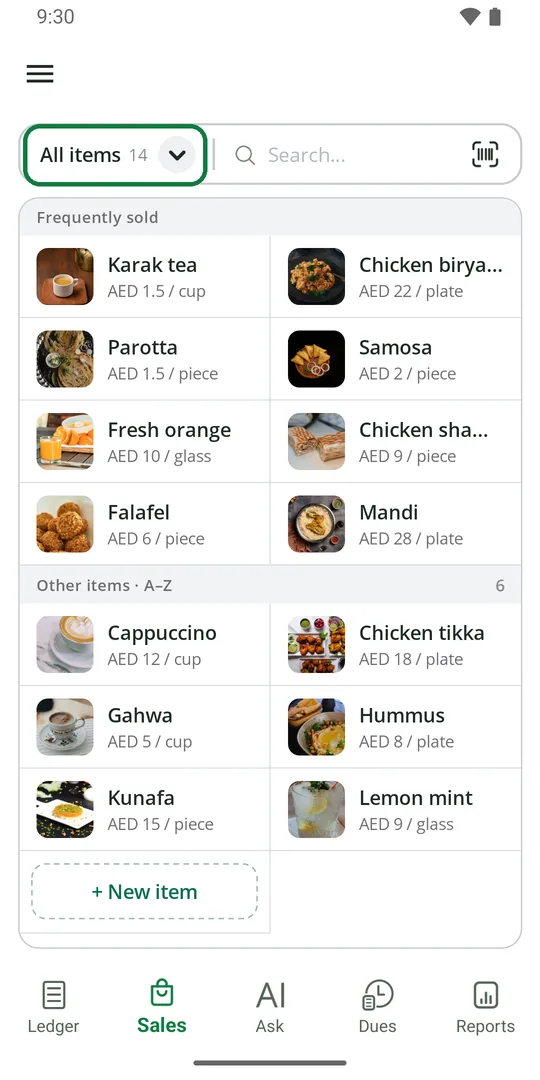
1Tap All items 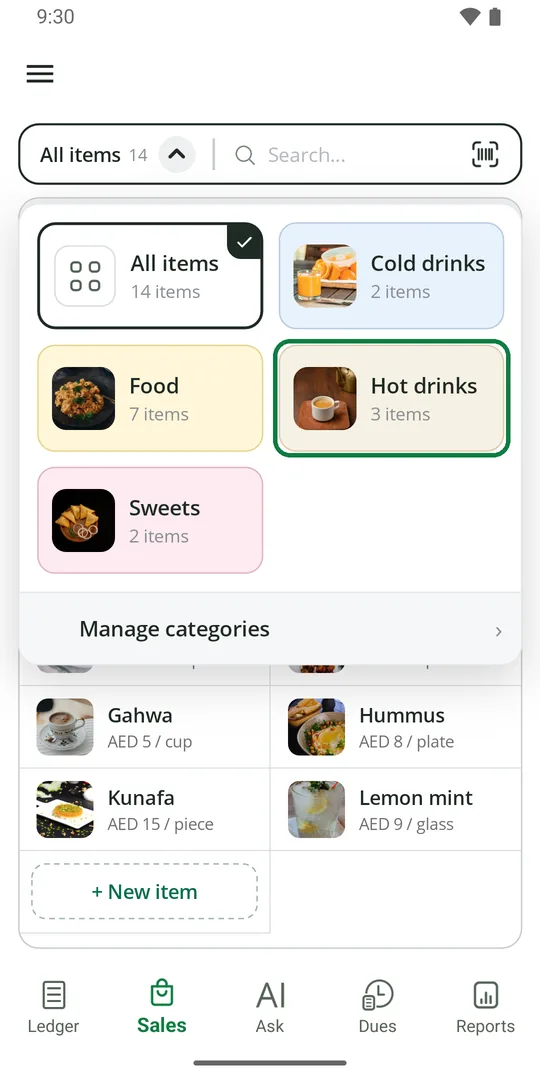
2Tap a category 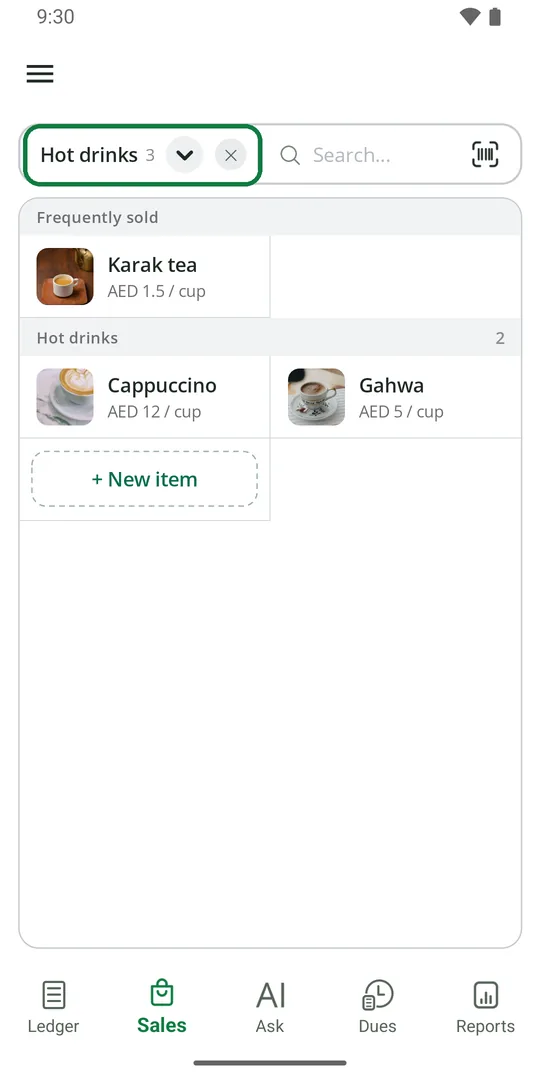
3Only its items show. Tap ✕ to see all again
Scan a barcode
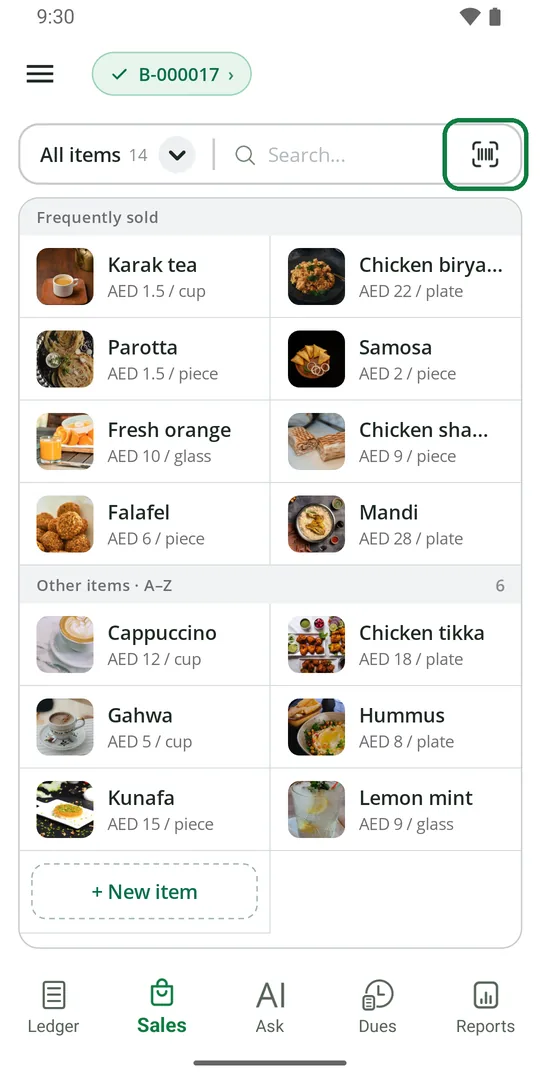
1Tap the barcode mark and point the camera at the barcode. The item goes on the bill
The item needs its barcode saved first. See Items.
Start the bill again
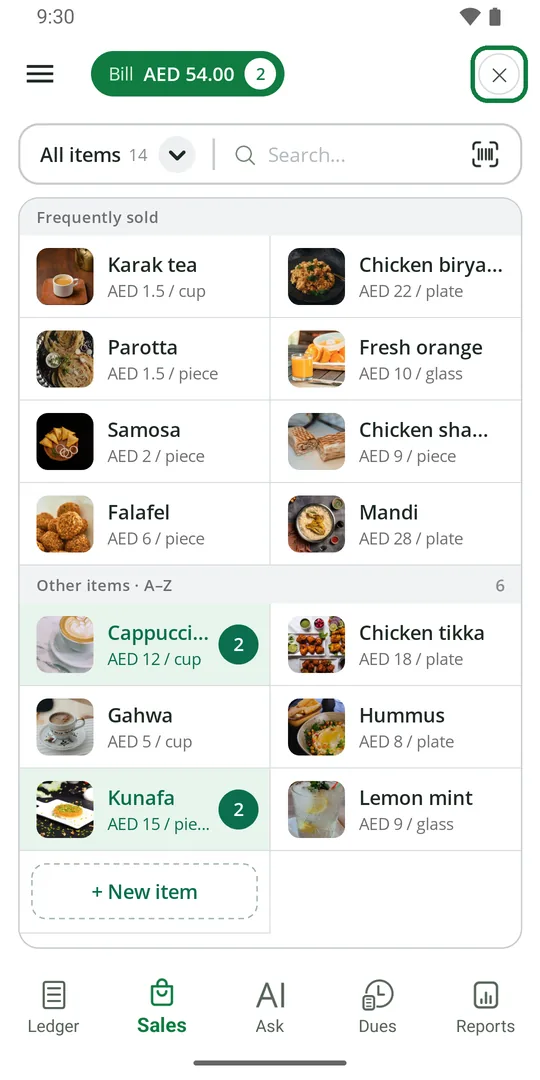
1Tap ✕ at the top right 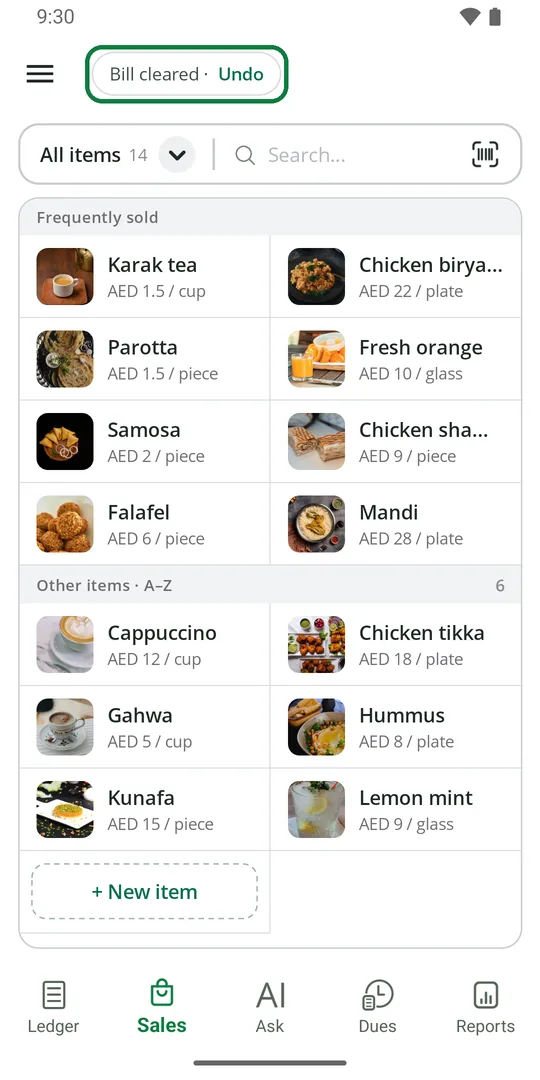
2The bill is empty. Tapped by mistake? Tap Undo
Paid part cash, part bank
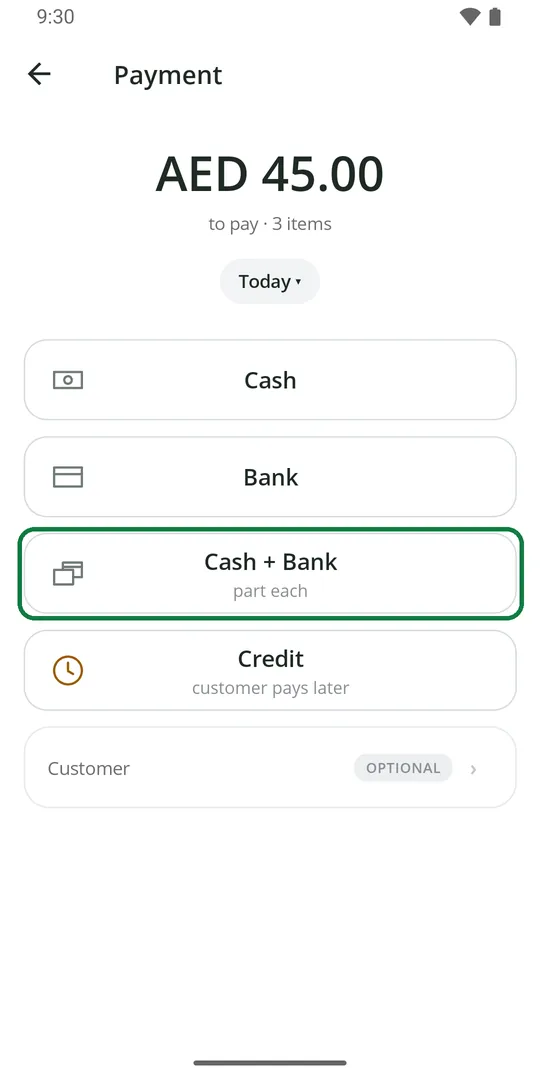
1After Charge, tap Cash + Bank 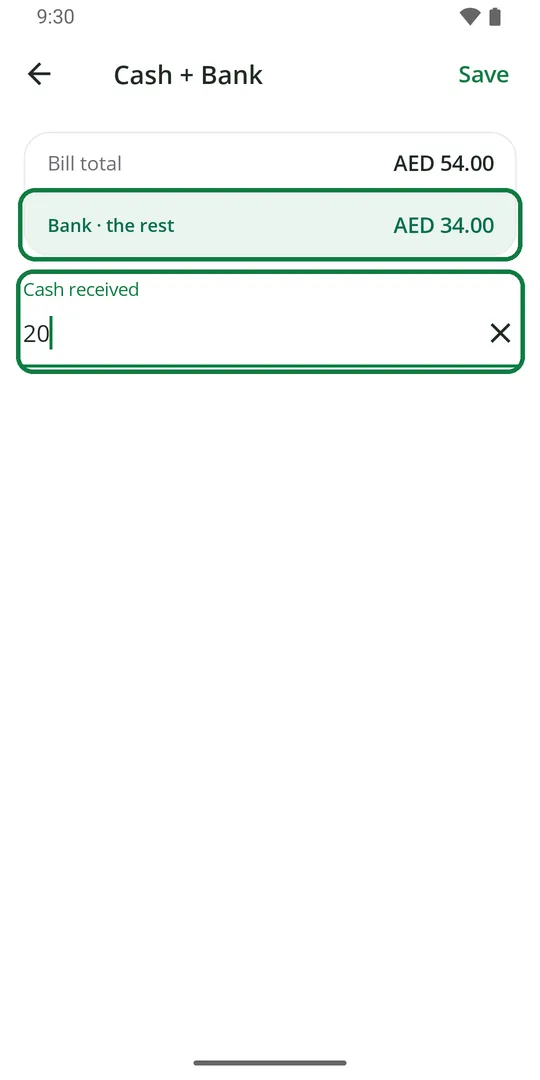
2Type the cash. The rest goes to bank 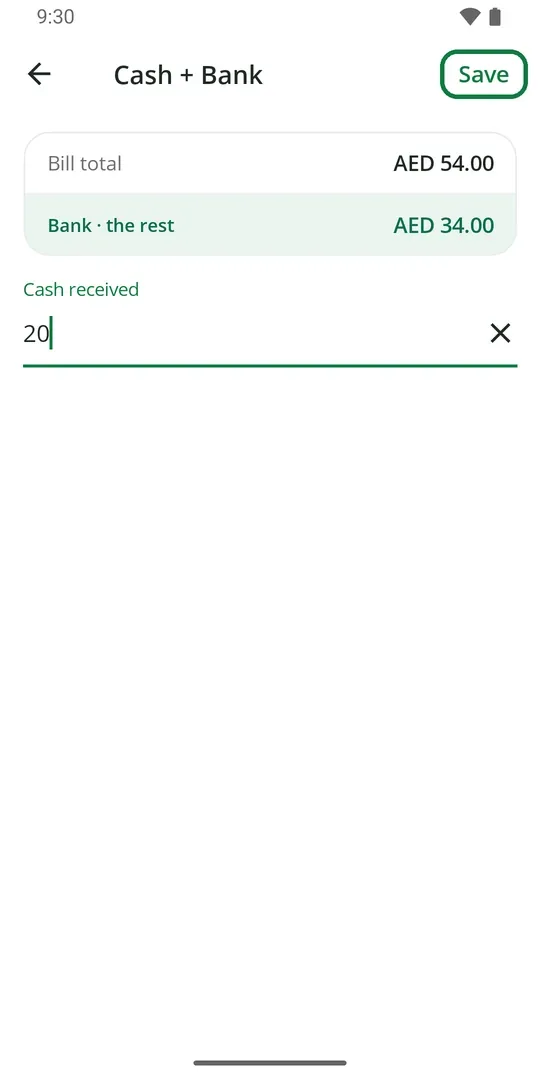
3Tap Save 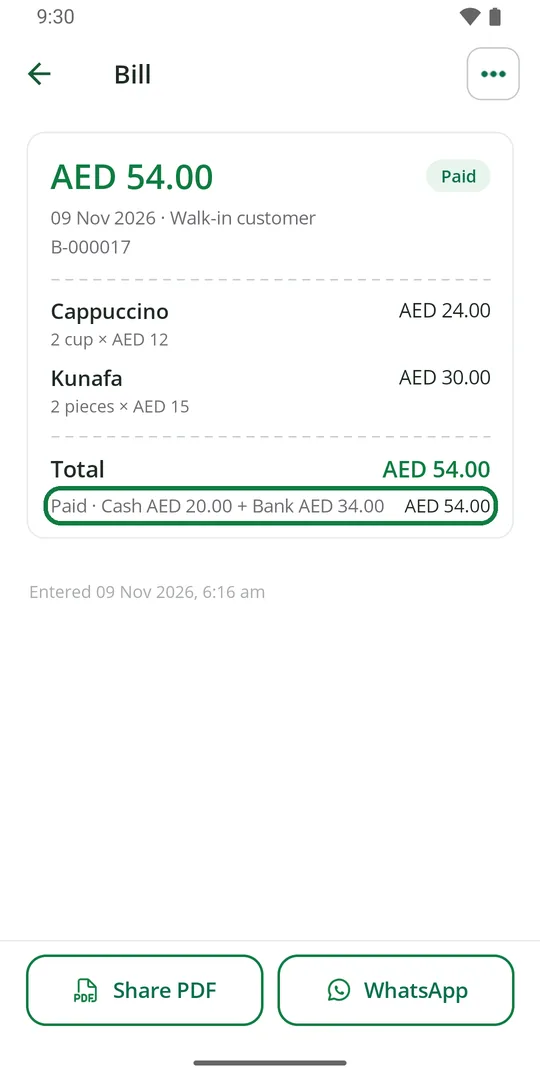
4The bill shows both parts
Sell on credit
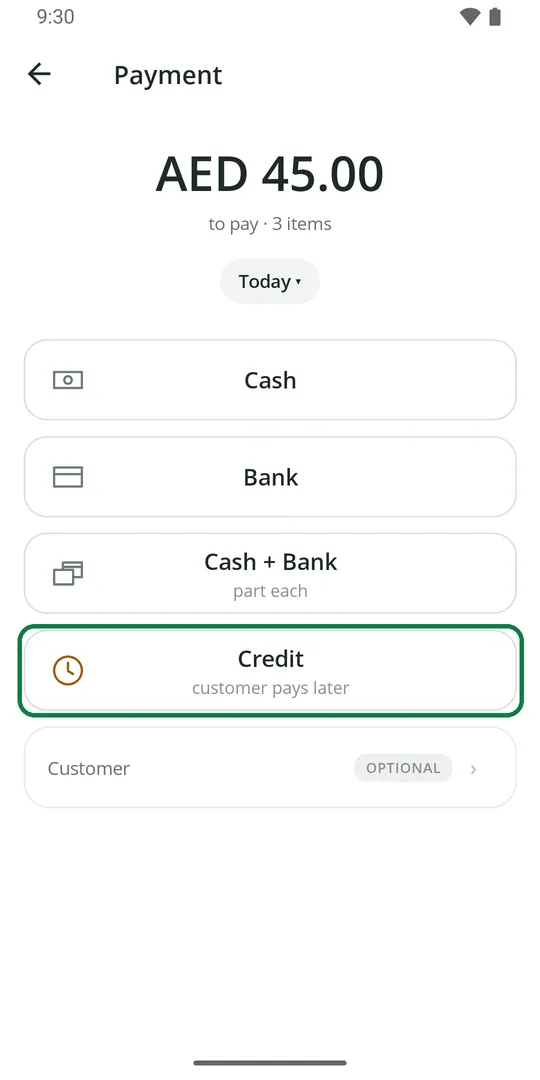
1After Charge, tap Credit 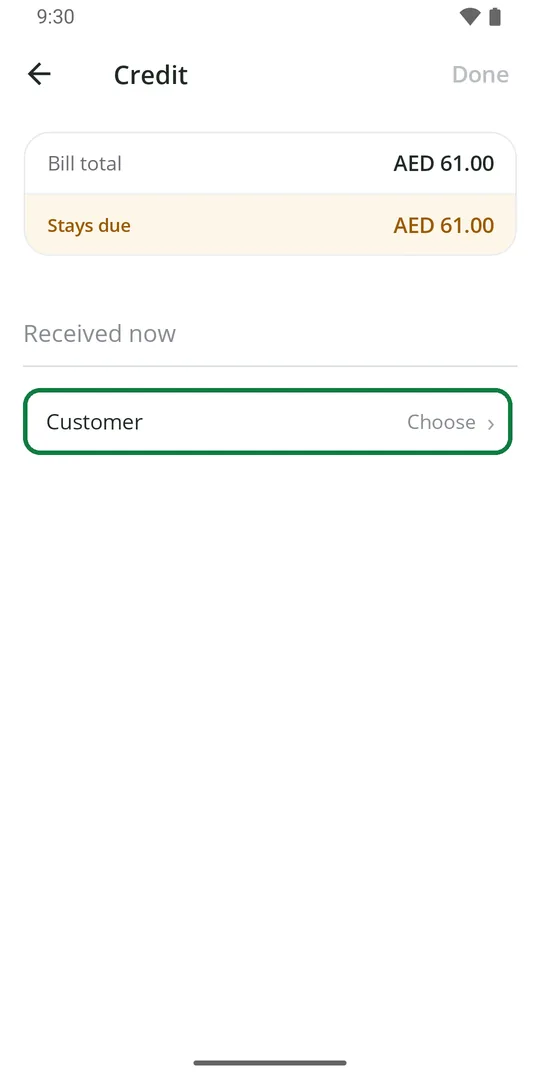
2Tap Customer 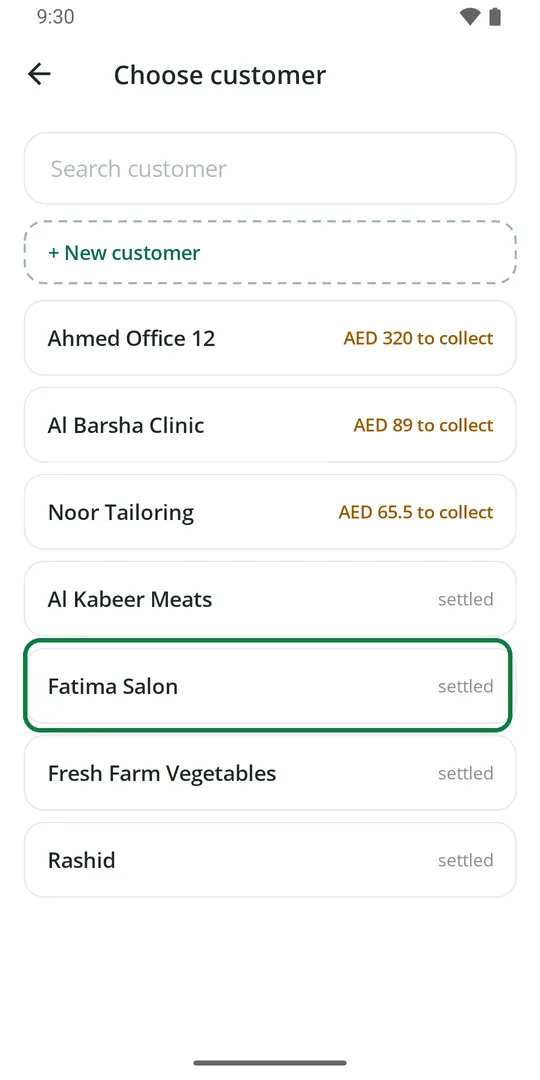
3Tap the customer, or + New customer 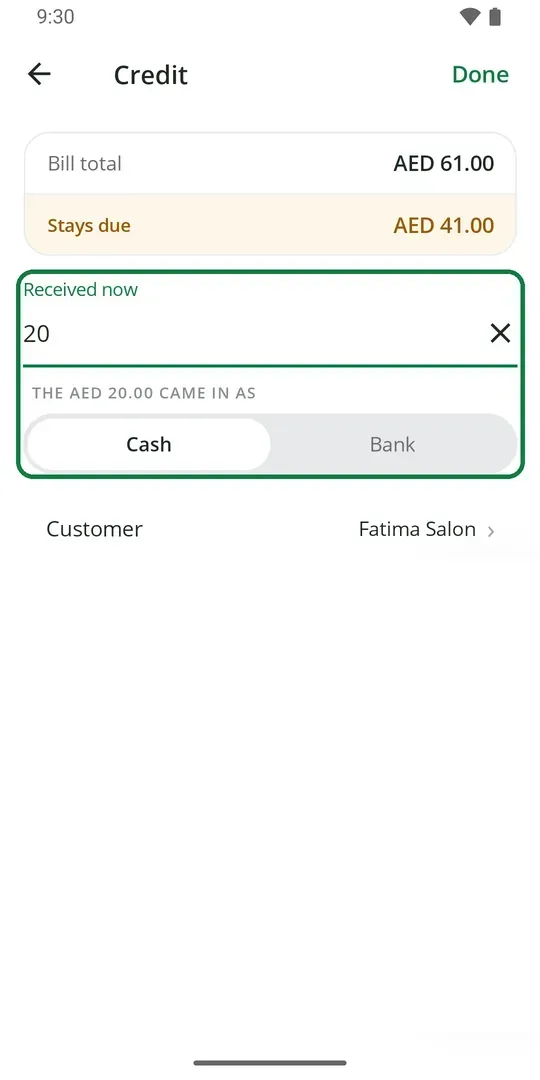
4Paid a little now? Type it and pick Cash or Bank 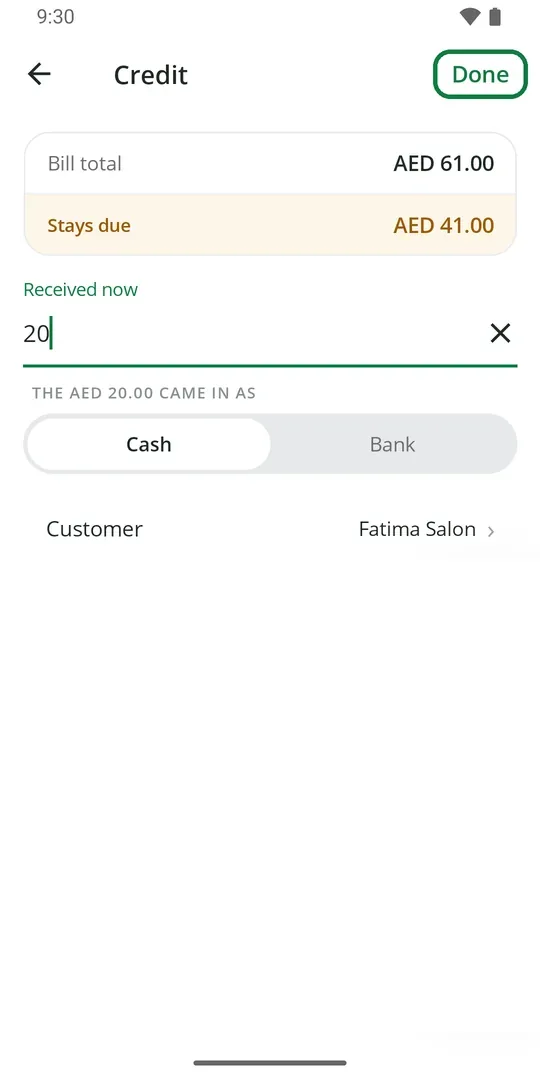
5Tap Done 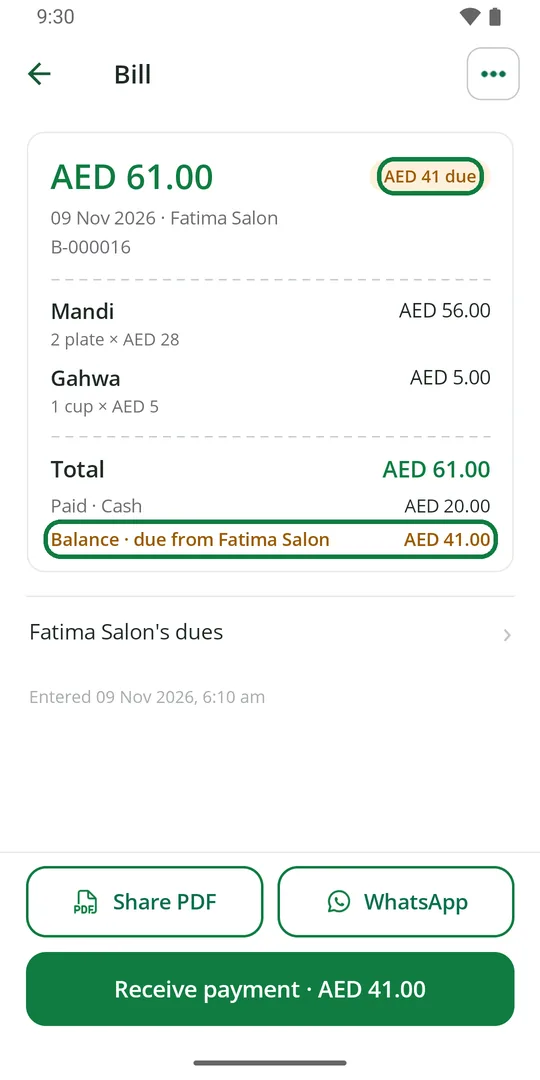
6The bill shows what is still due
The balance is added to the customer's dues.
Get paid for a credit bill
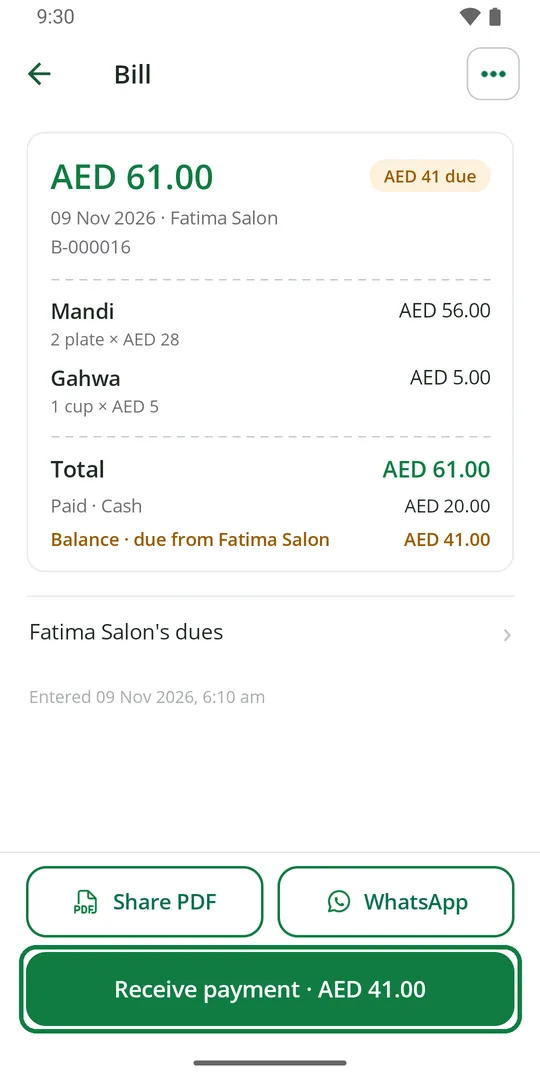
1Open the bill and tap Receive payment 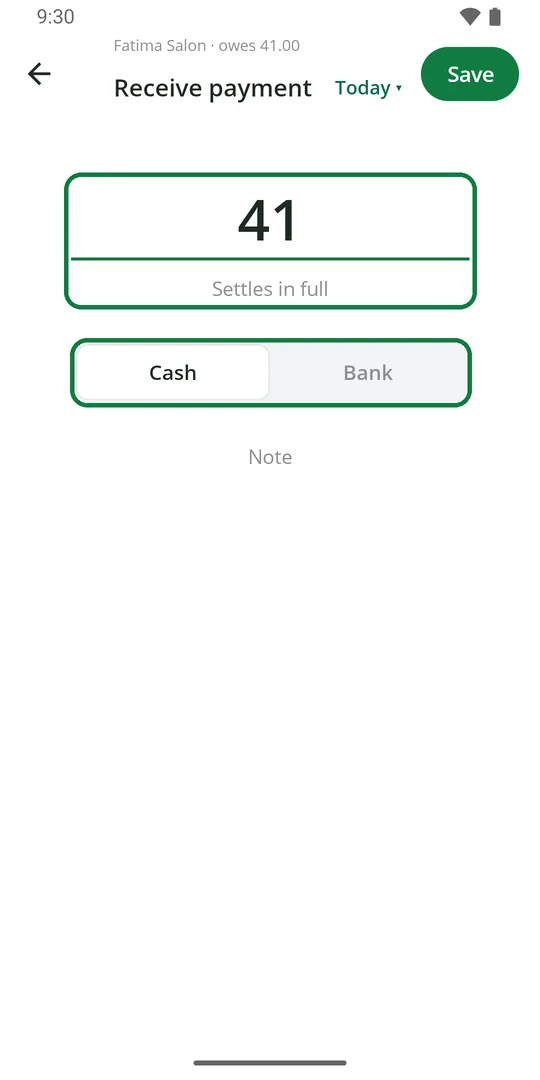
2Check the amount and pick Cash or Bank 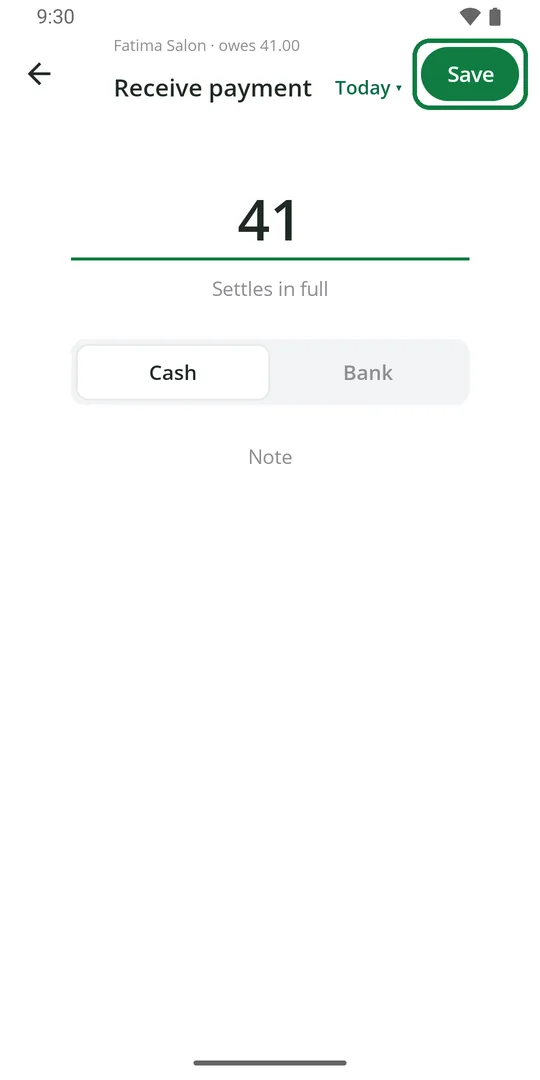
3Tap Save 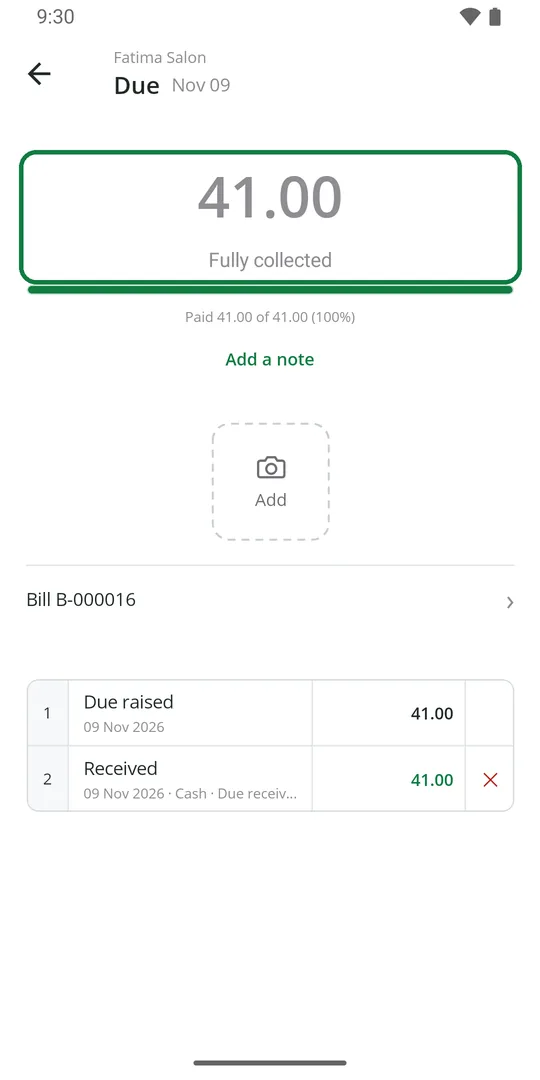
4The due is cleared
Put a customer's name on a bill
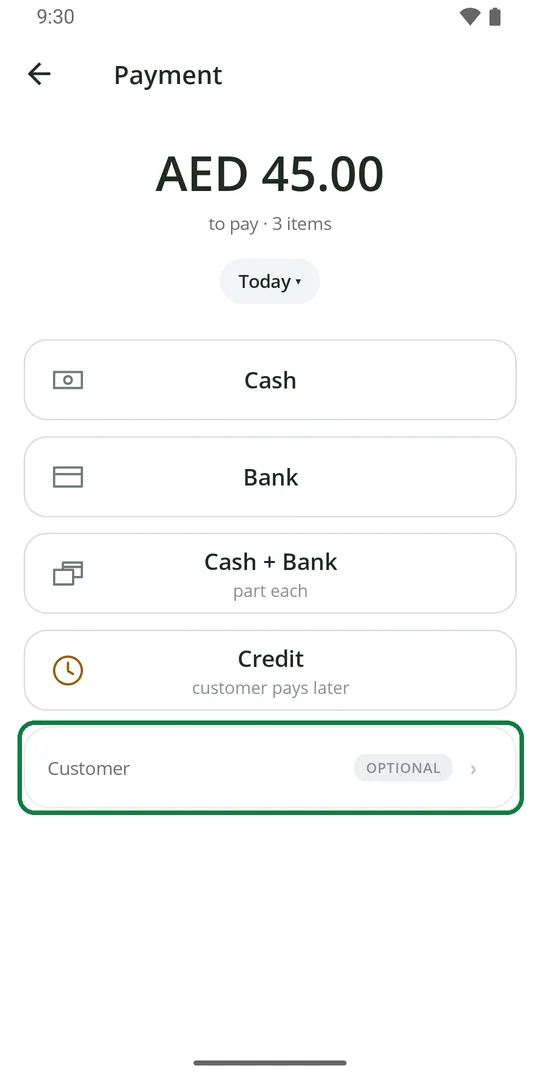
1After Charge, tap Customer, pick the name, then tap Cash or Bank
Write a sale for an earlier day
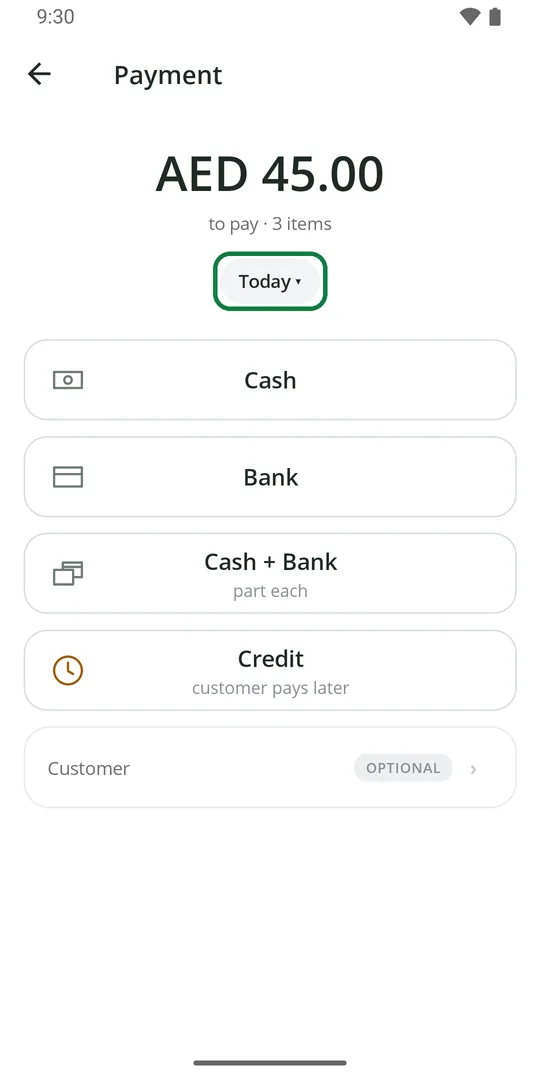
1After Charge, tap Today 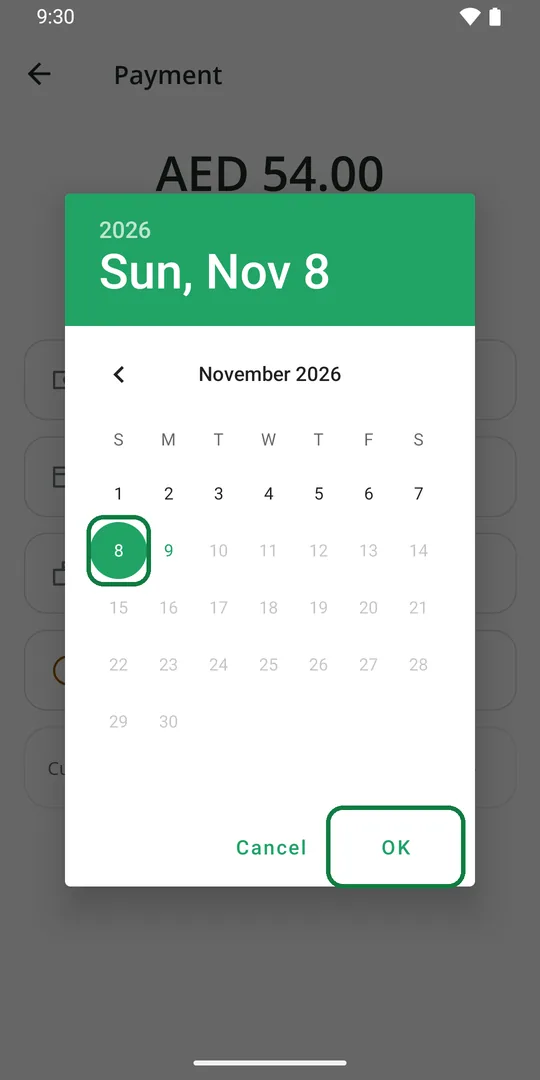
2Pick the day and tap OK. Then tap Cash or Bank
See all bills
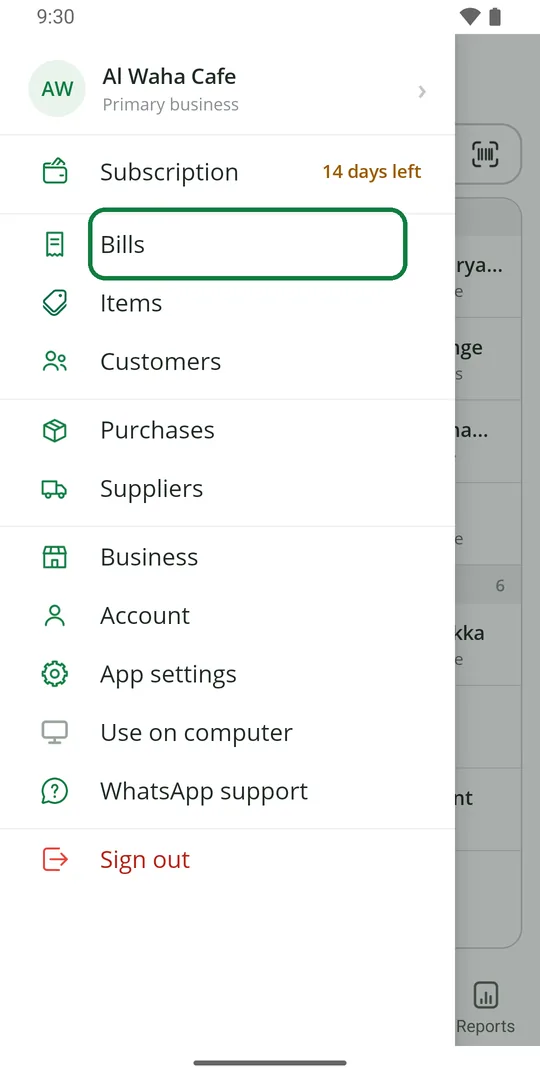
1Tap ☰, then Bills 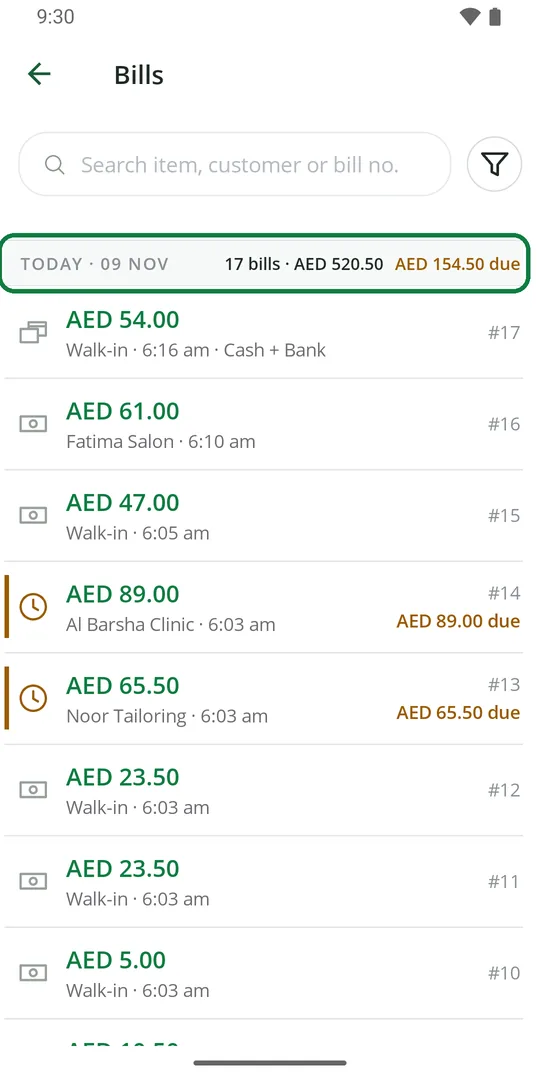
2Each day shows how many bills, the total and what is due 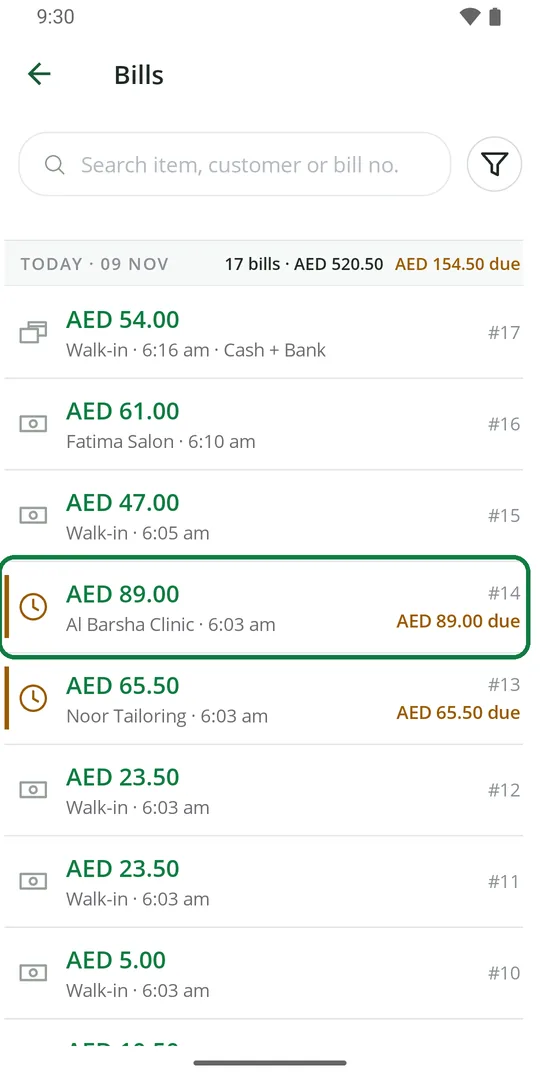
3Tap a bill to open it
Find a bill
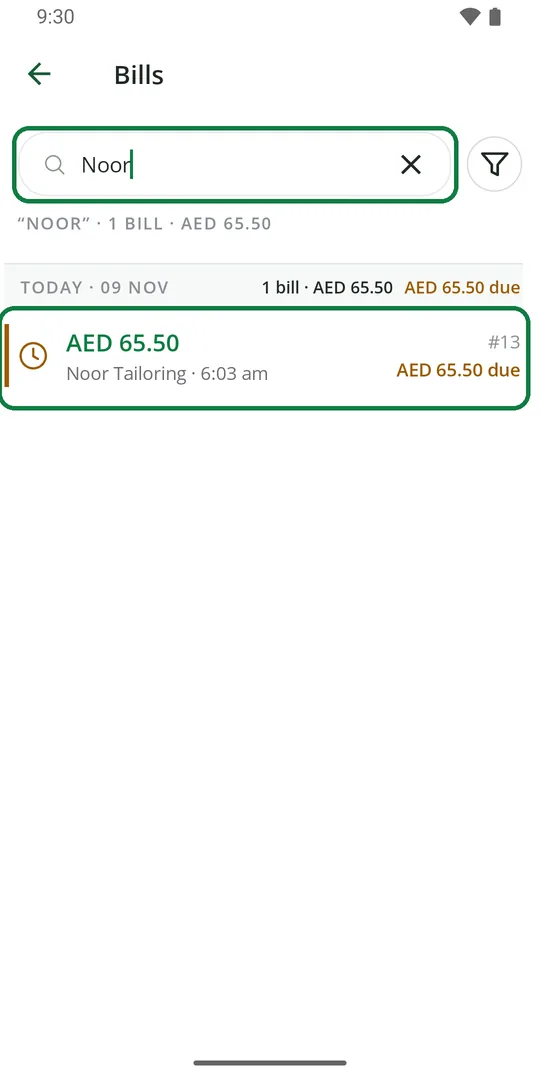
1In Bills, type an item, a customer or a bill number
See only due bills, or one day
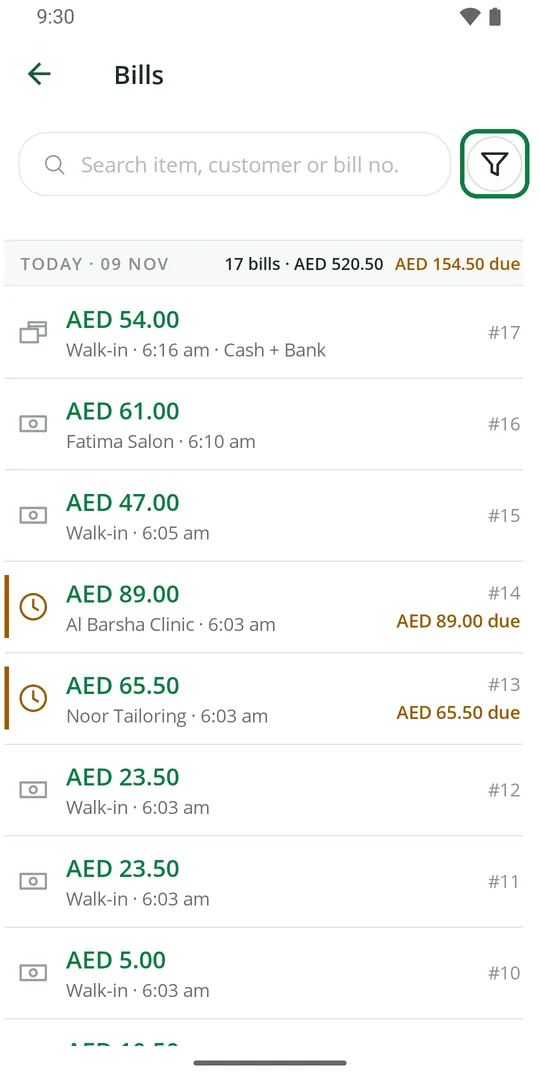
1In Bills, tap the filter 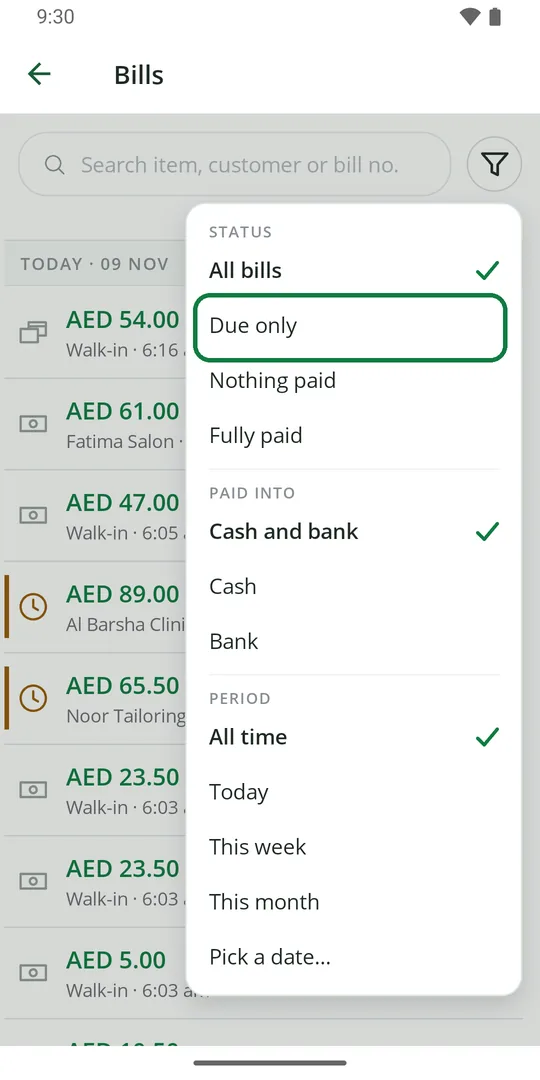
2Pick Due only, Cash, Bank, or a day 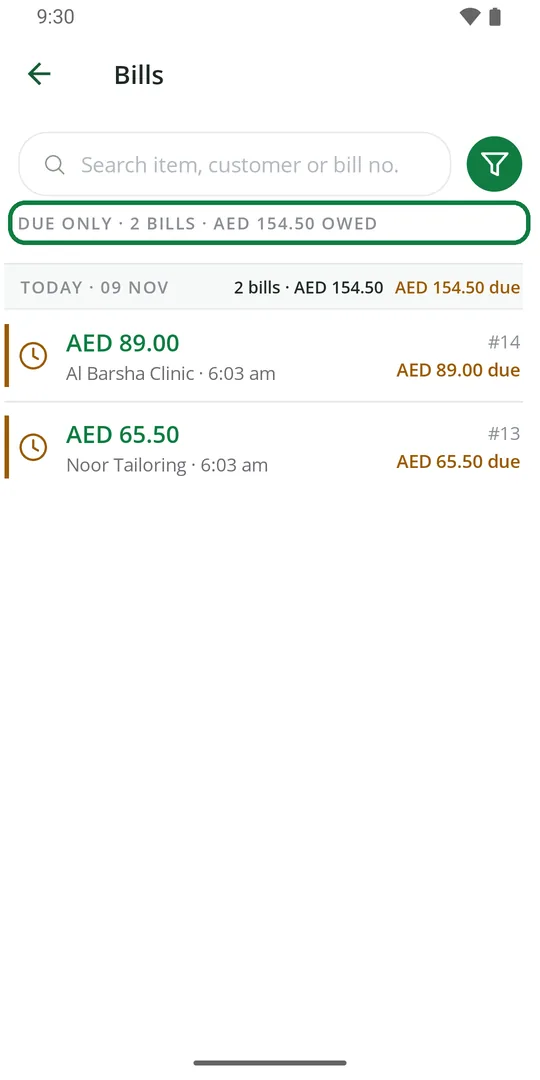
3The list shows only those bills
Send a bill to the customer
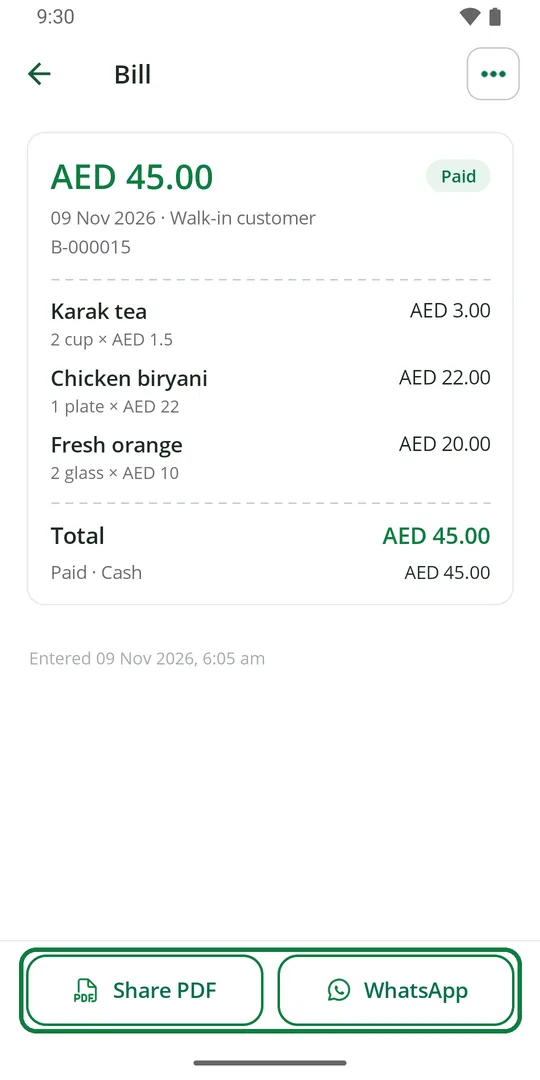
1Open the bill. Tap WhatsApp to send the bill as a message, or Share PDF to send it as a file
The WhatsApp message lists the items and the total, with a link to the bill.
Change a saved bill
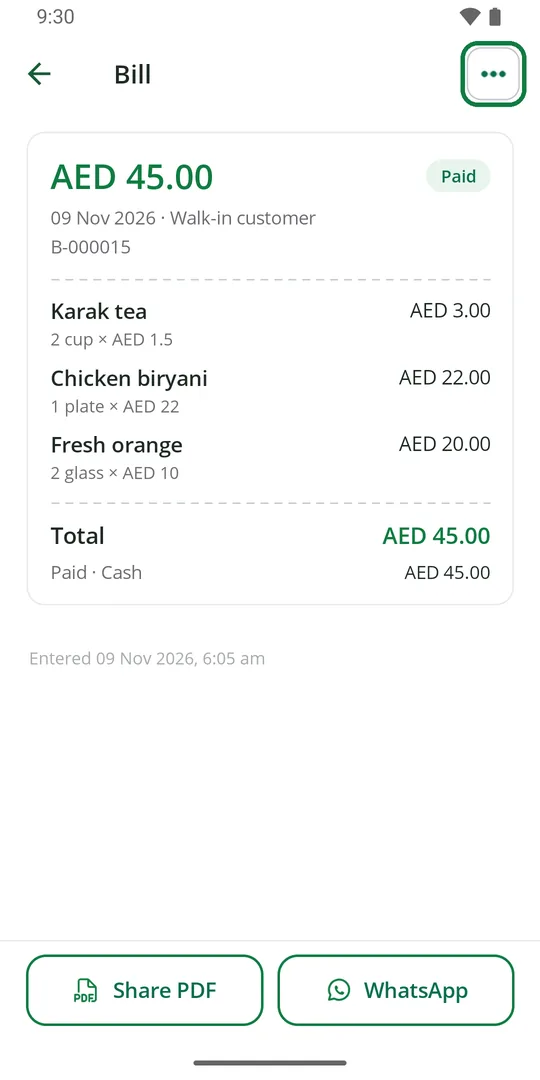
1Open the bill and tap ••• 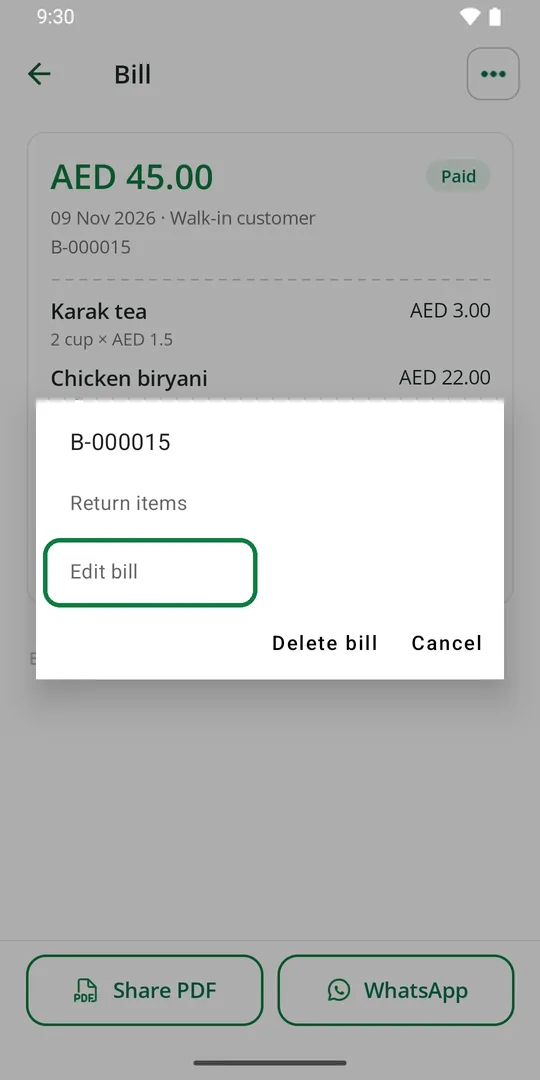
2Tap Edit bill 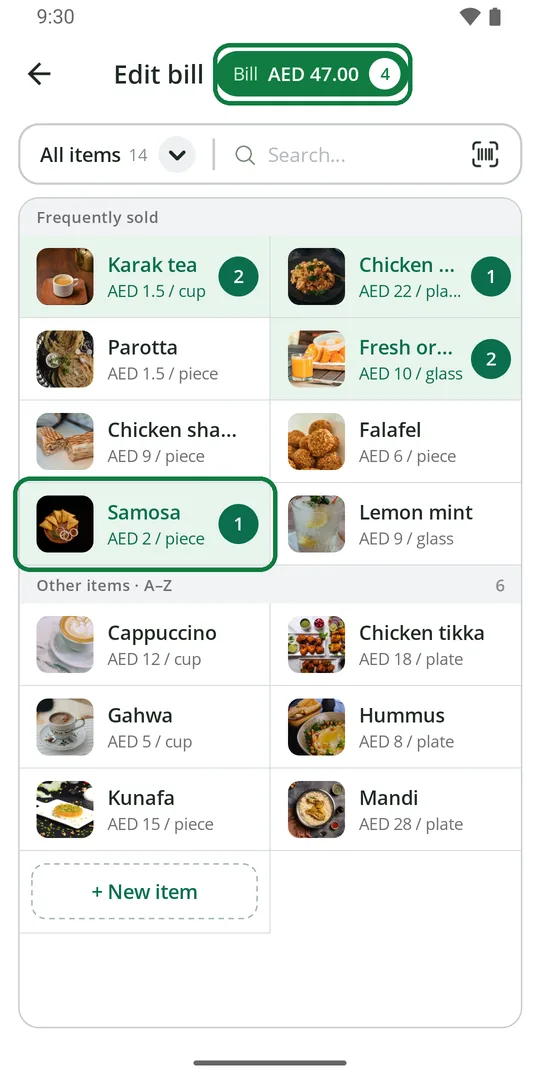
3Add or remove items 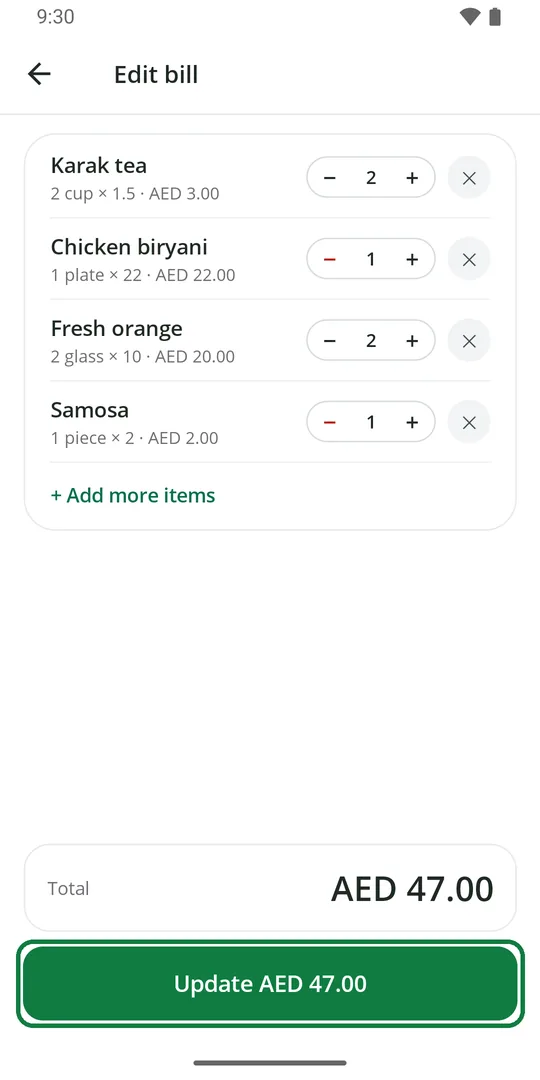
4Tap Update 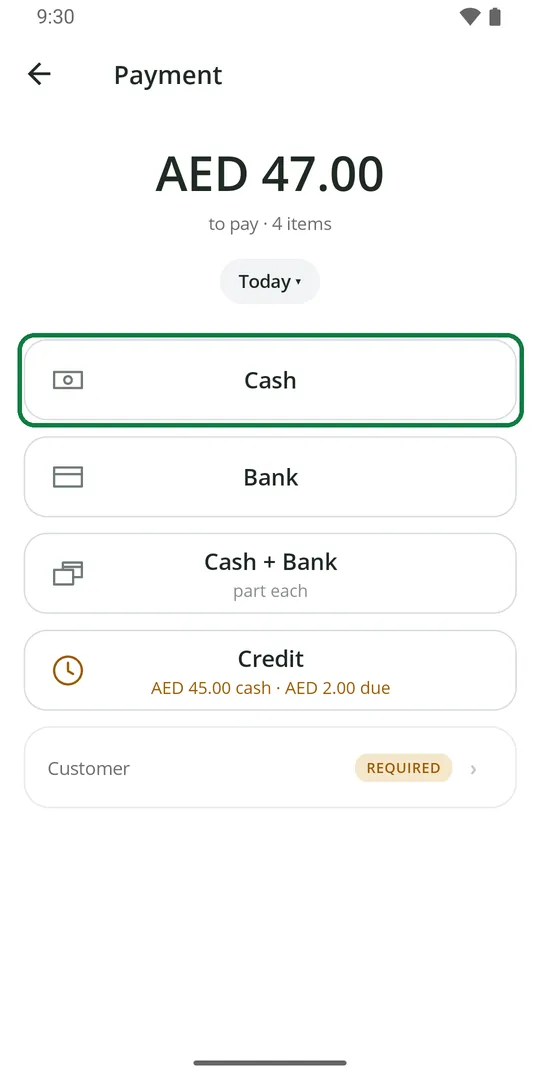
5Tap Cash or Bank 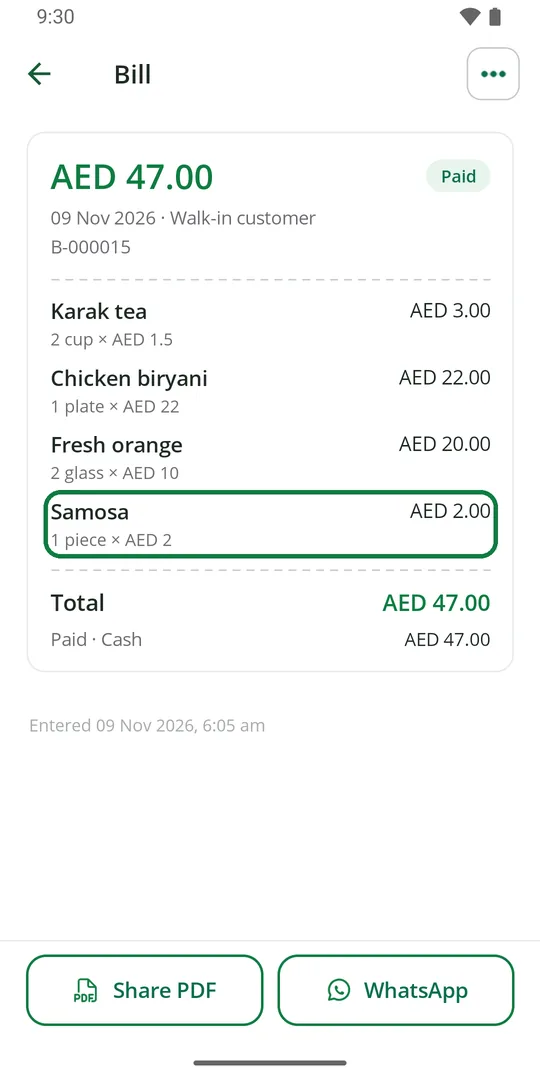
6The bill is changed. The Ledger changes with it
Take items back
1Open the bill and tap ••• 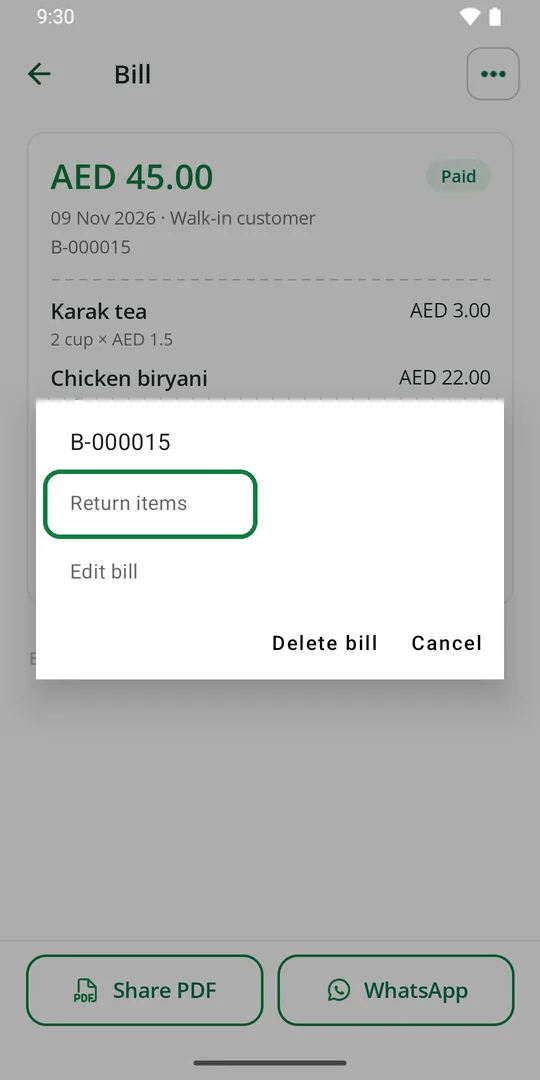
2Tap Return items 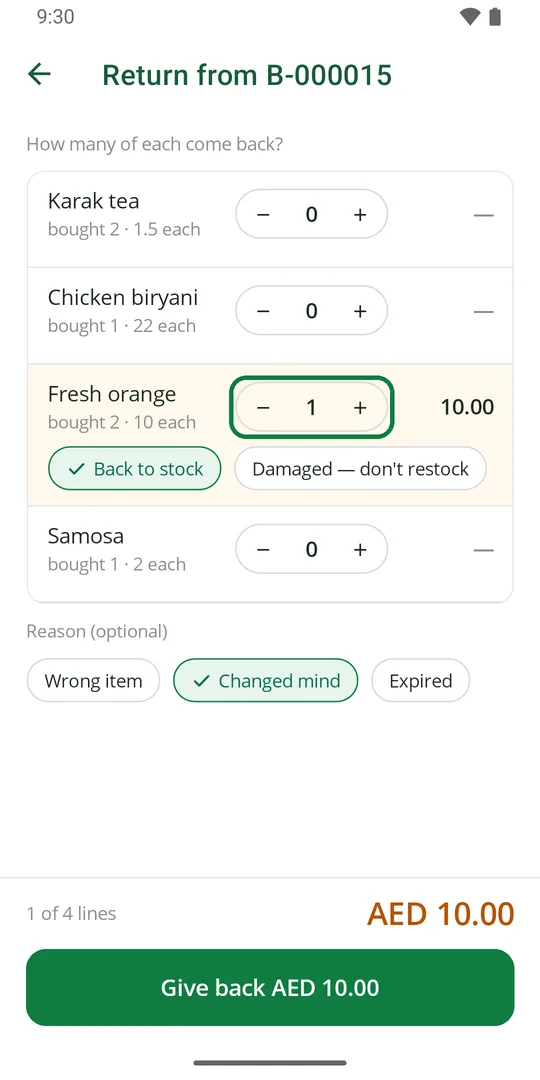
3Tap + for each item that comes back 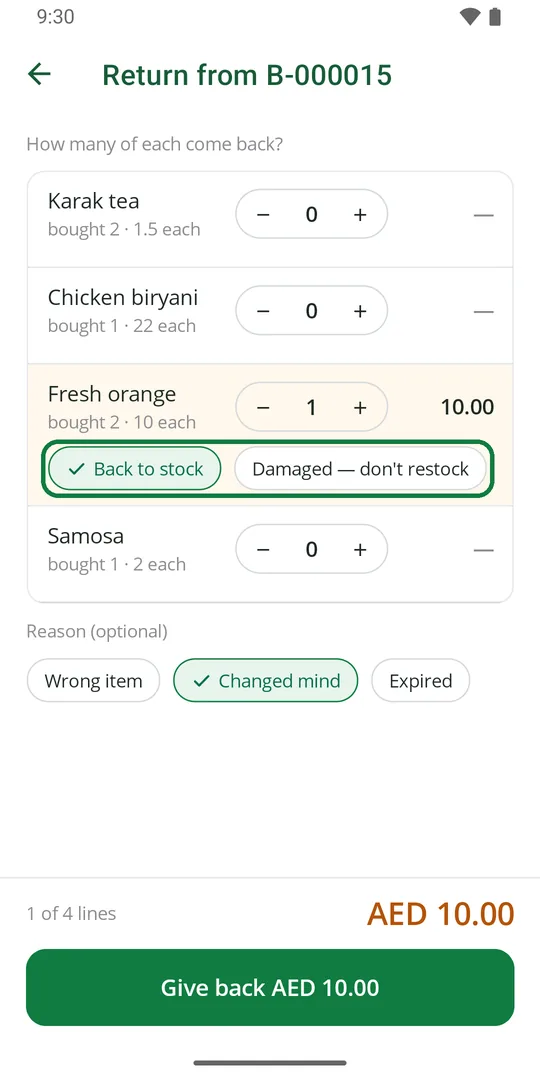
4Damaged? Tap Damaged so it does not go back in stock 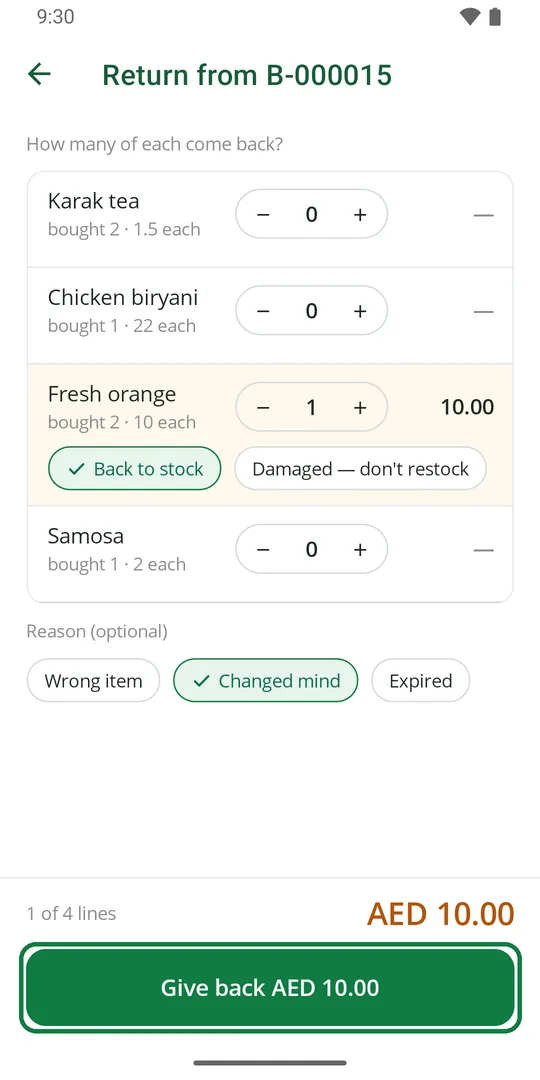
5Tap Give back 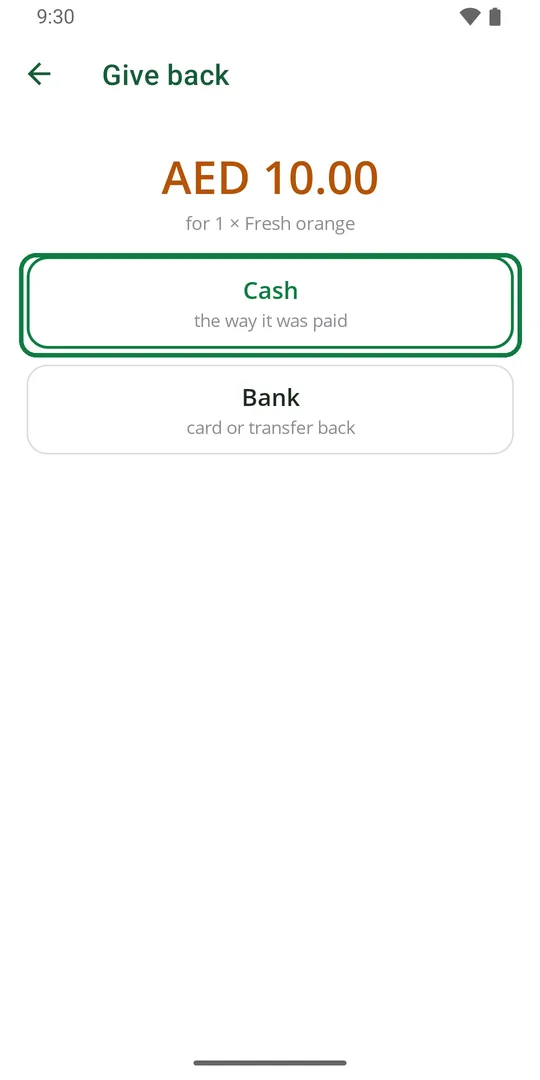
6Tap how you gave the money back 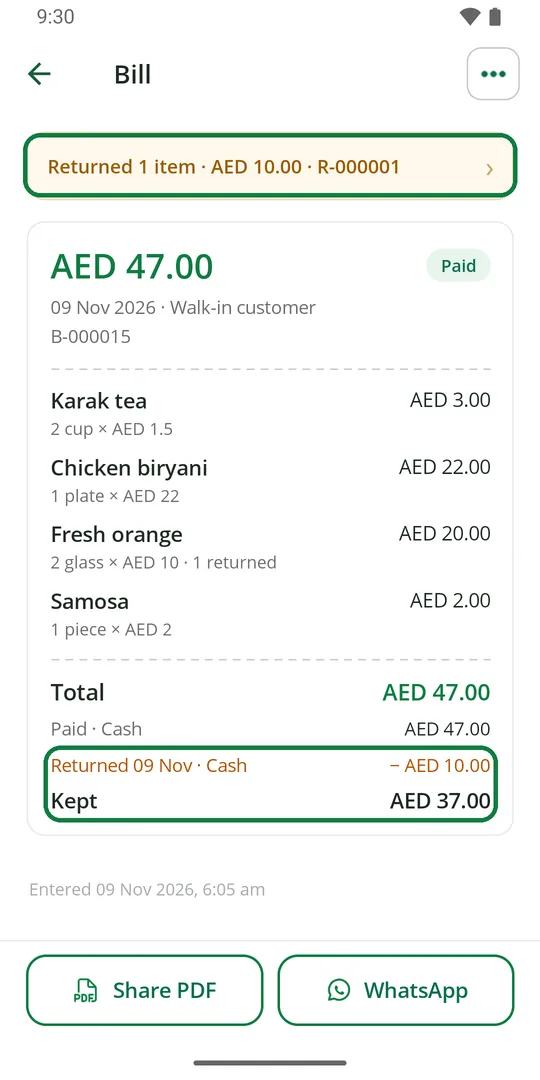
7The bill shows the return and what was kept
Delete a bill
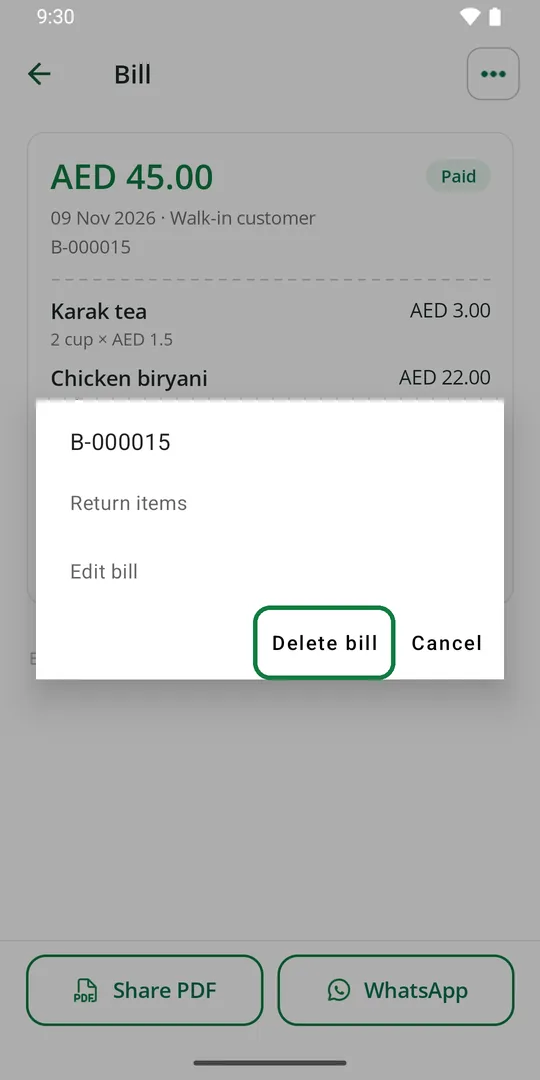
1Open the bill, tap •••, then Delete bill 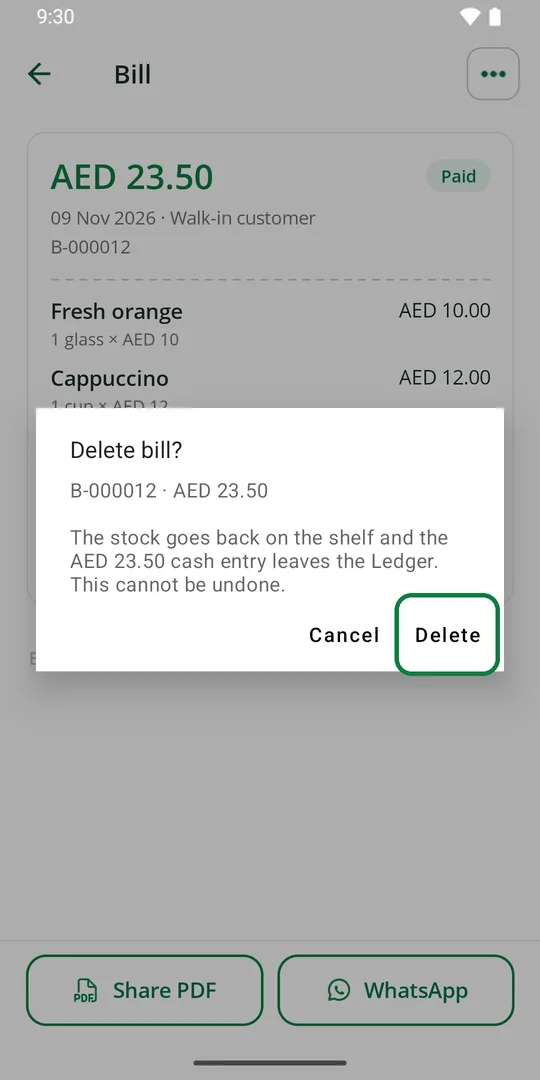
2Tap Delete
The items go back in stock and the money leaves the Ledger. This cannot be undone.