
Staff
Add a staff member
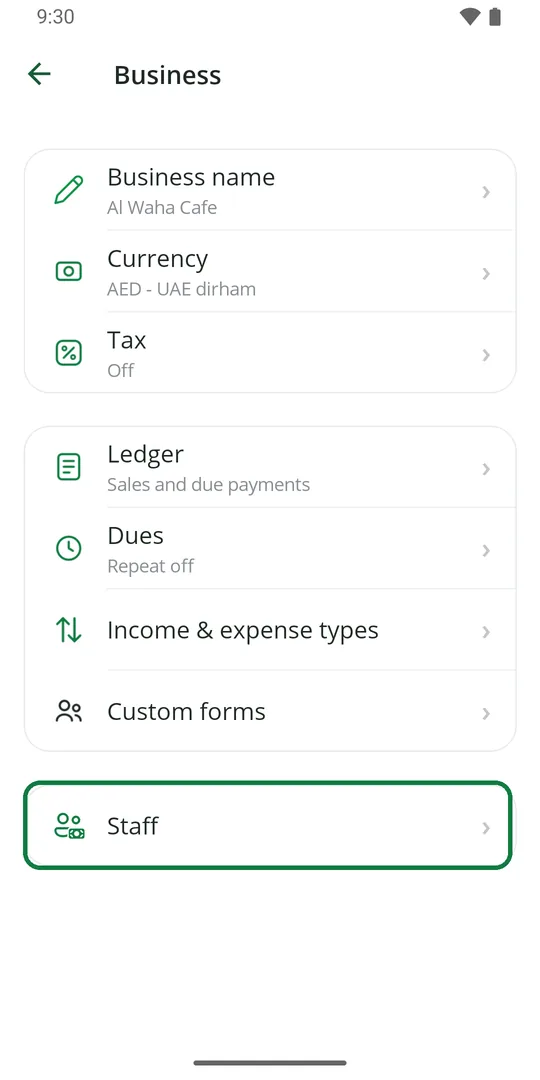
1Tap ☰, Business, then Staff 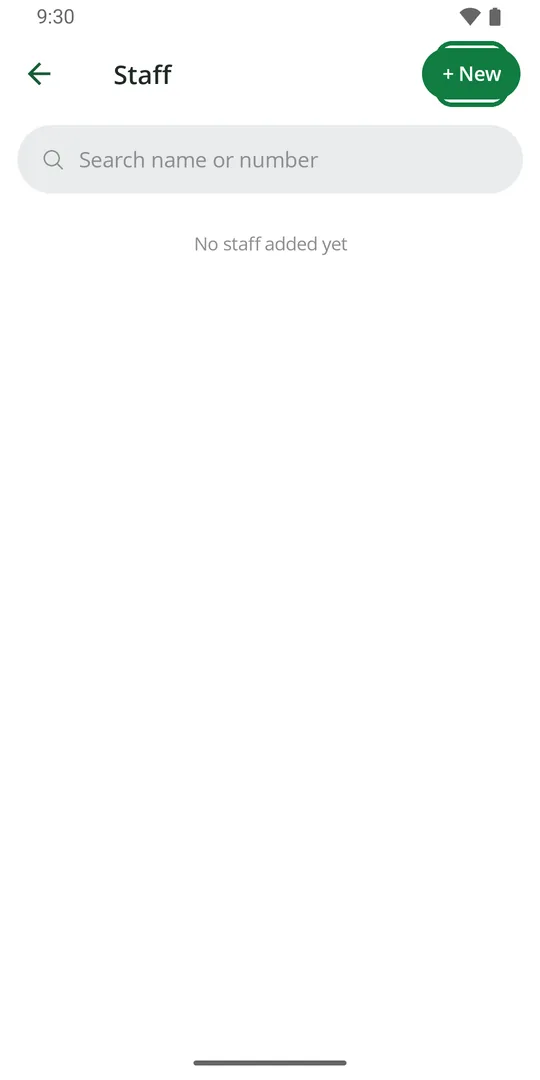
2Tap + New 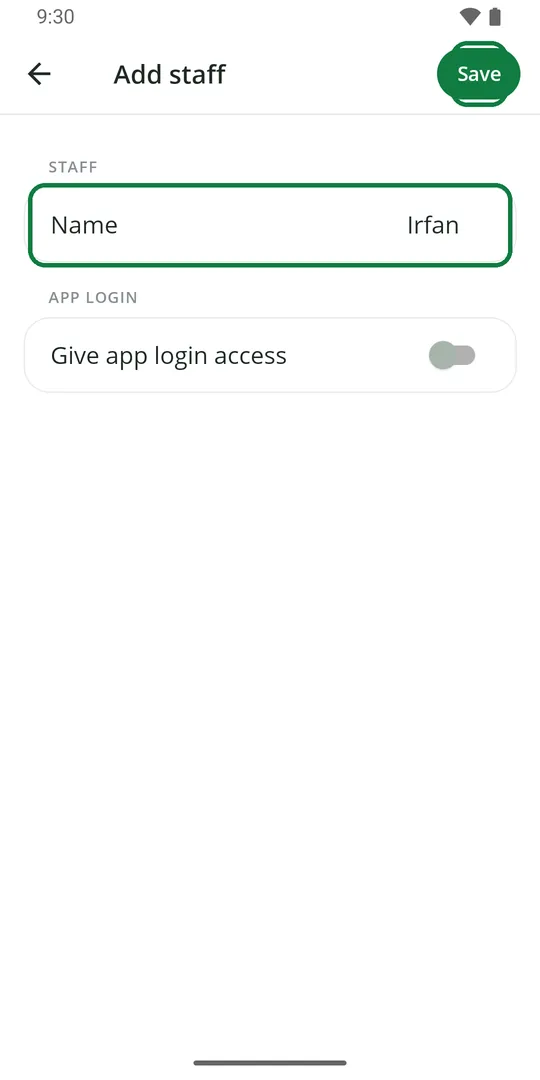
3Type their name and tap Save 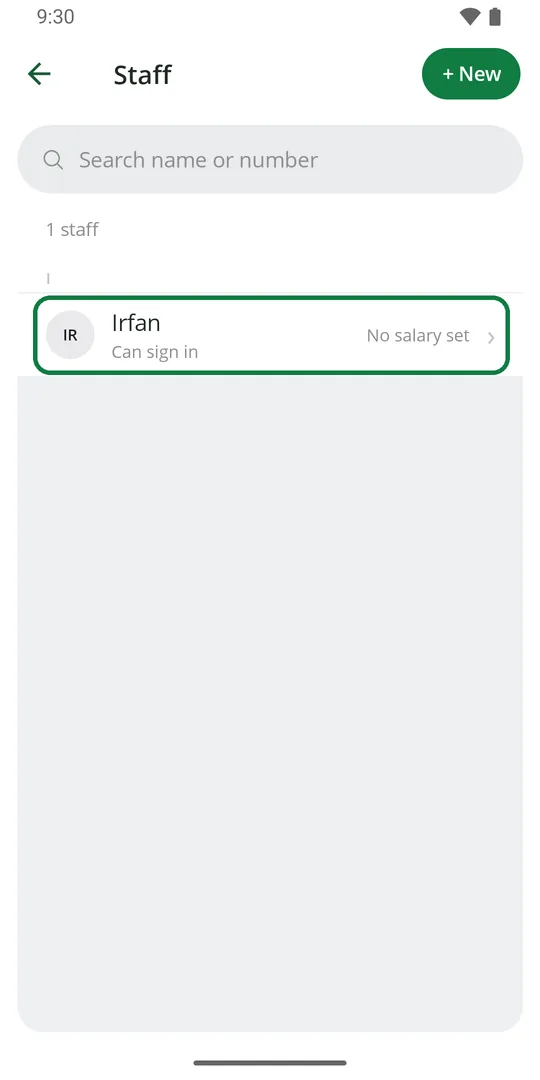
4They are in the list. Tap the name to open it
Set a monthly salary
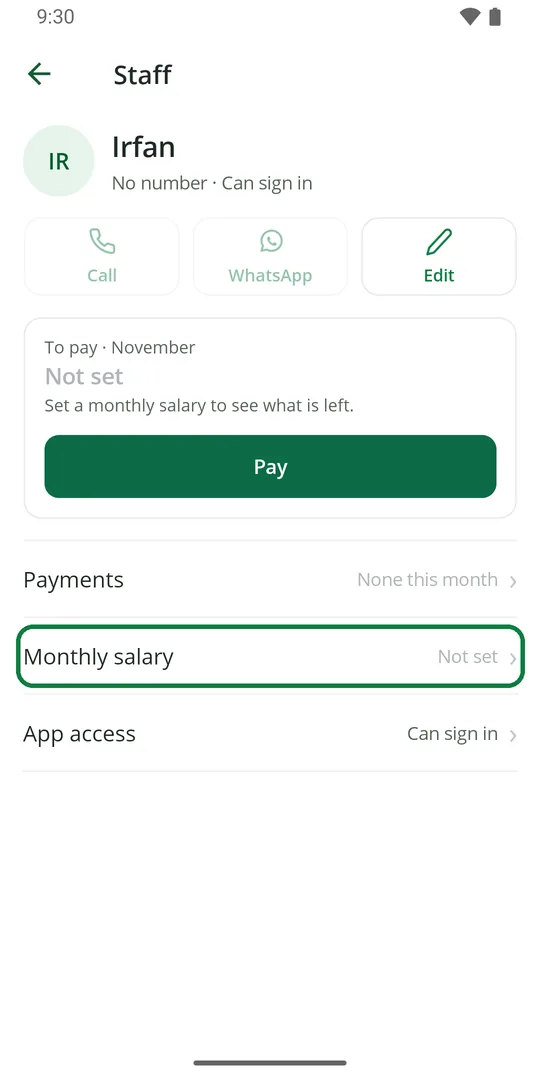
1Open the staff member and tap Monthly salary 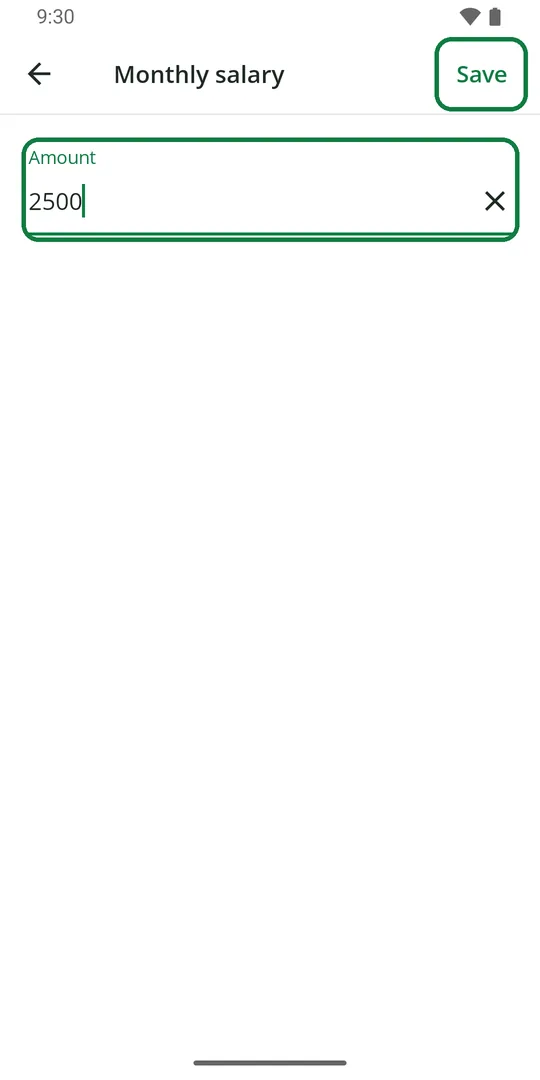
2Type the salary and tap Save 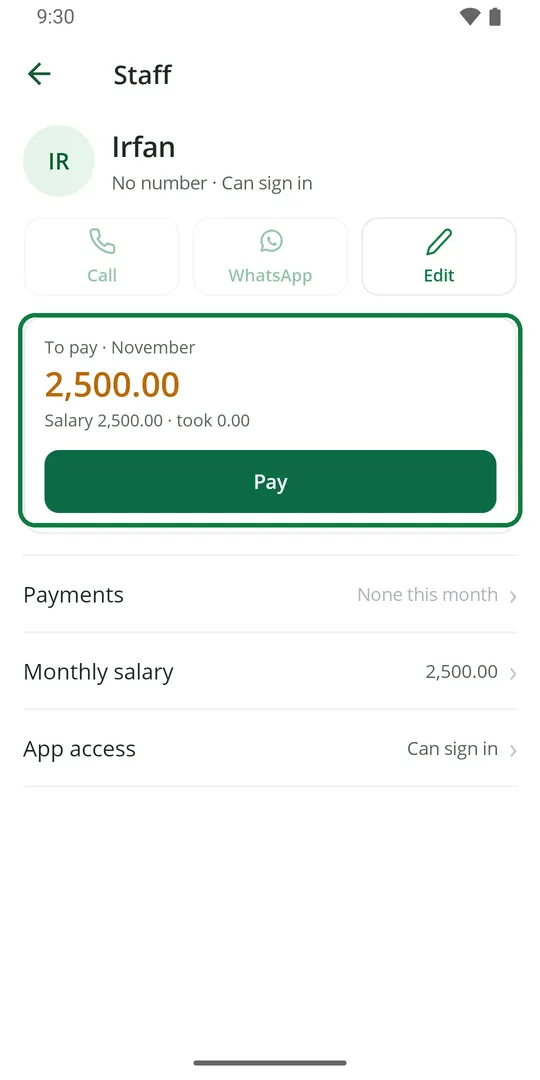
3The top shows what is left to pay this month
Give an advance
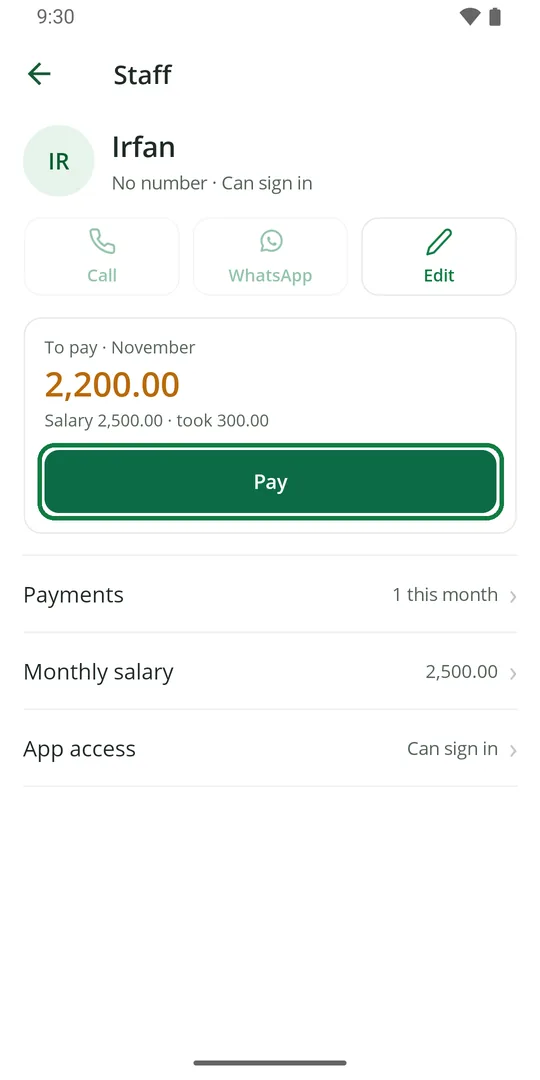
1Open the staff member and tap Pay 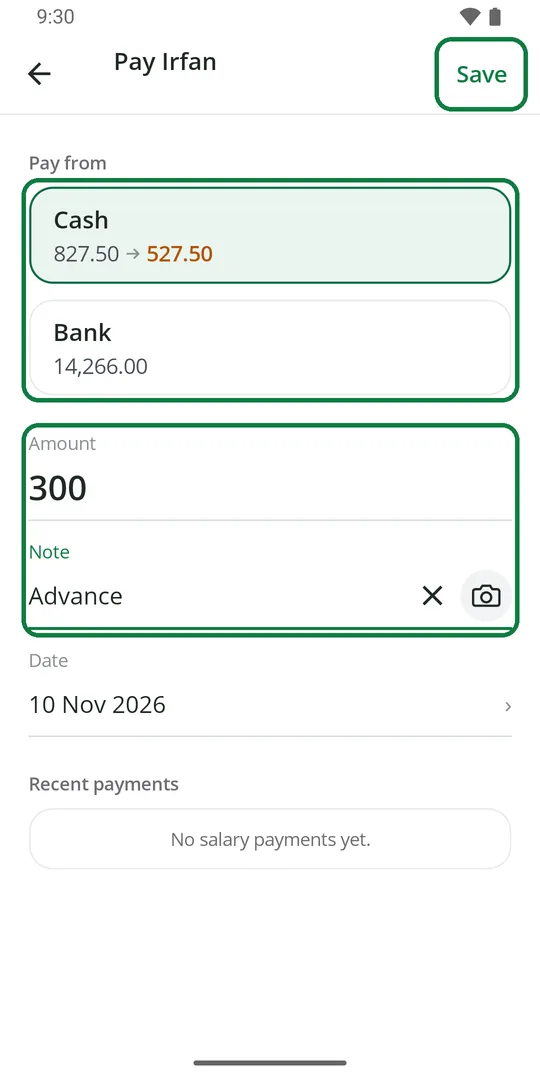
2Pick Cash or Bank, type the amount and a note like Advance. Tap Save 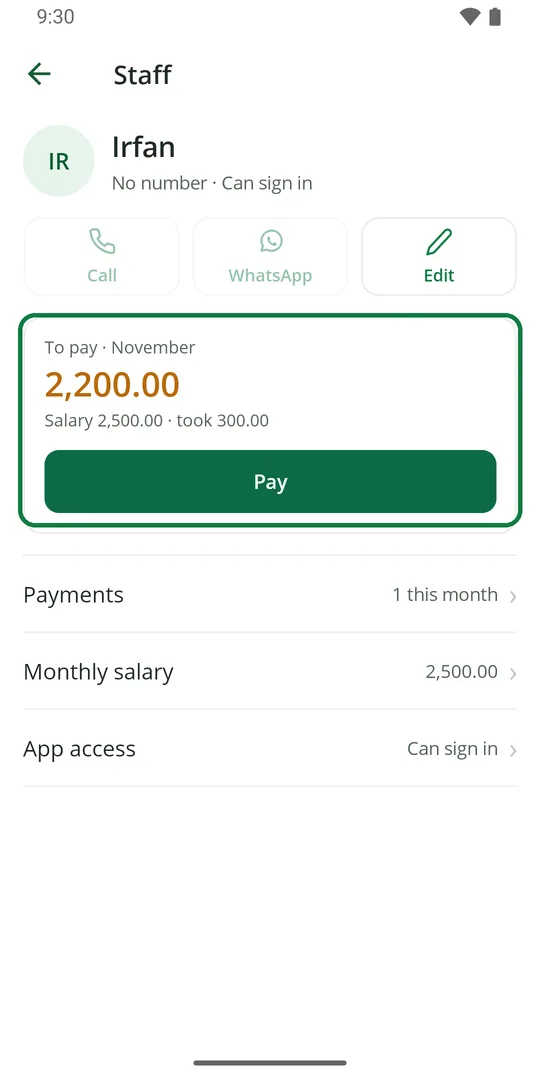
3What is left to pay goes down 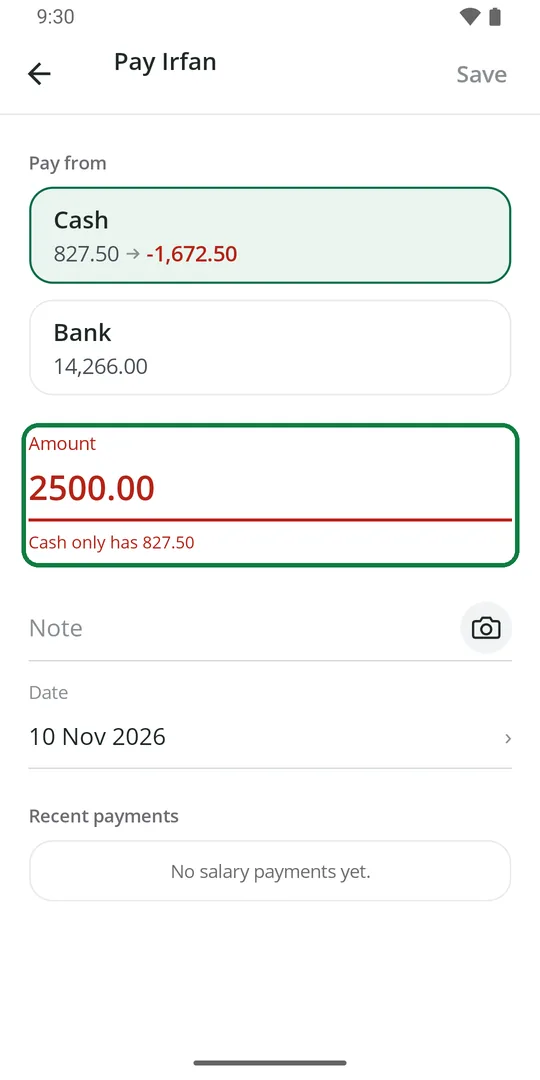
4Not enough cash in the drawer? The amount turns red. Pick Bank or pay less
Pay the salary
1Open the staff member and tap Pay 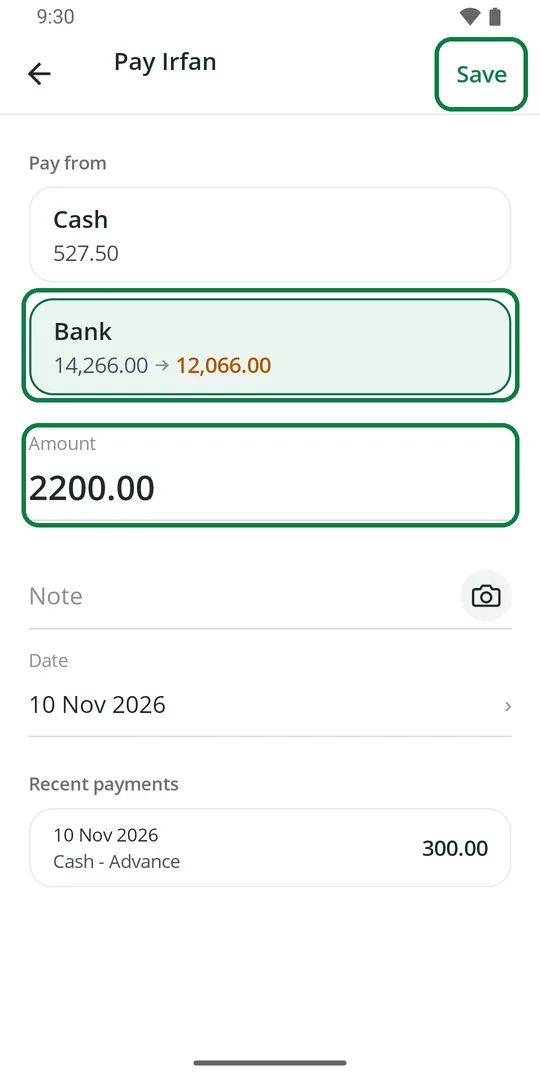
2What is left is filled in. Pick Cash or Bank and tap Save 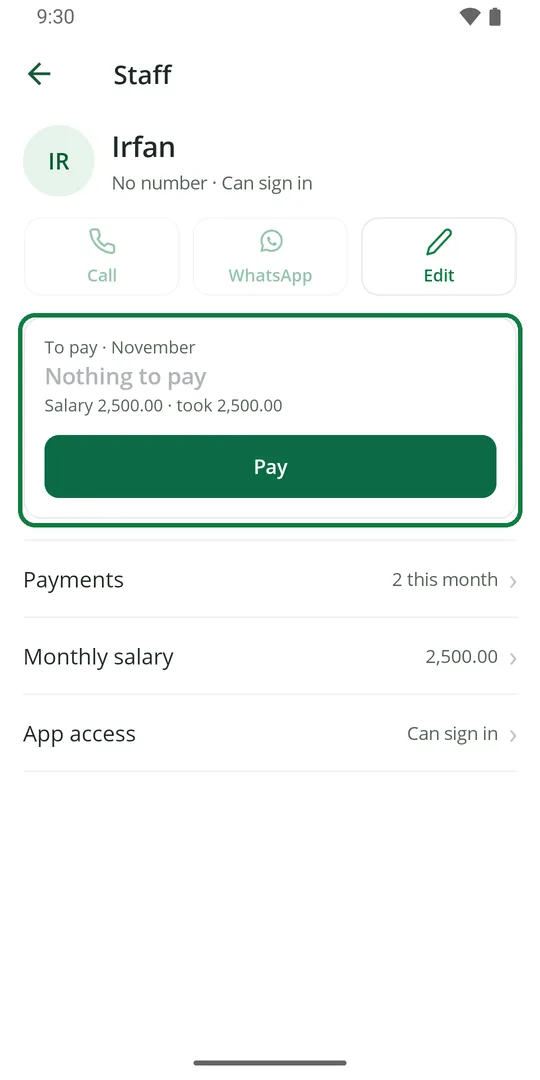
3Nothing is left to pay this month
Every payment goes into the Ledger as staff pay.
See what you paid a staff member
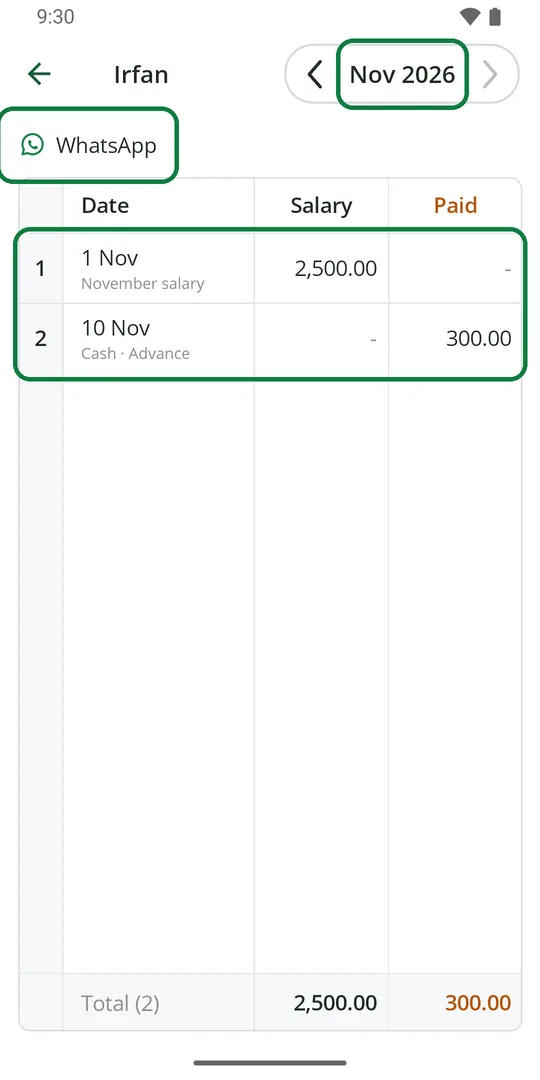
1Open the staff member and tap Payments. Tap the month to see another one. WhatsApp sends them the list
Let a staff member use the app
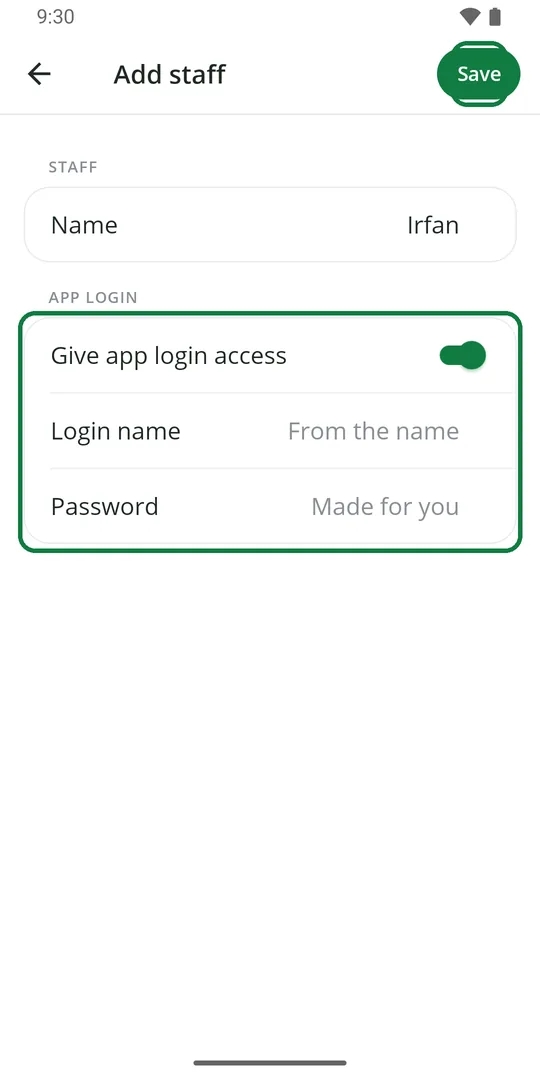
1When adding them, switch on Give app login access. The login name and password are made for you 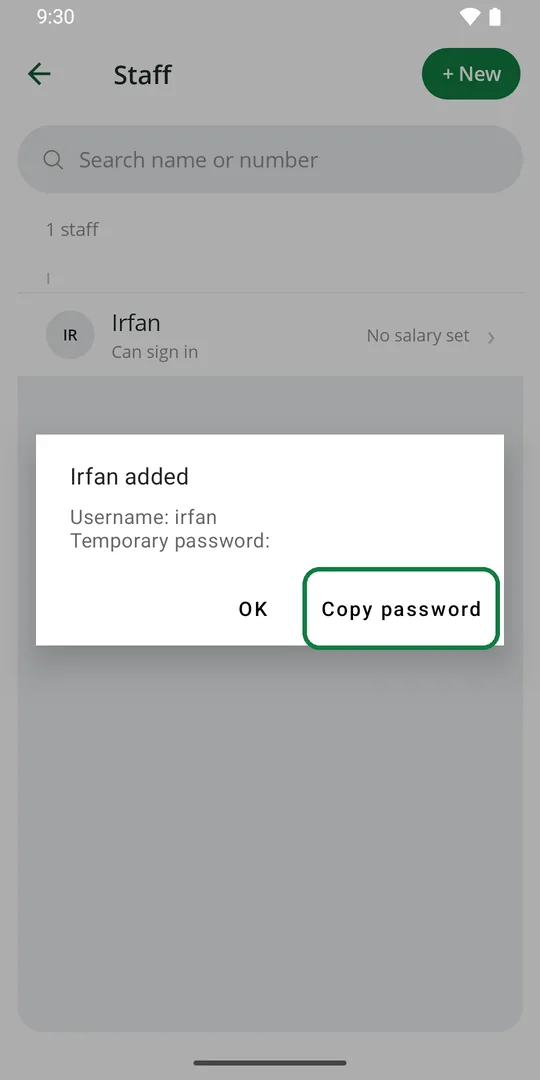
2Tap Copy password and give them the username and password 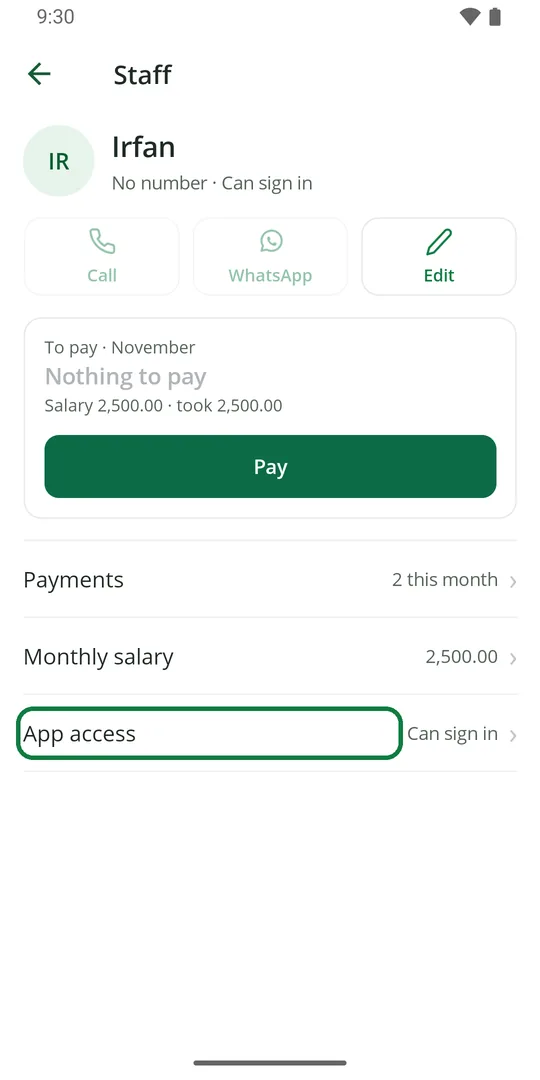
3Already added? Open them and tap App access 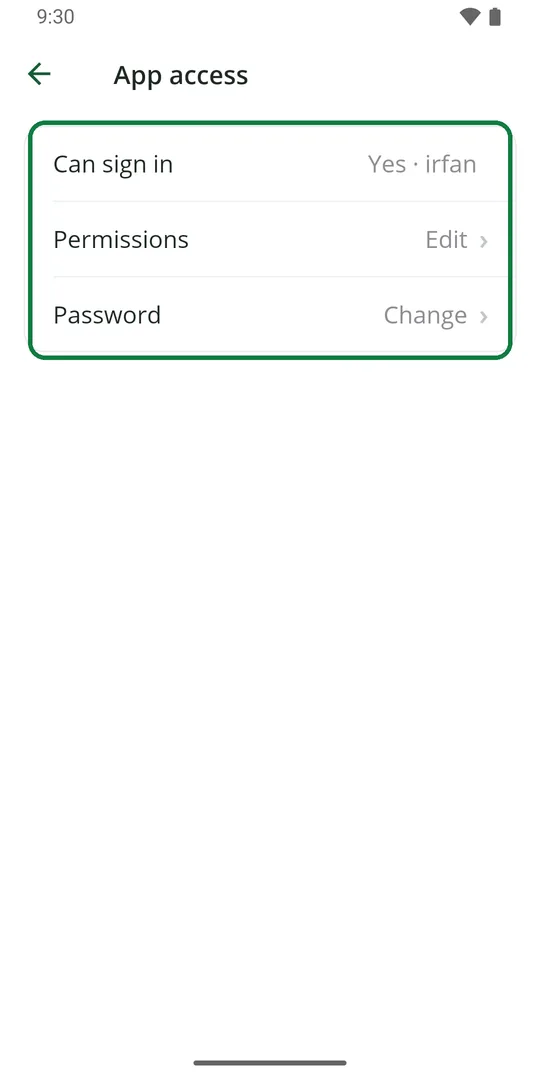
4Here you see their login name, and change their permissions or password
Choose what a staff member can do
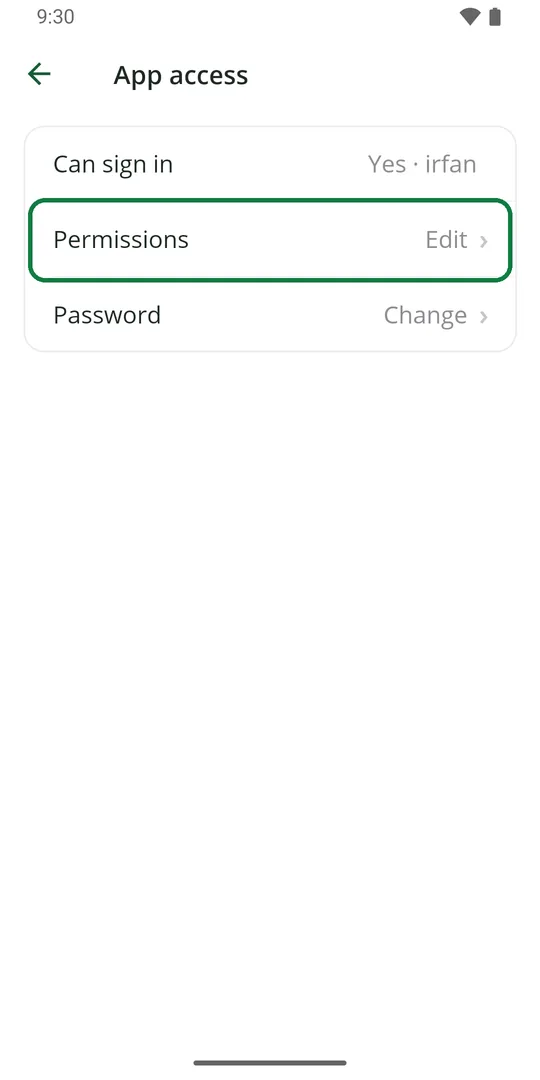
1In App access, tap Permissions 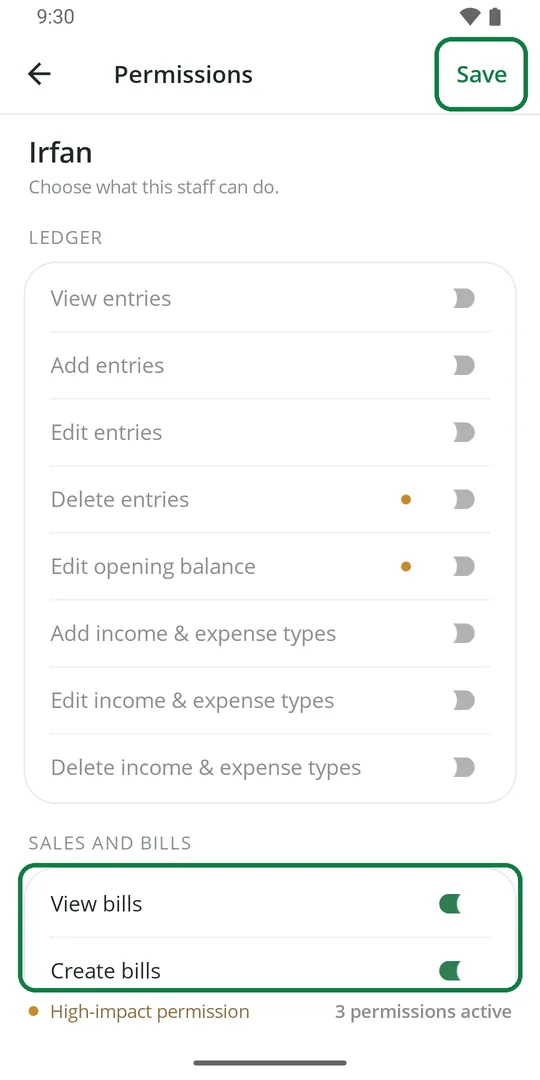
2Switch on what they may do, like View bills and Create bills. Tap Save
A new login can do nothing until you switch something on. An orange dot marks a switch that can change or delete money.
Make a staff member a waiter
1Open the staff member, tap App access, then Permissions 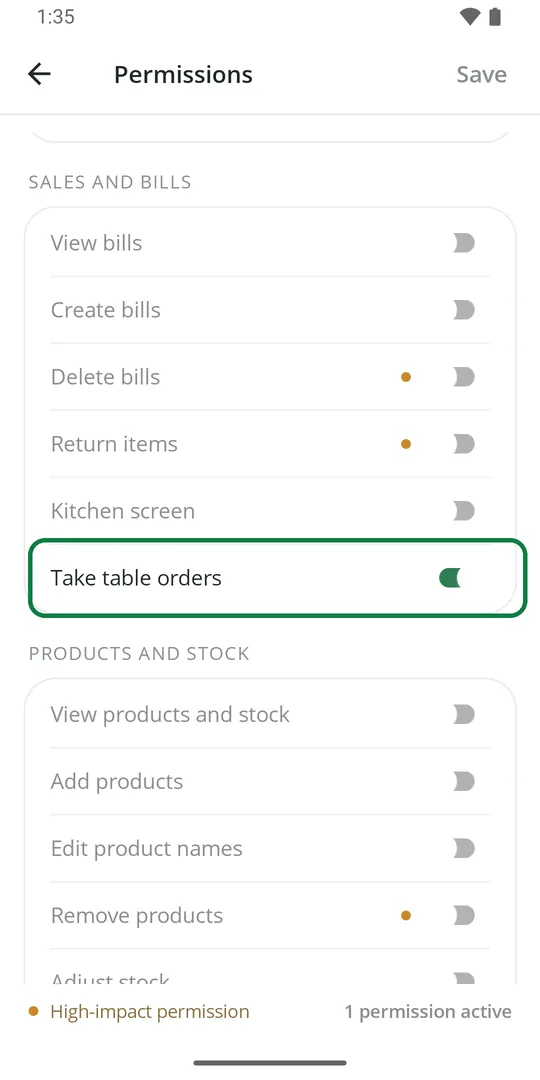
2Switch on Take table orders and tap Save
Their phone opens on Tables, to send orders to the kitchen. Only in shops with QR orders.
Change a staff member's password
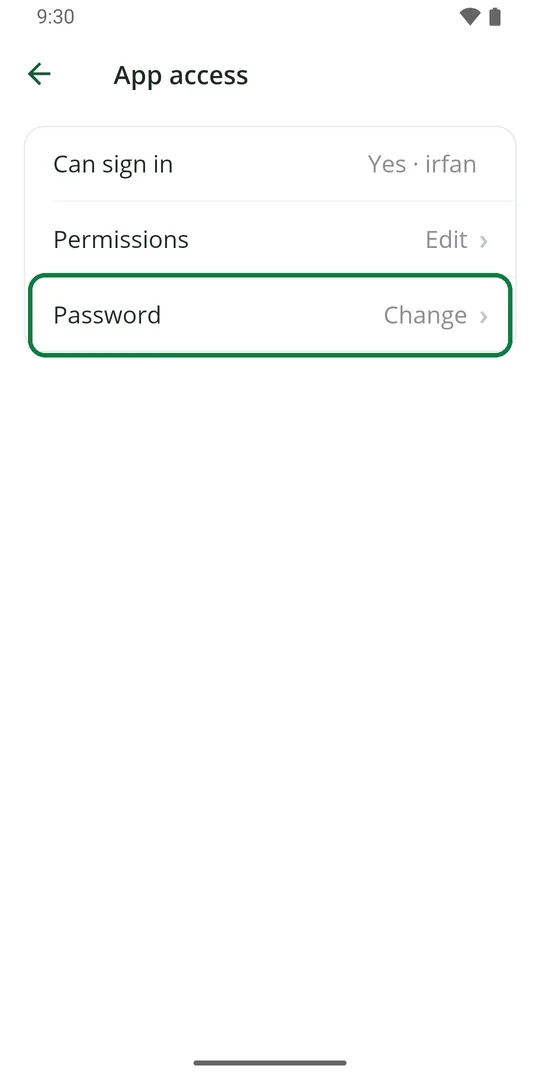
1In App access, tap Password
Change a name or number
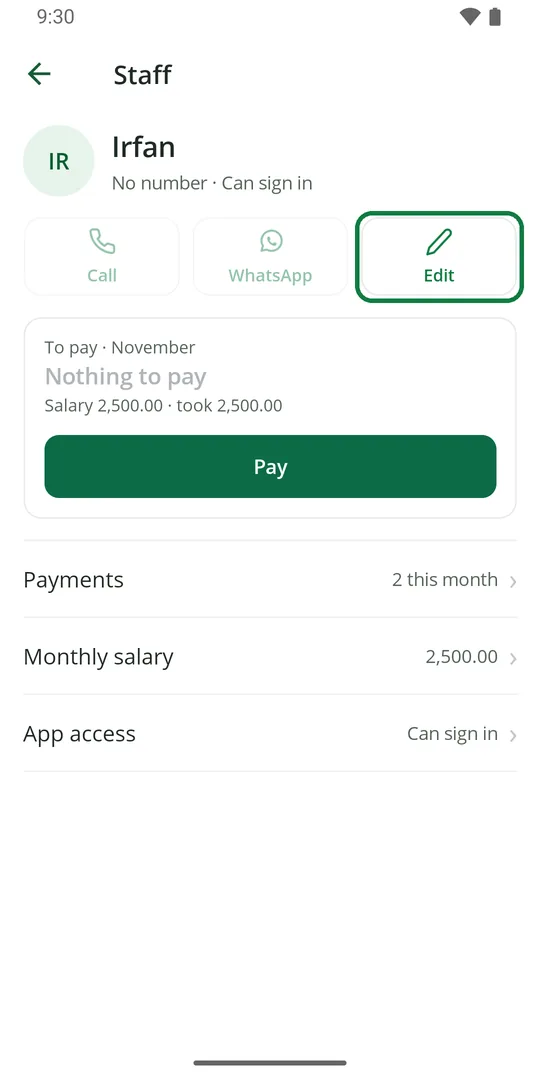
1Open the staff member and tap Edit 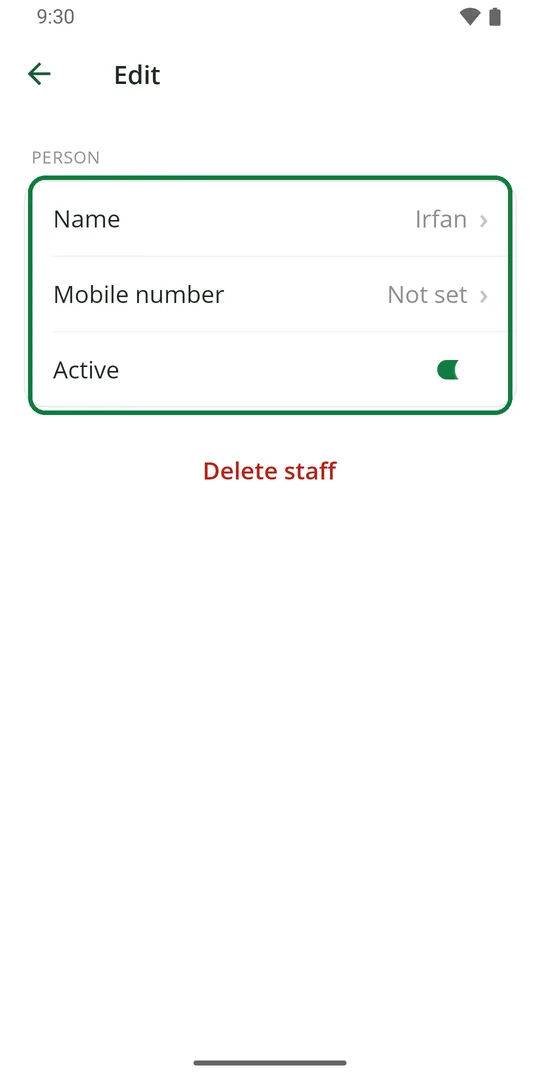
2Tap Name or Mobile number to change it
Someone left? Switch off Active here instead of deleting them. Their payments stay.
Delete a staff member
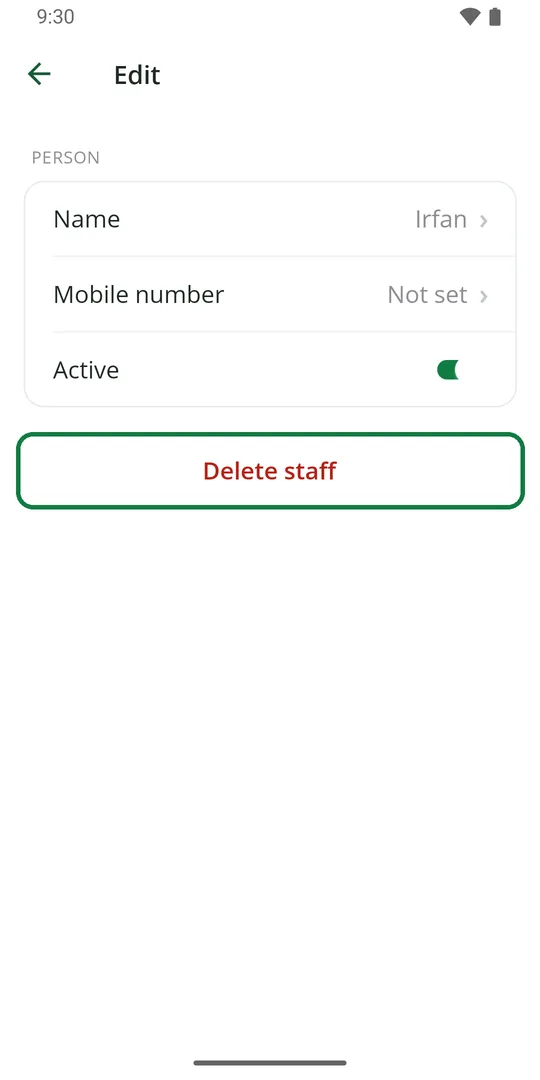
1Open the staff member, tap Edit, then Delete staff 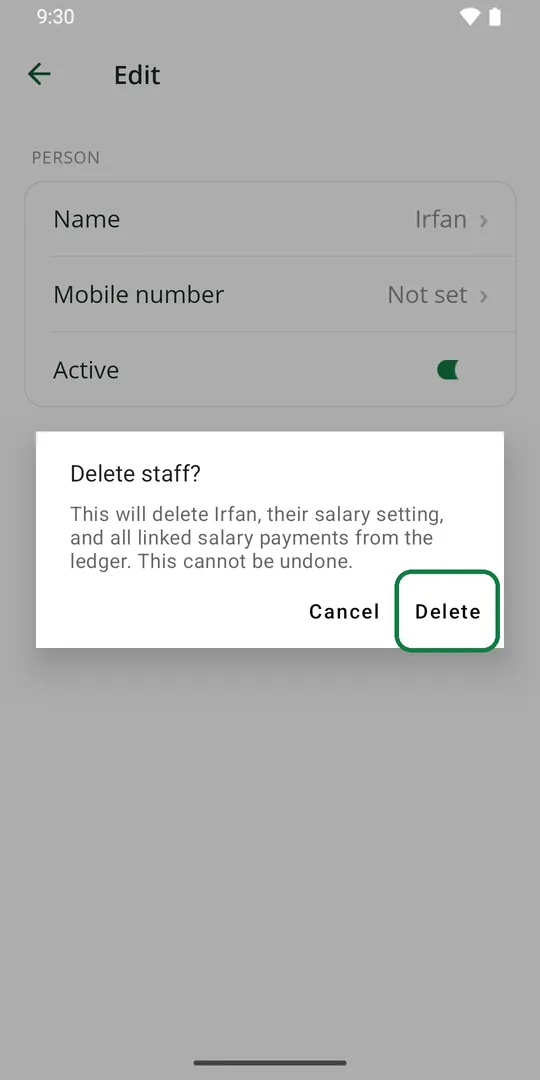
2Tap Delete
Careful: this also removes all their salary payments from the Ledger. It cannot be undone.