
Ledger
Set your opening cash and bank
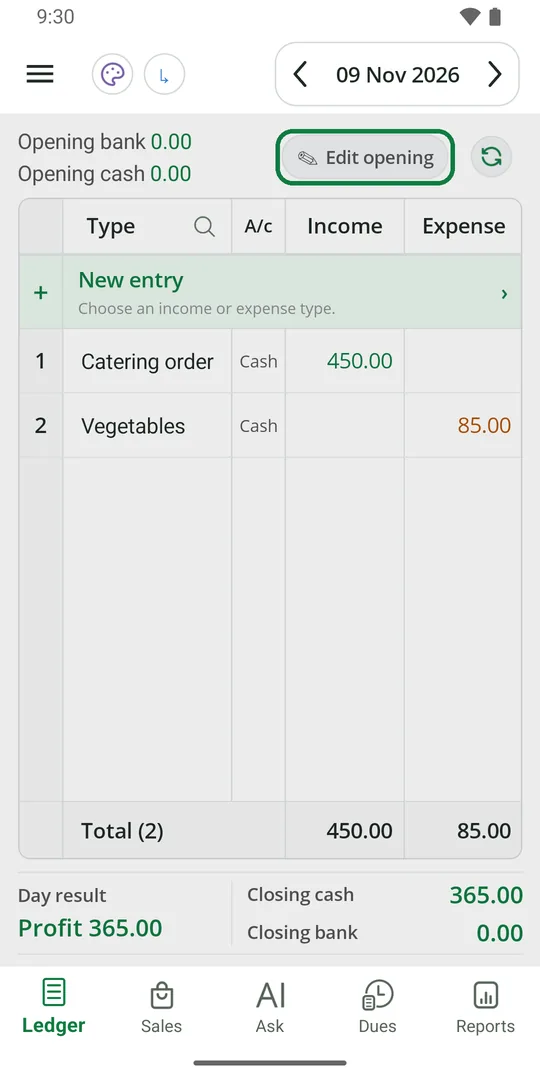
1On the Ledger, tap Edit opening 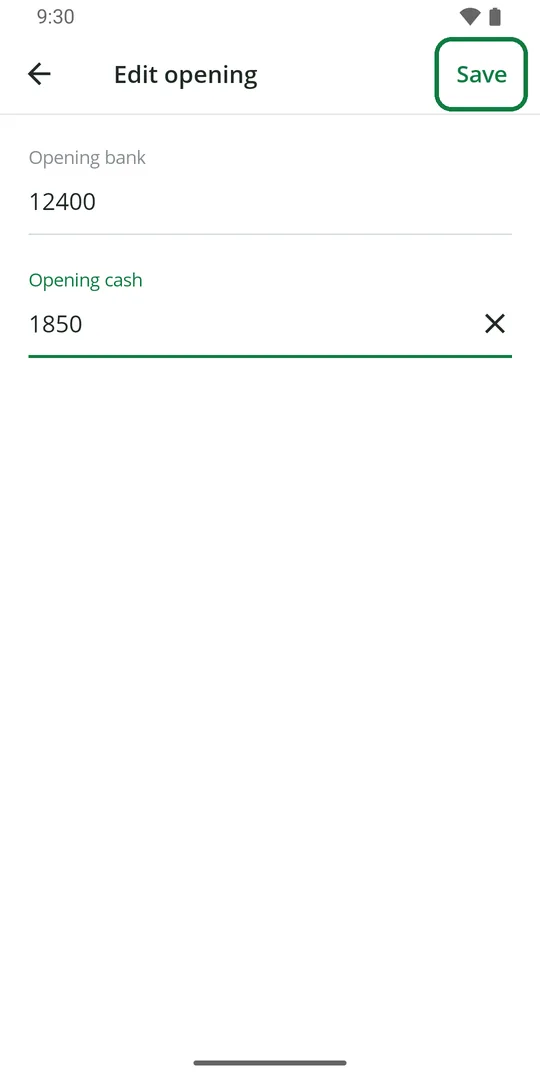
2Type the money in your bank and in your cash box, then tap Save 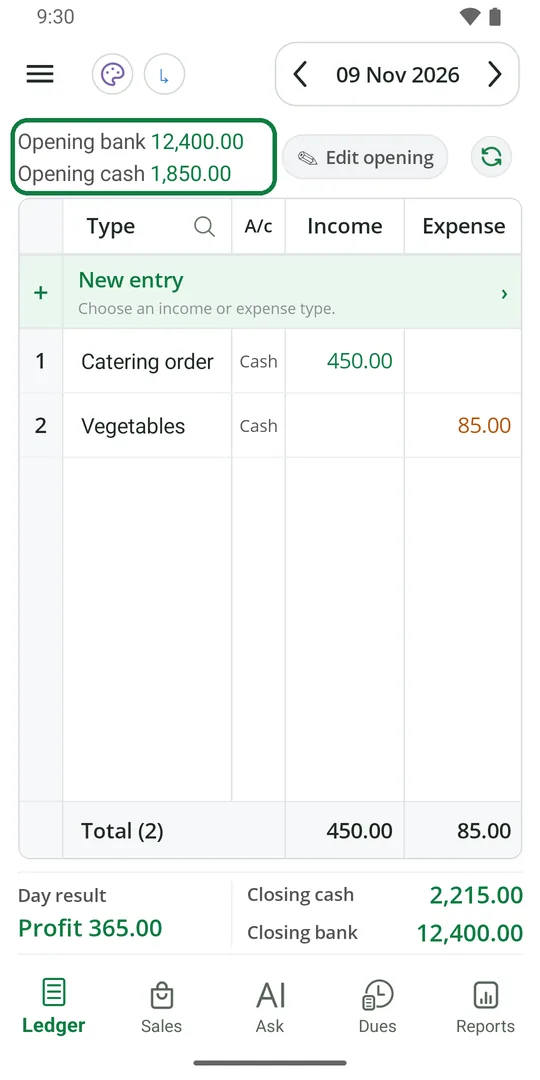
3Your opening cash and bank are set
You do this once, on your first day. After that each day opens with the last day's closing.
Write money you spend
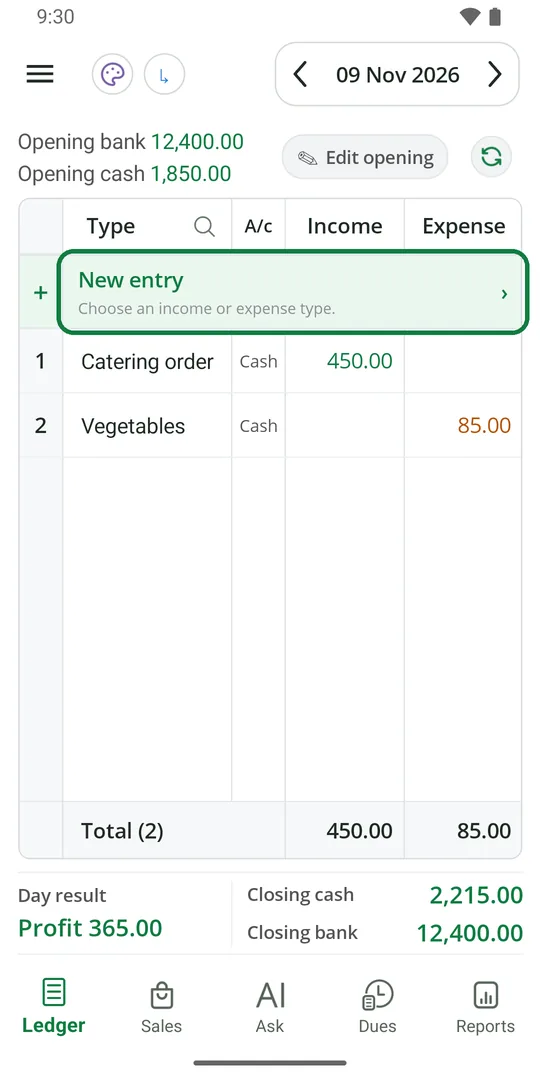
1Tap New entry 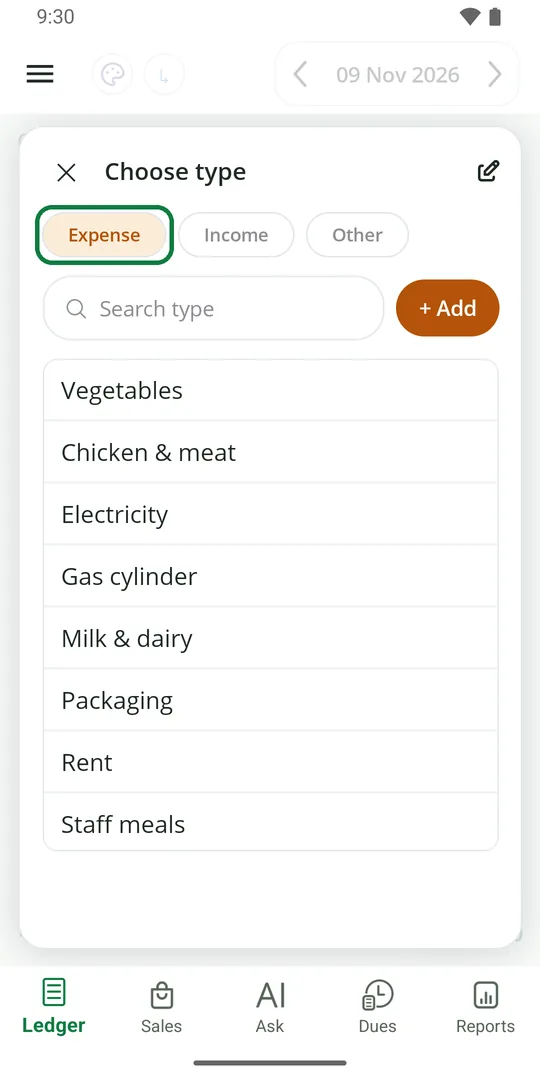
2Tap Expense 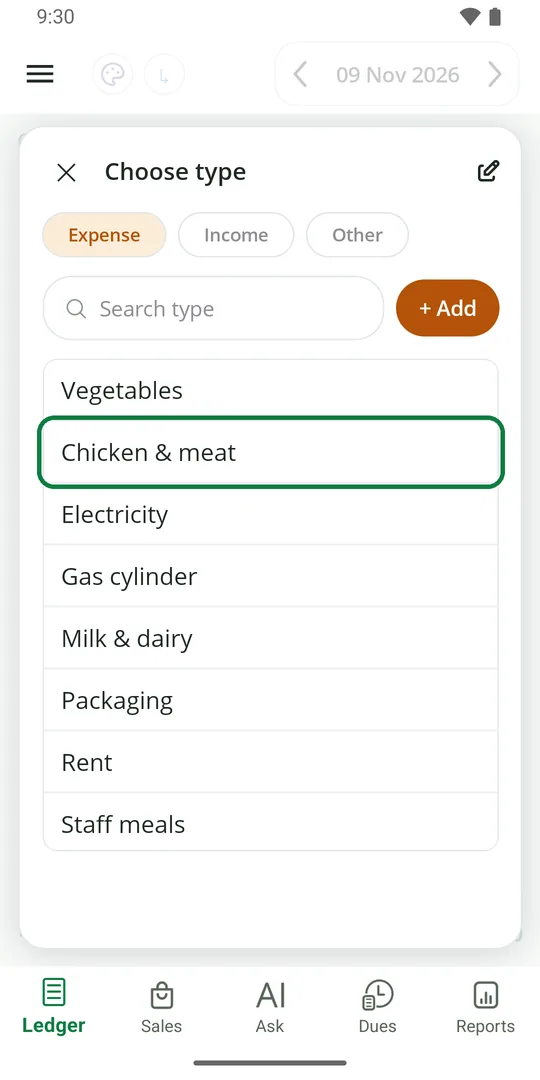
3Tap the type, like Chicken & meat 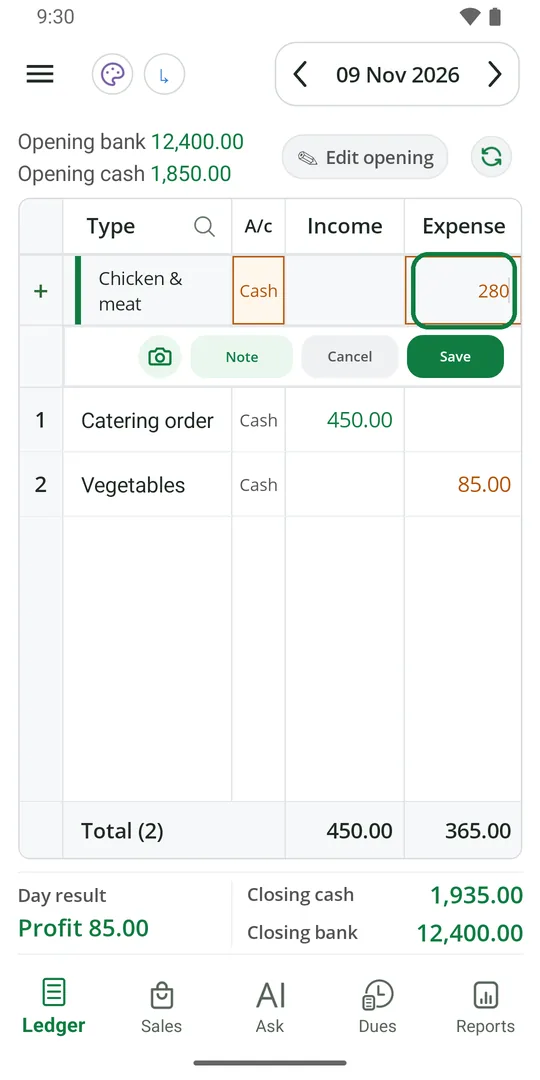
4Type the amount 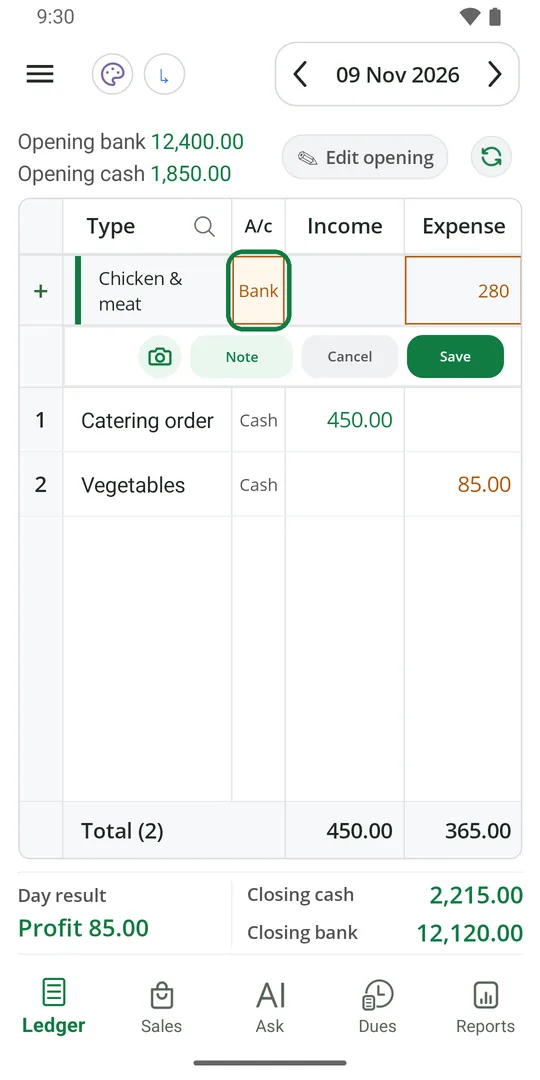
5Paid from the bank? Tap Cash and it changes to Bank 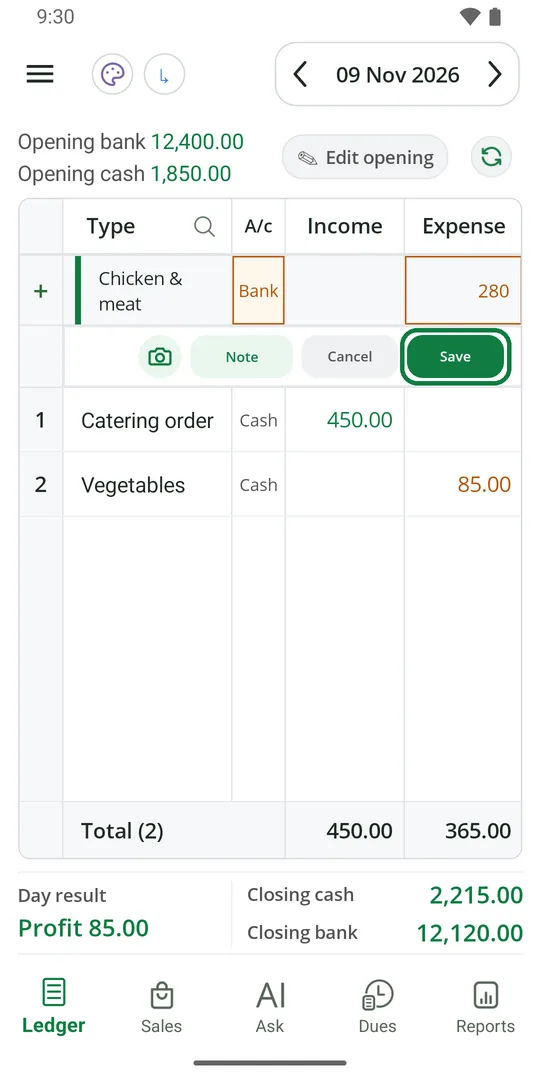
6Tap Save 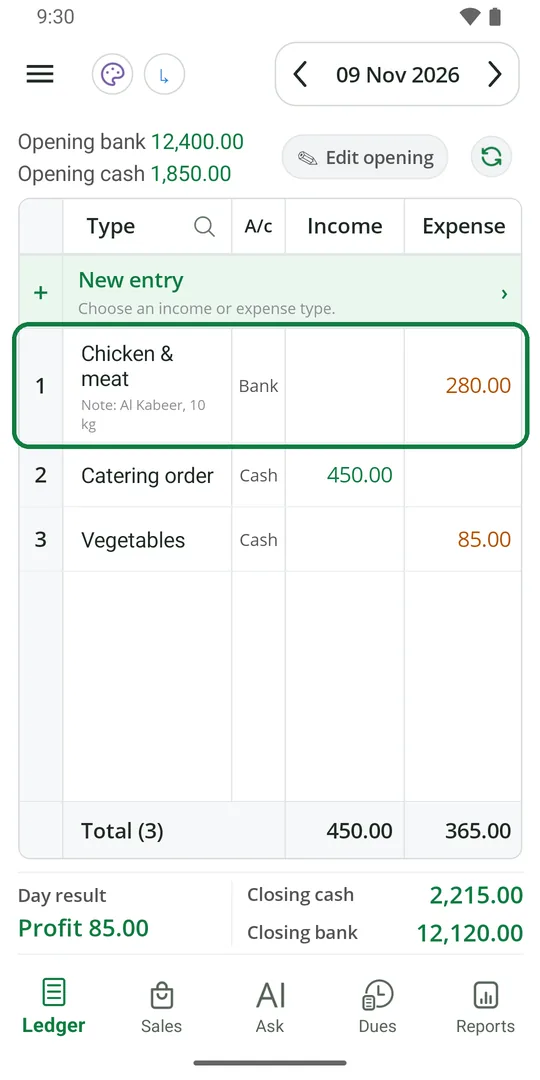
7The entry is in the Ledger
Write money that comes in
1Tap New entry 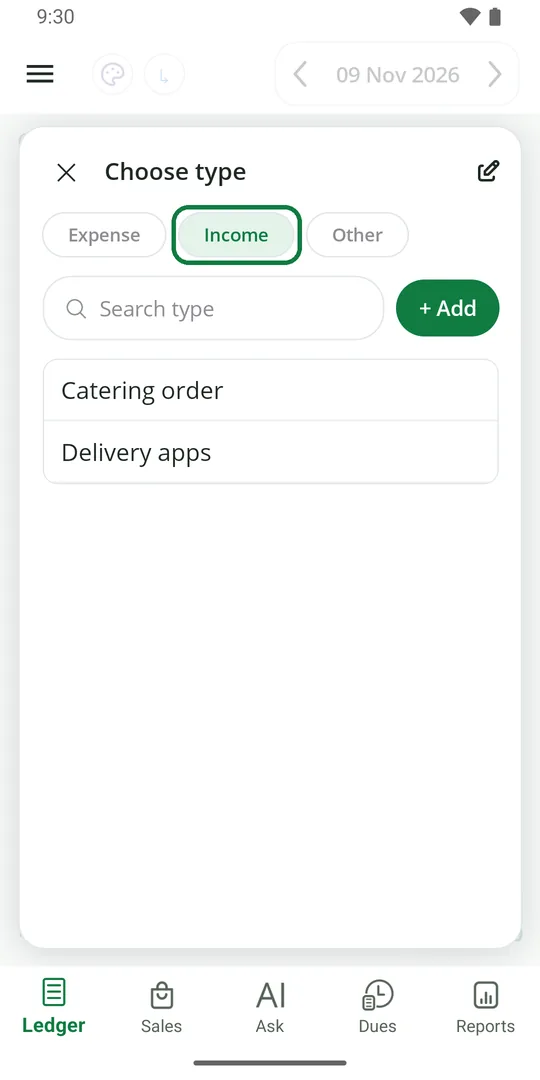
2Tap Income, then tap the type 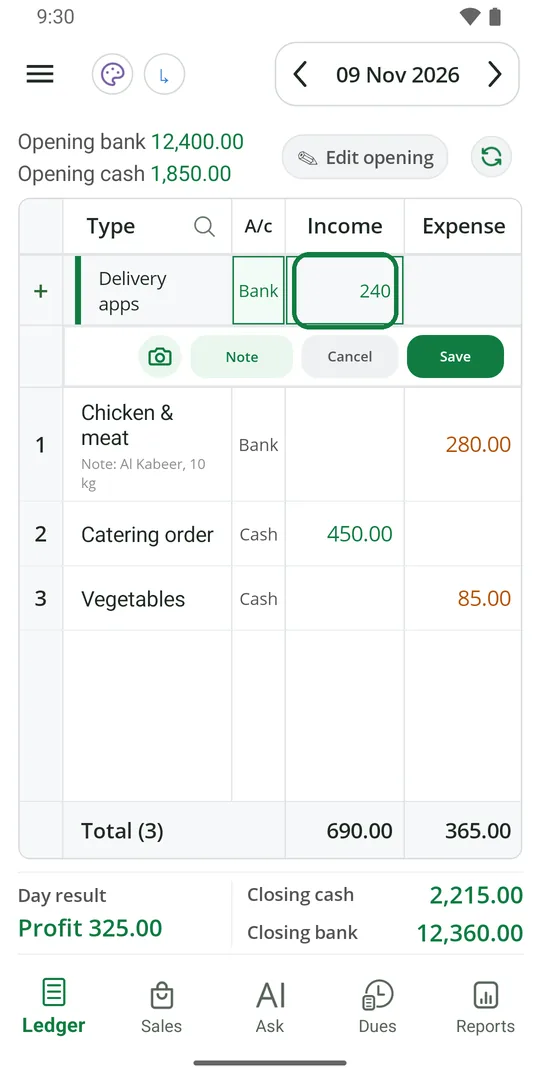
3Type the amount, pick Cash or Bank, and tap Save 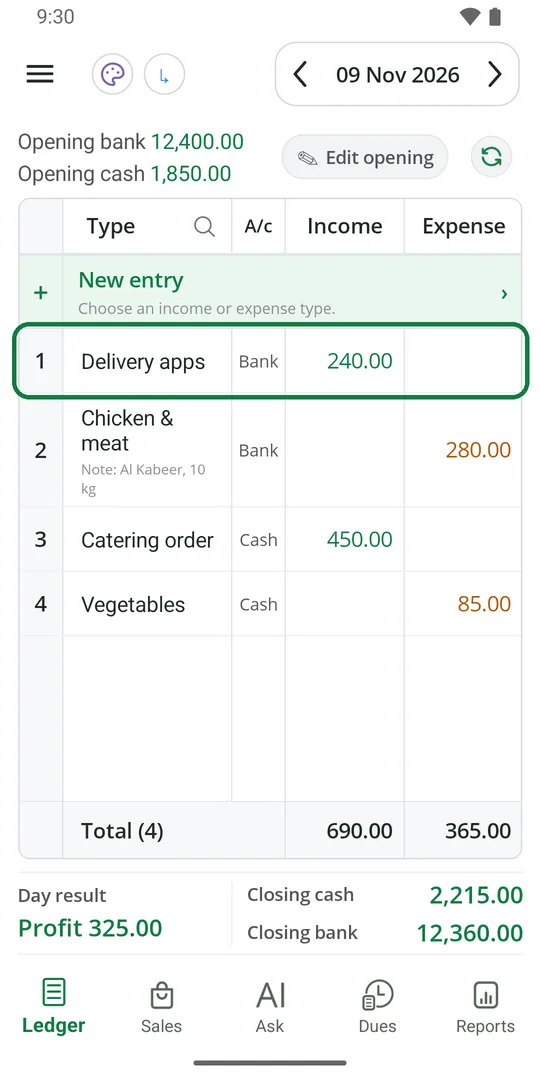
4The money is in the Income column
Bills from the Sales tab and money received on dues come into the Ledger by themselves.
Add a new type
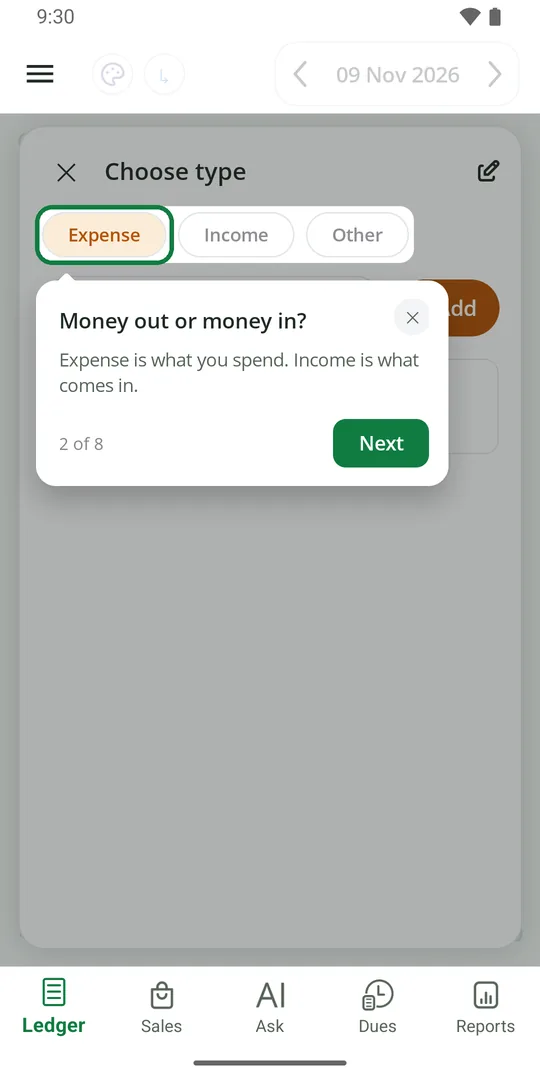
1In New entry, pick Expense or Income 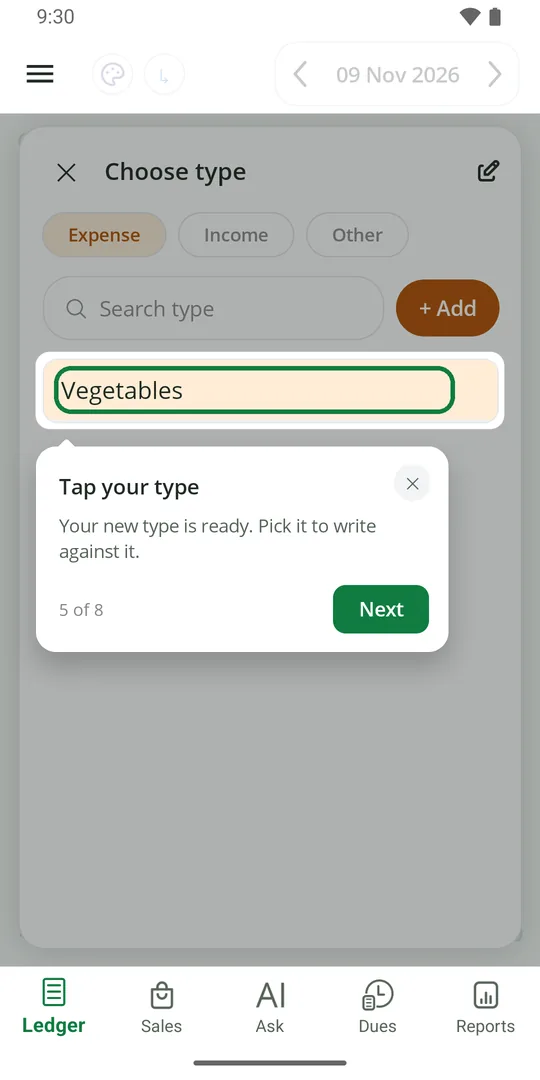
2Tap + Add, type the name and Save. Your new type is in the list
Add a note to an entry
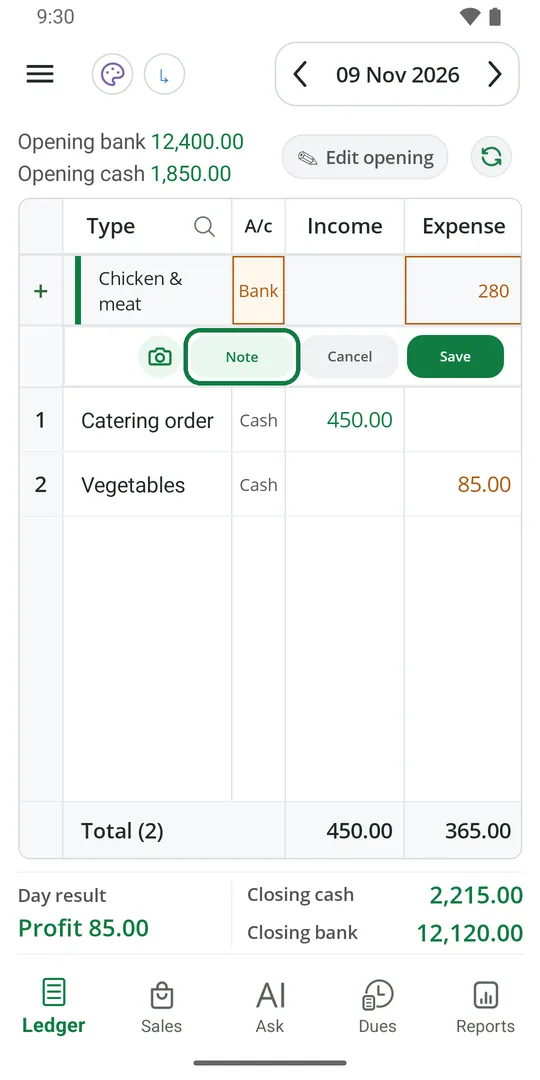
1While writing the entry, tap Note 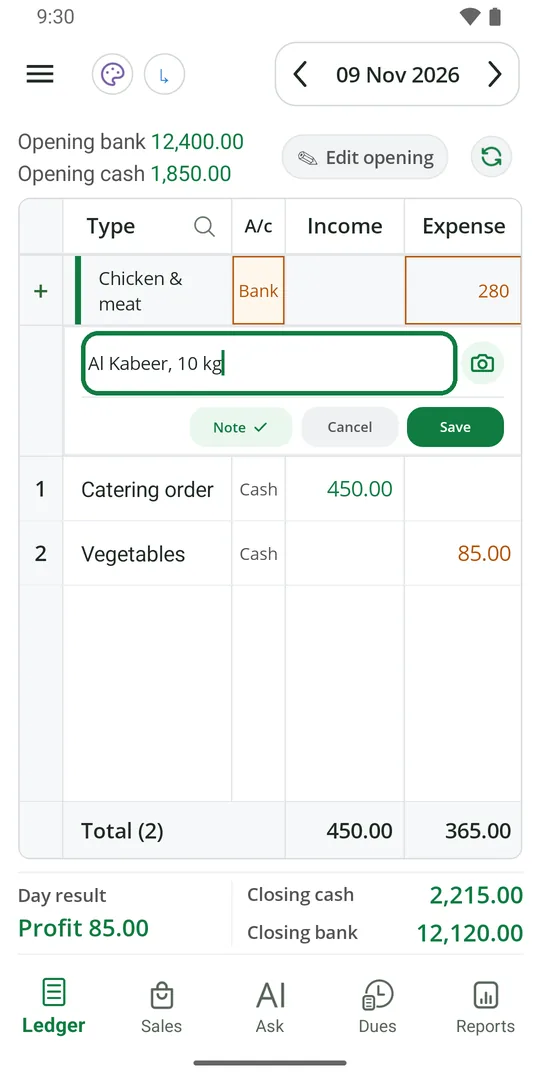
2Type your note, then tap Save 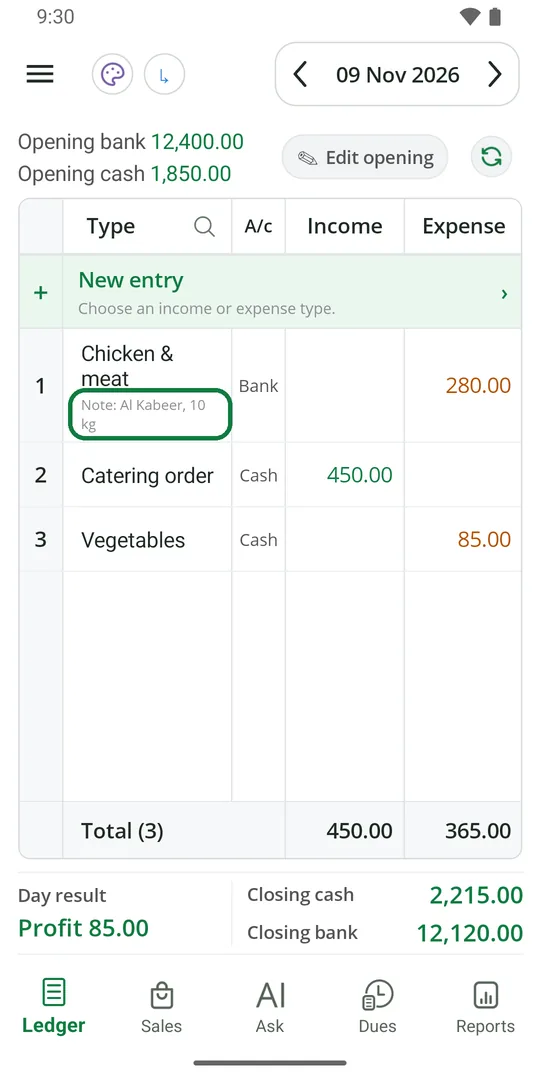
3The note shows under the type
Add a photo of the bill
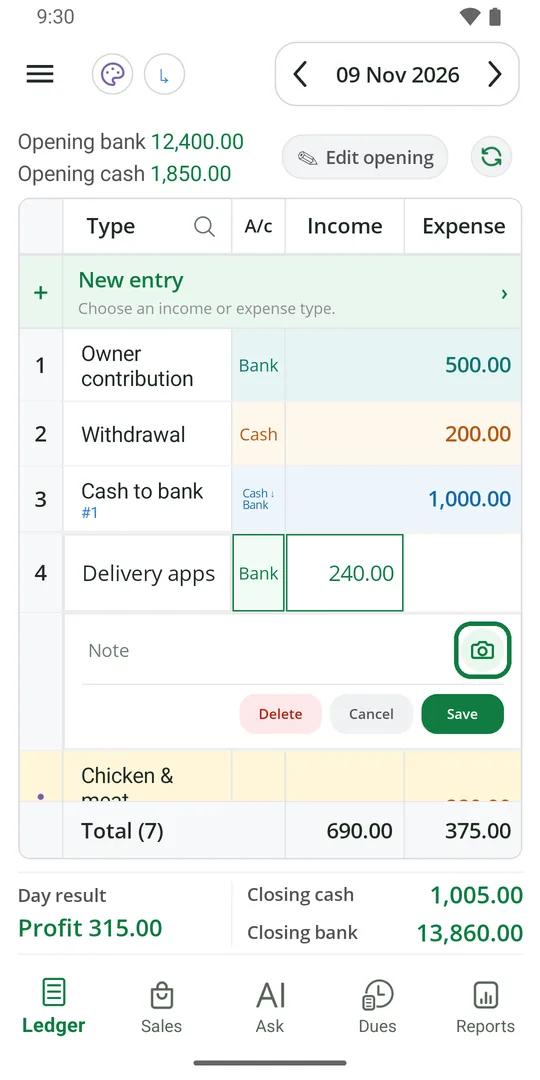
1Open the entry and tap the camera 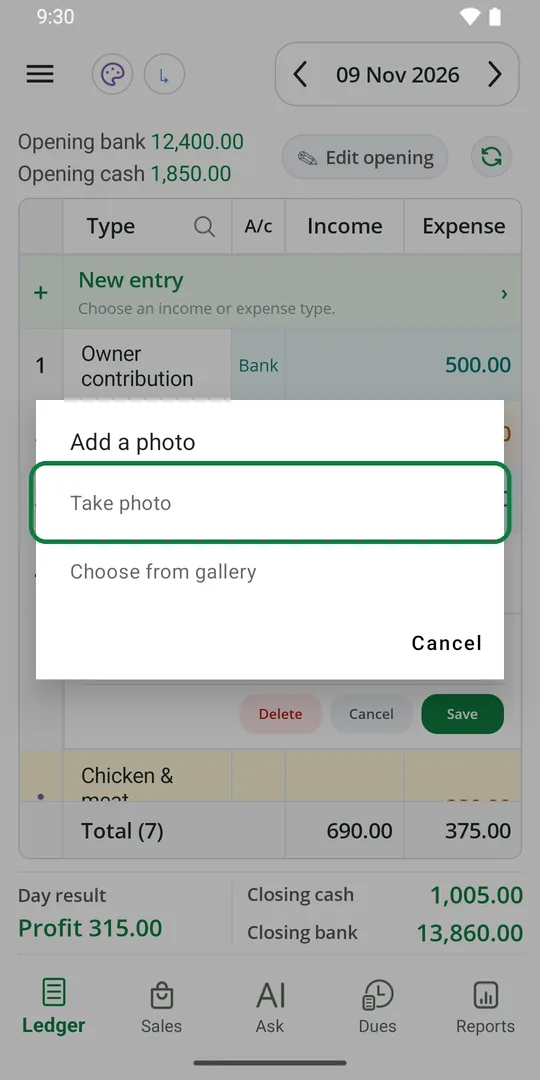
2Tap Take photo, or Choose from gallery 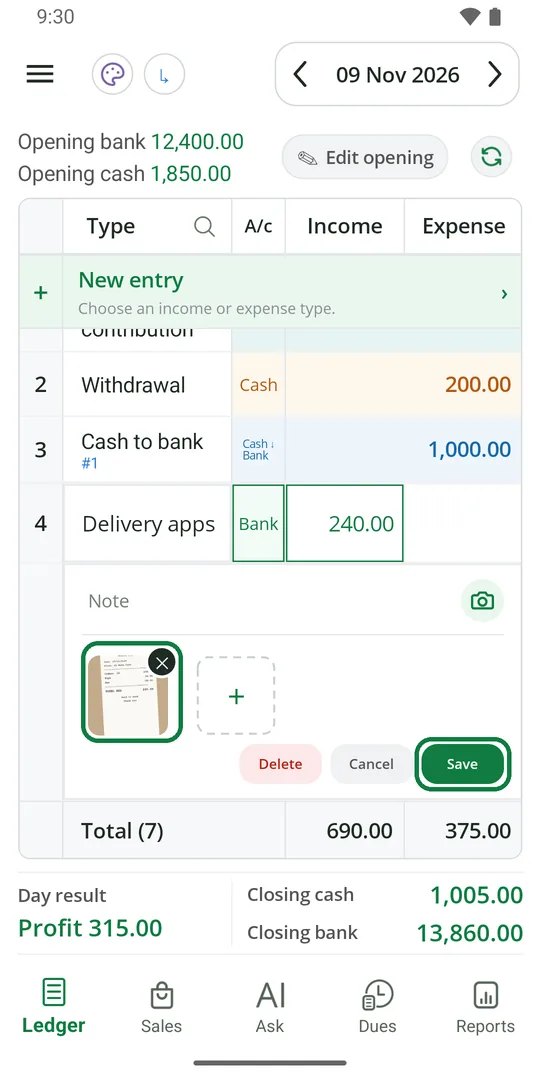
3The photo is added. Tap Save 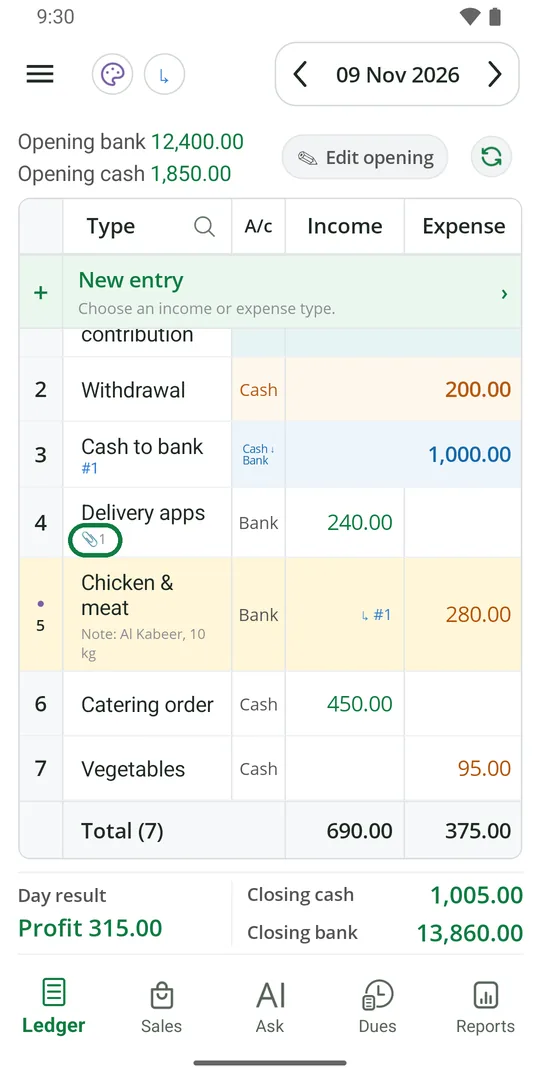
4The clip shows the entry has a photo. Tap the entry to see it
Change an entry
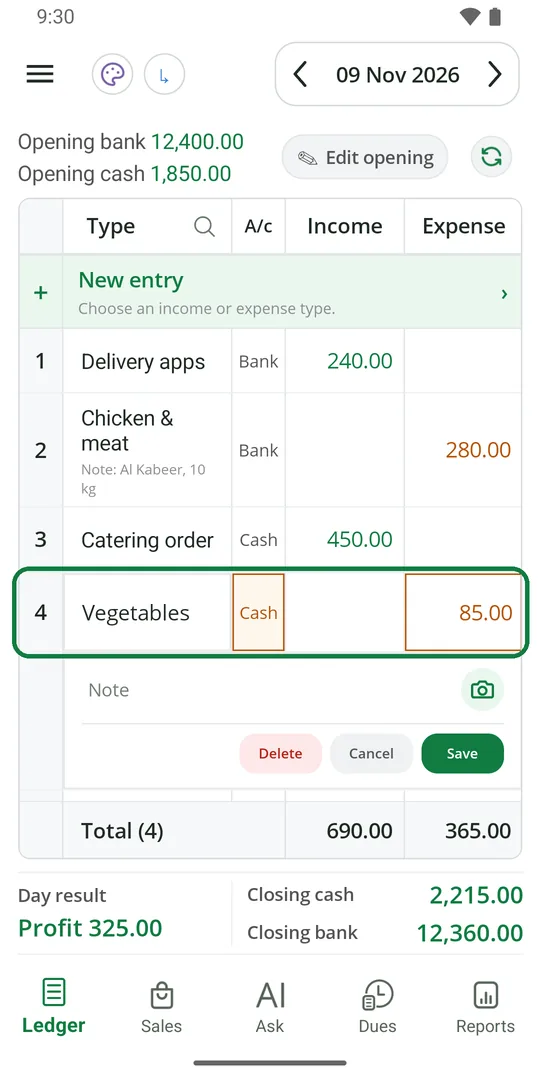
1Tap the entry 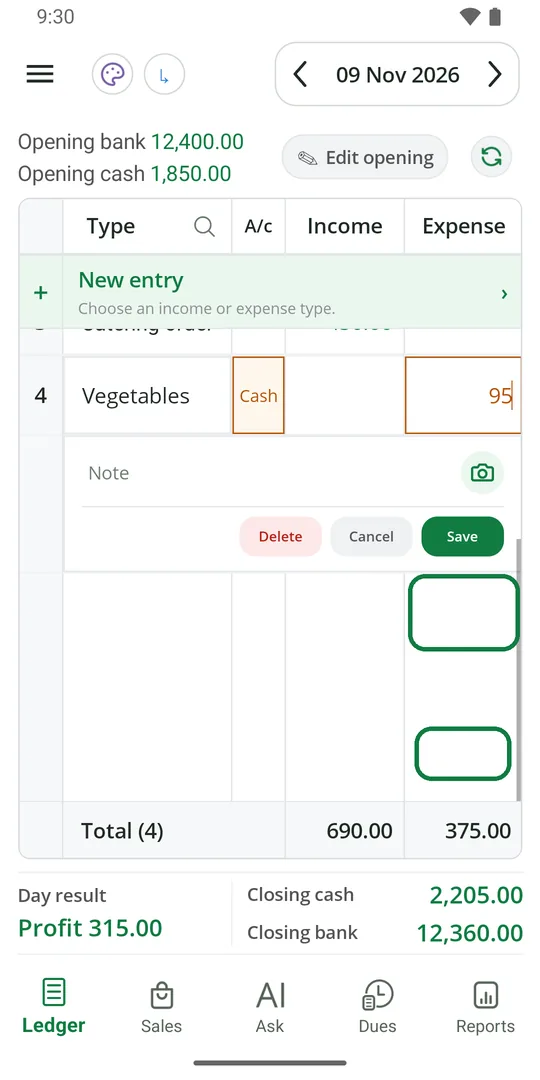
2Change the amount, Cash or Bank, or the note, then tap Save
Delete an entry
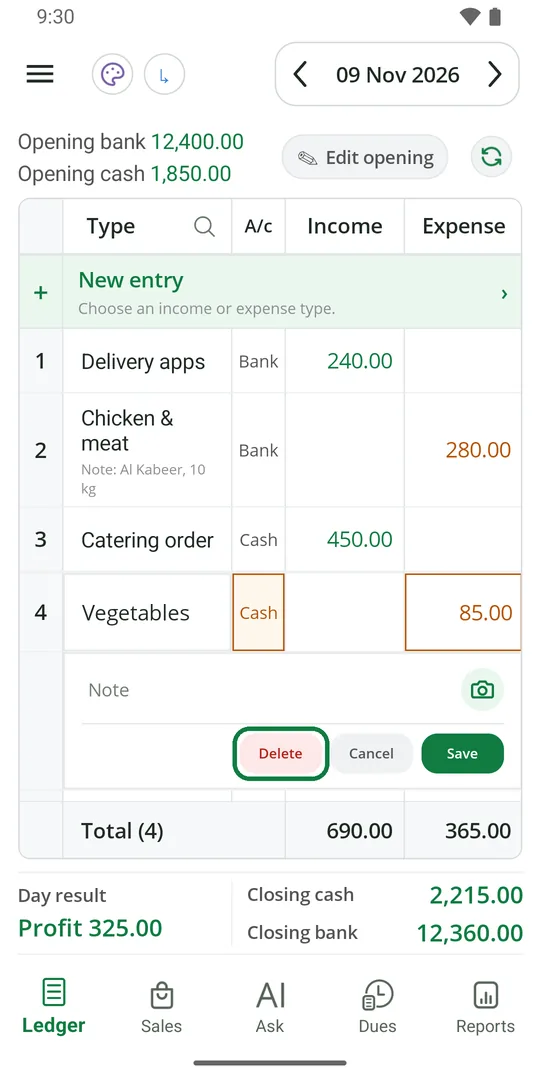
1Tap the entry, then tap Delete 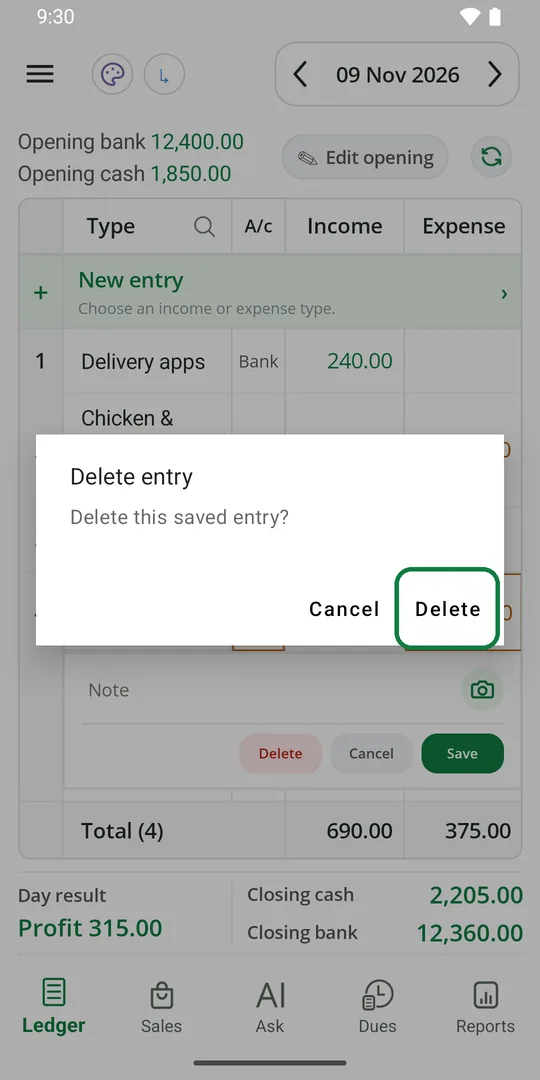
2Tap Delete again to confirm
See another day
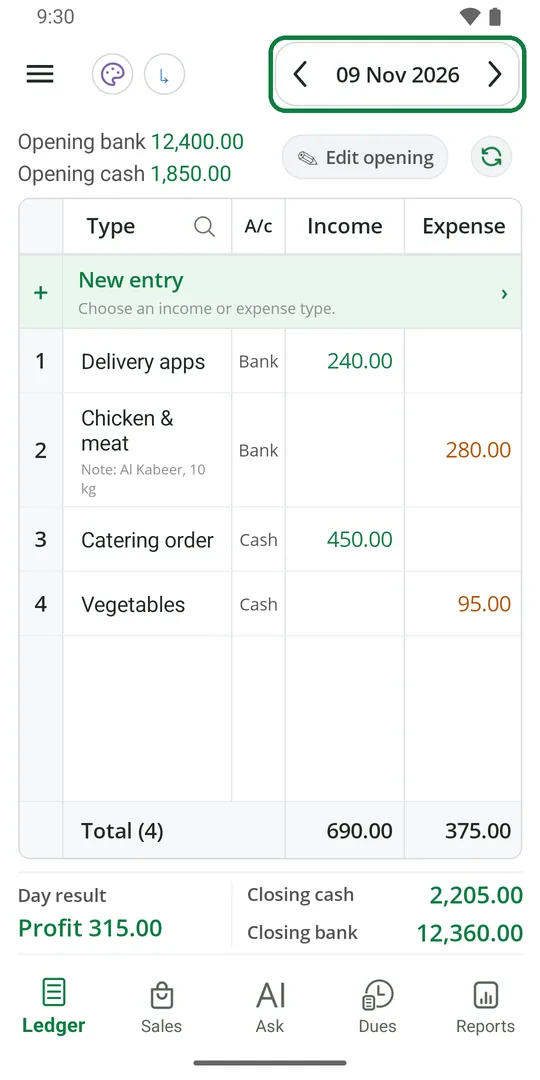
1Tap ‹ for the day before, › for the day after 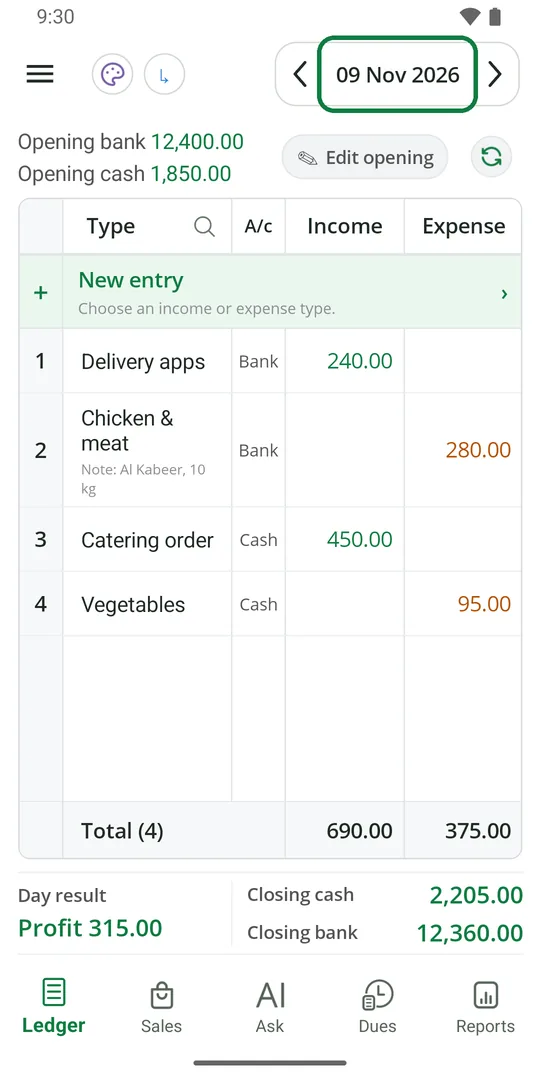
2Or tap the date 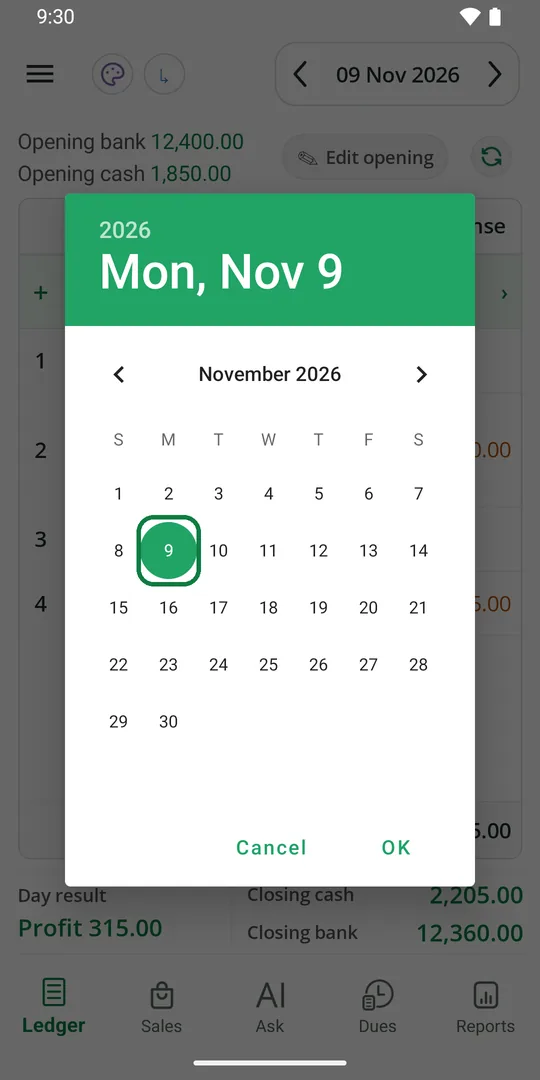
3Pick the day and tap OK
See the day's profit and closing
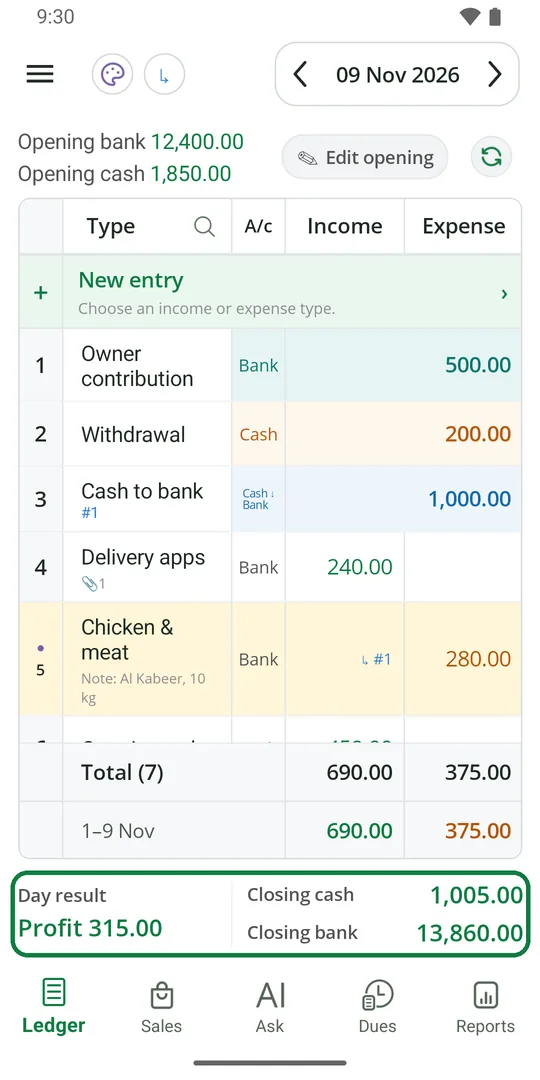
1The bottom shows the day's profit or loss, closing cash and closing bank
There is no closing button. The day closes by itself at midnight, and the next day opens with this closing.
Move money between cash and bank
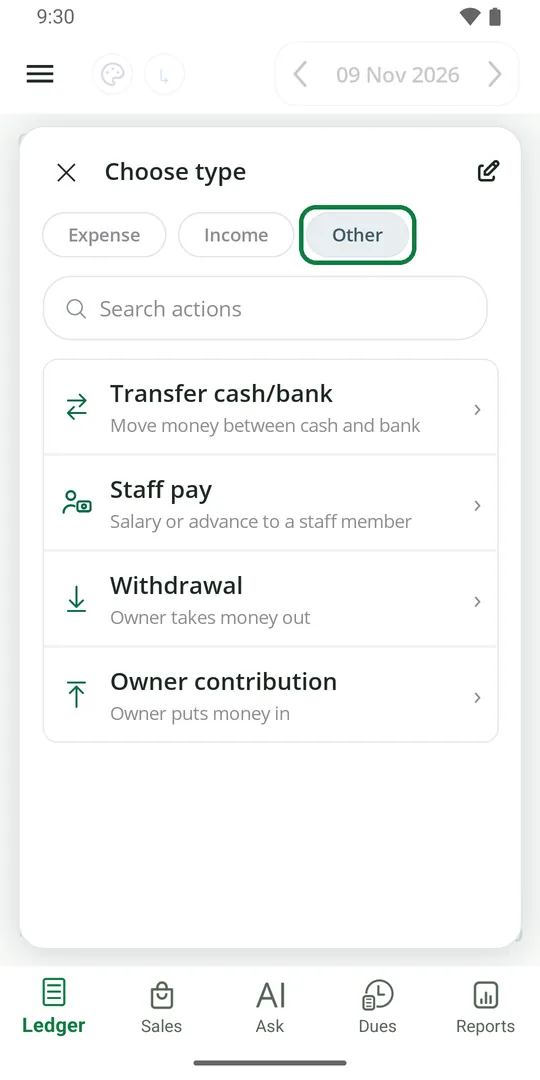
1Tap New entry, then Other 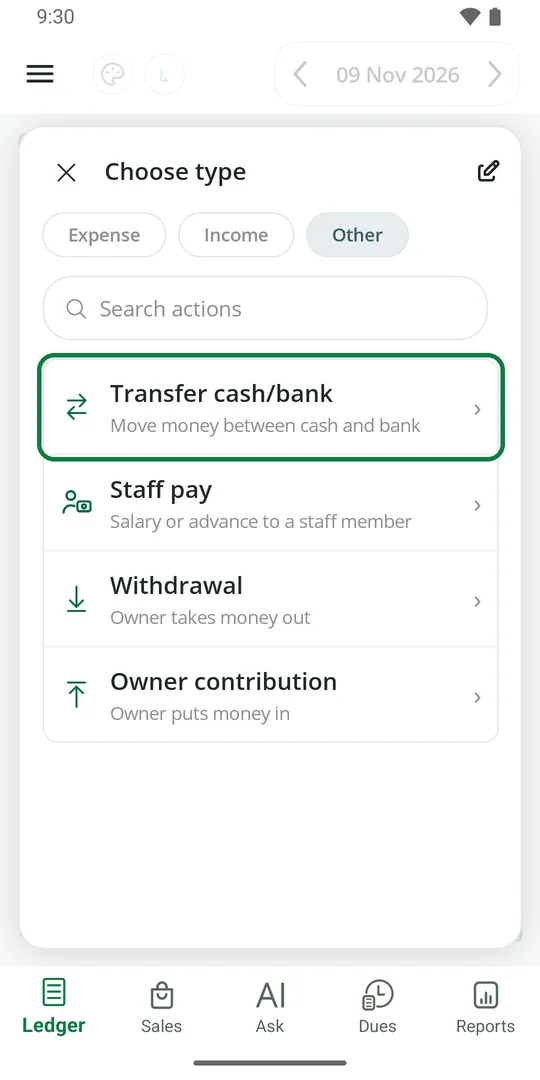
2Tap Transfer cash/bank 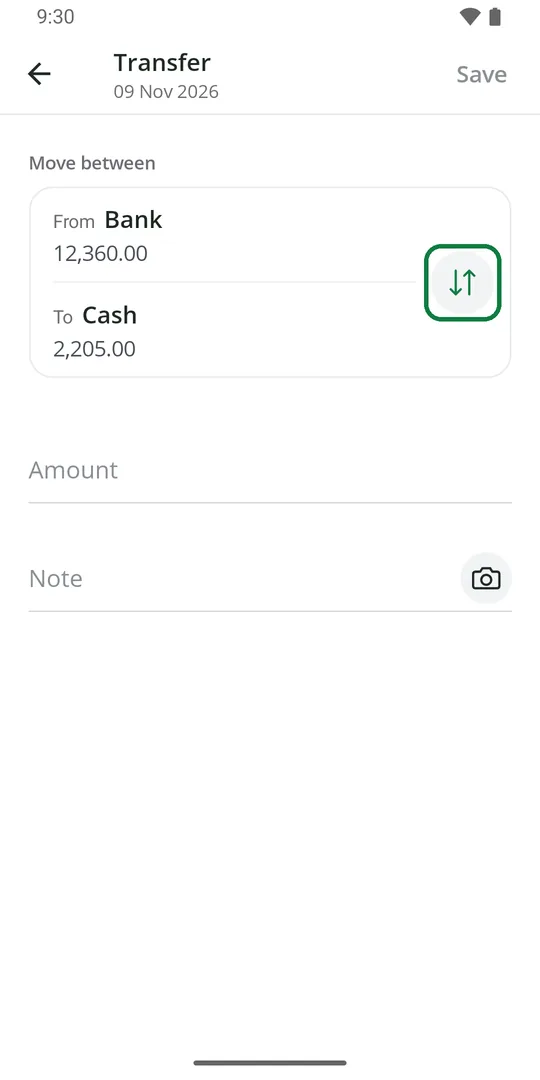
3Tap the arrows to swap From and To 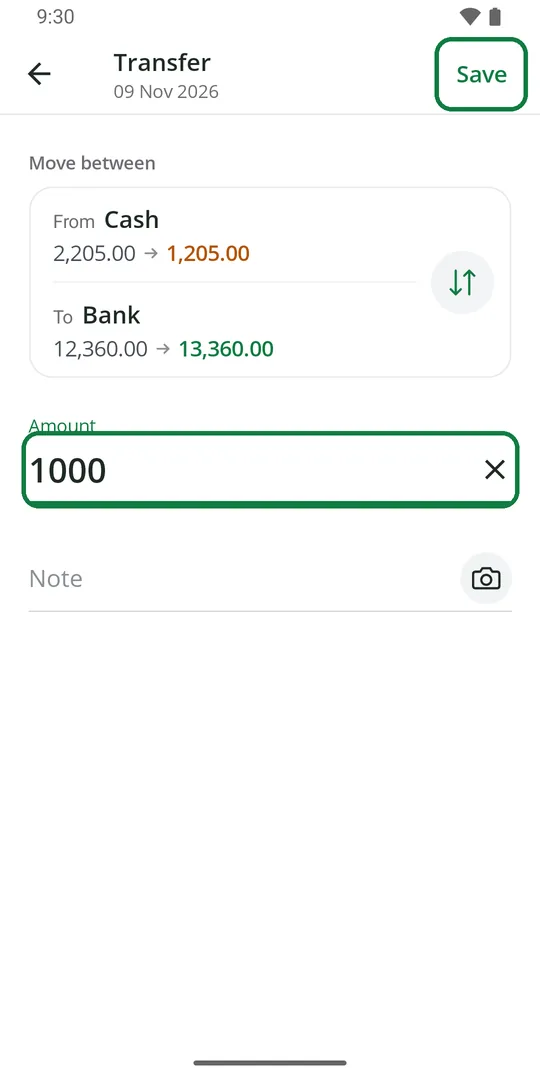
4Type the amount and tap Save 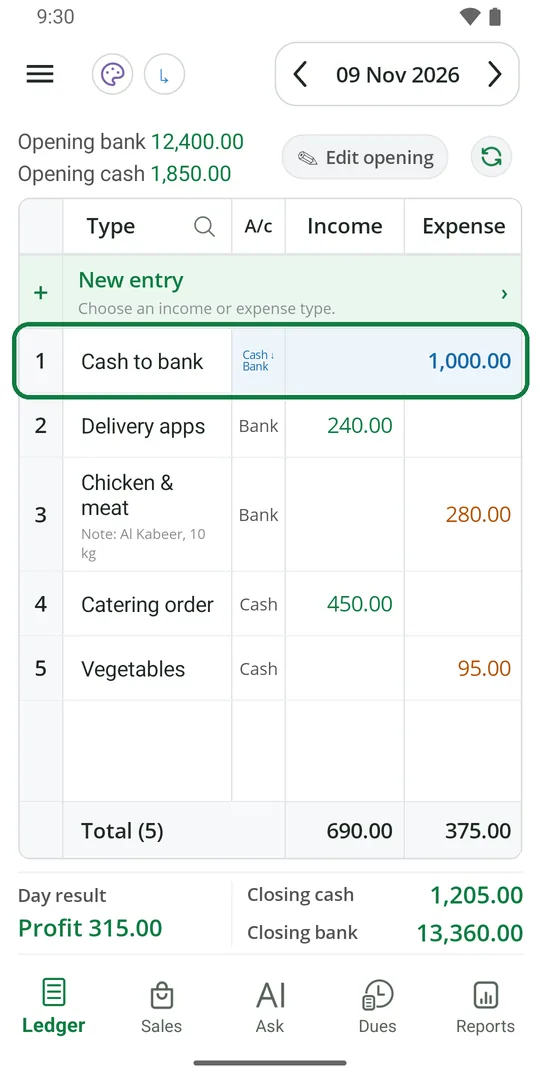
5The transfer is in the Ledger. Profit does not change
Take money out for yourself
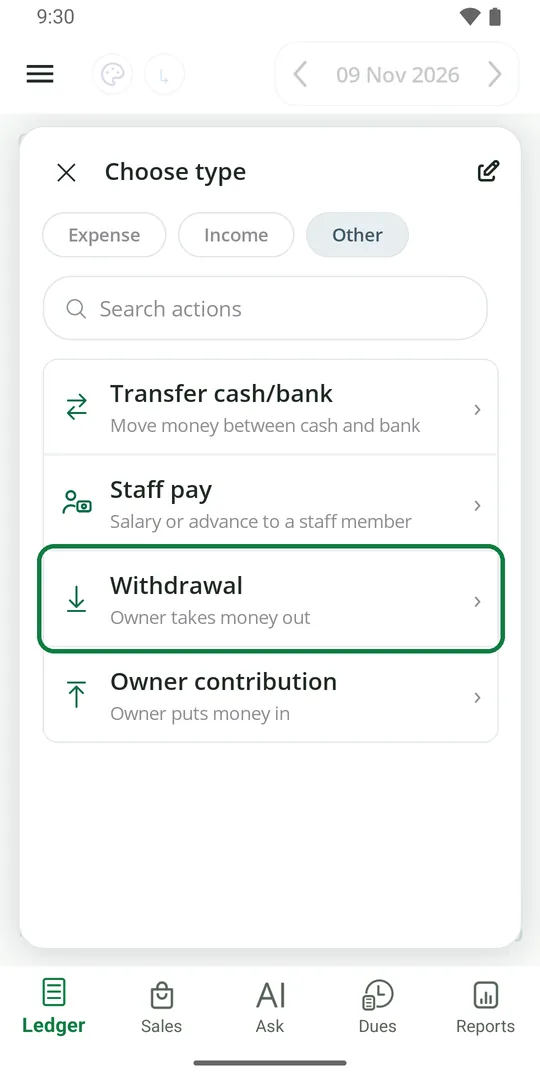
1In New entry › Other, tap Withdrawal 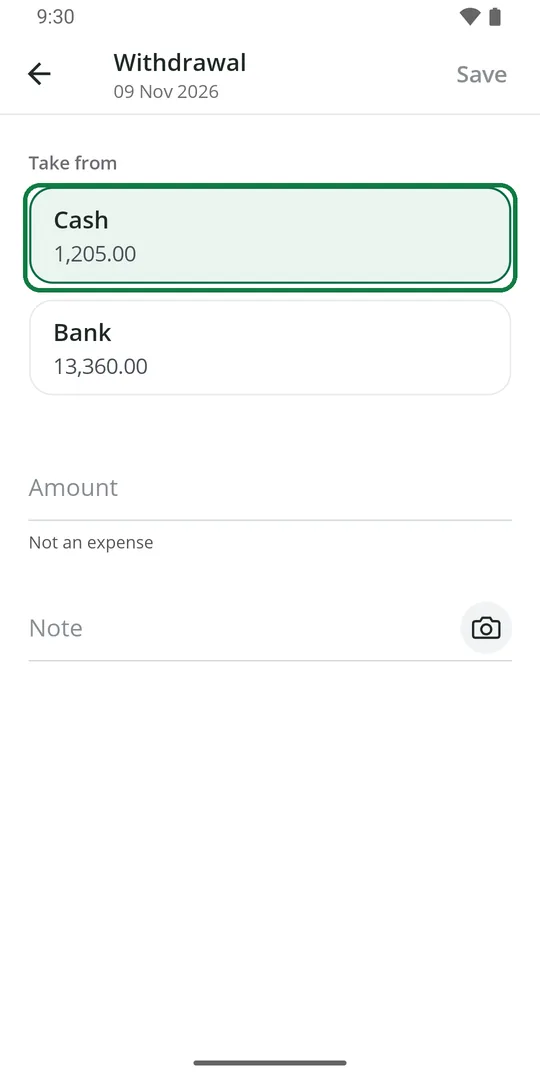
2Pick Cash or Bank 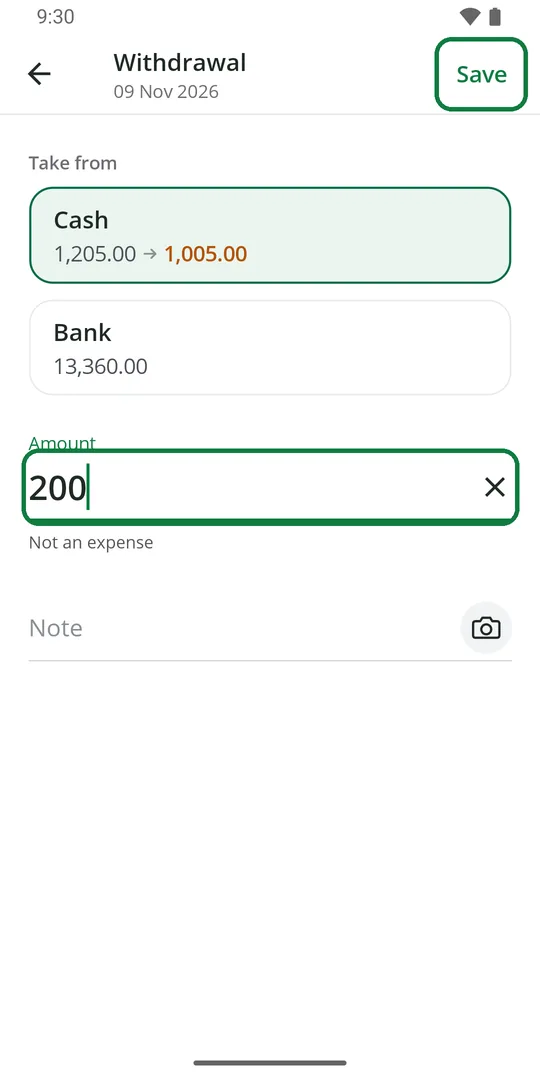
3Type the amount and tap Save 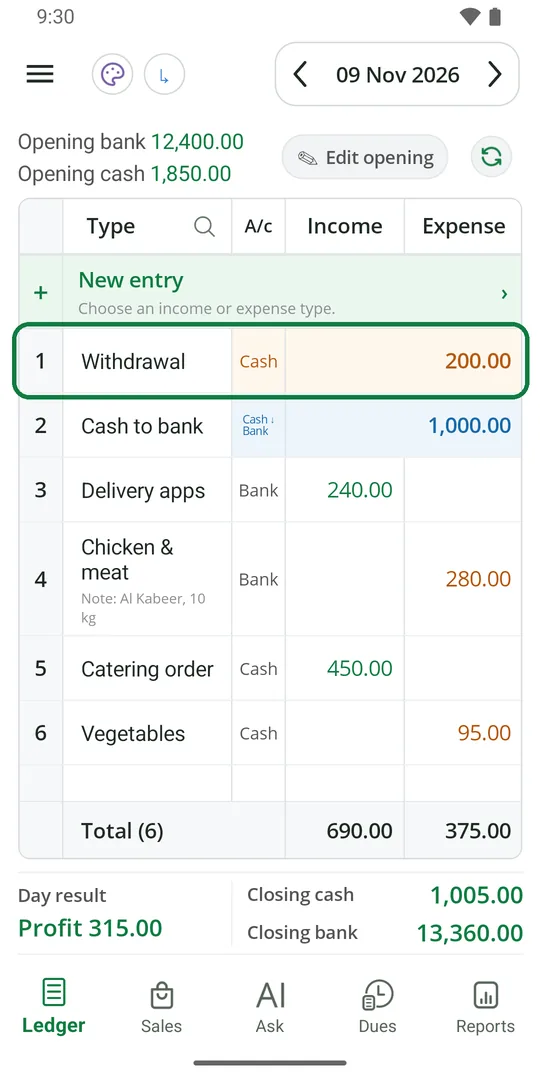
4Closing goes down. Profit does not change
A withdrawal is the owner's own money, not a shop expense.
Put your own money into the shop
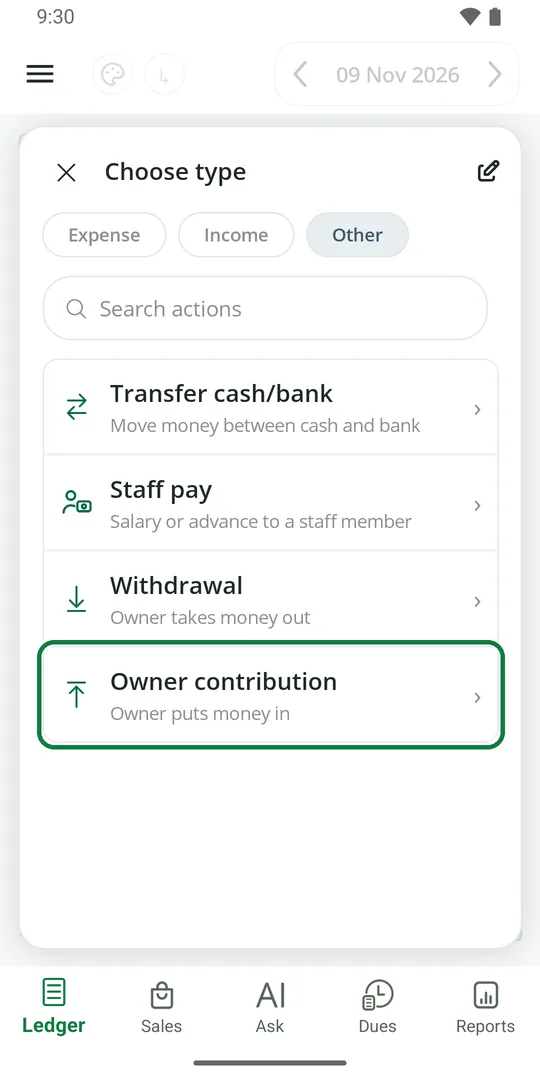
1In New entry › Other, tap Owner contribution 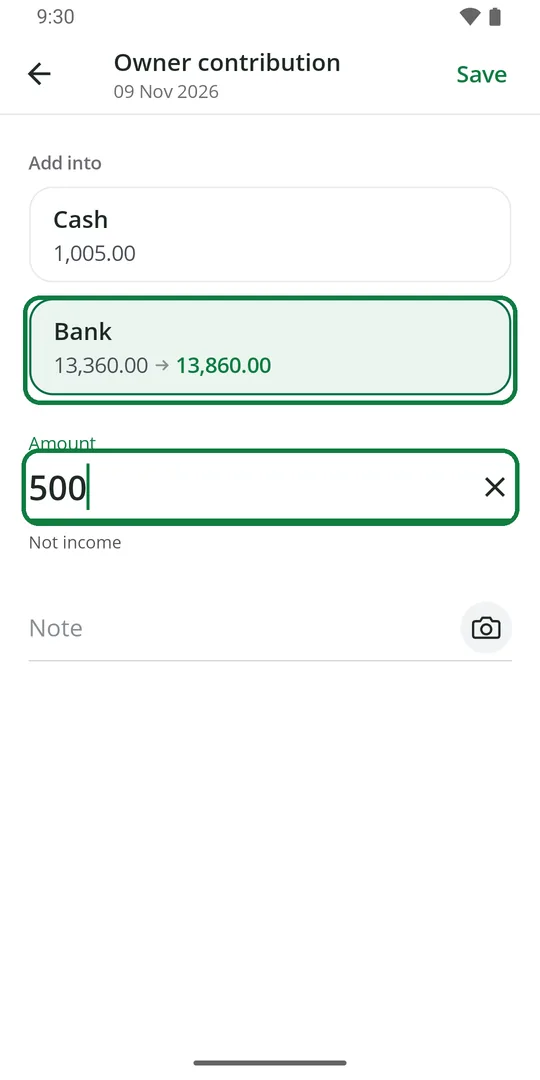
2Pick Cash or Bank and type the amount 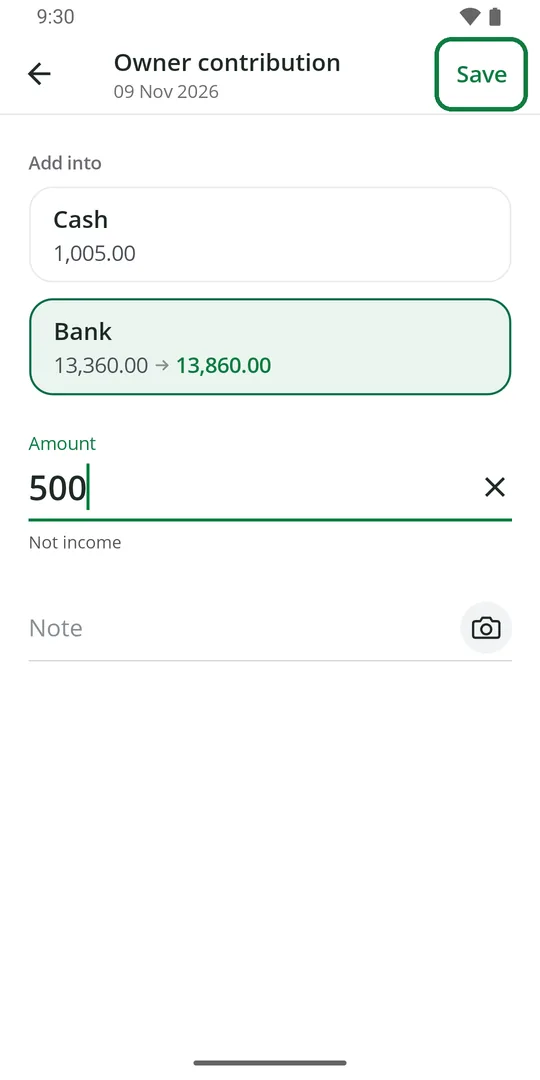
3Tap Save 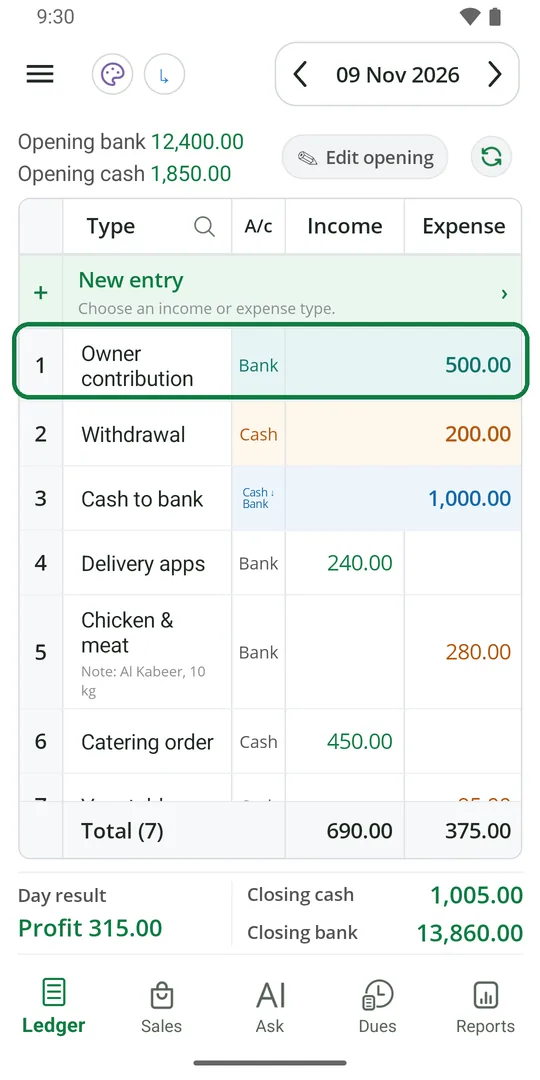
4Closing goes up. Profit does not change
Find an entry
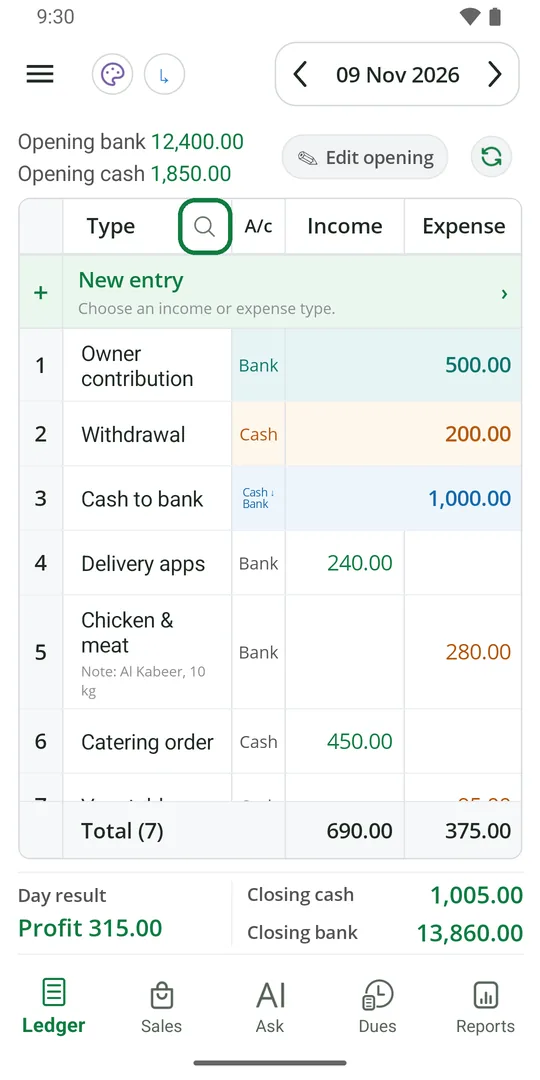
1Tap the search mark beside Type 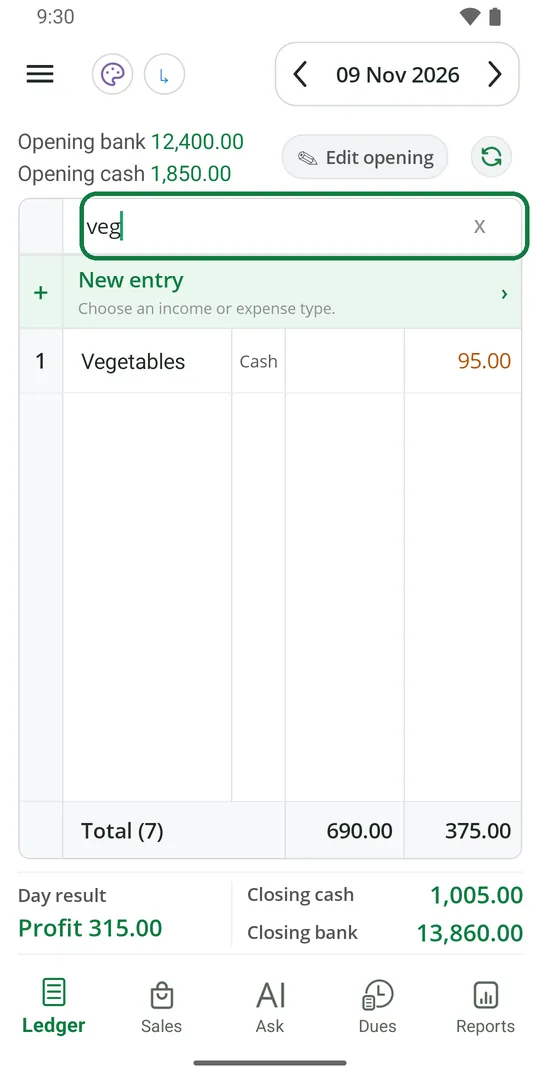
2Type a word. Only matching entries show. Tap X to see all again
See only cash or only bank
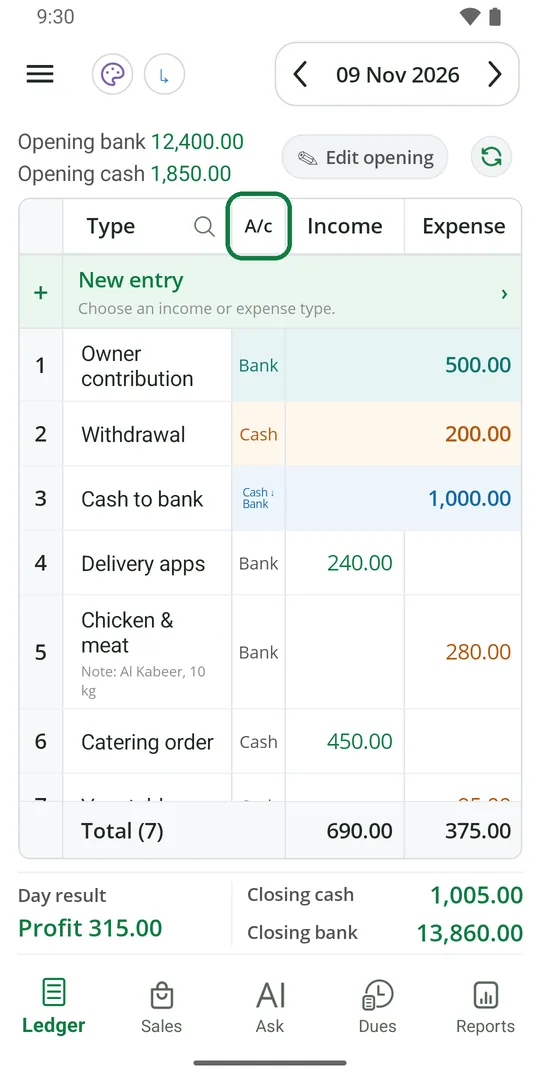
1Tap A/c at the top of the table 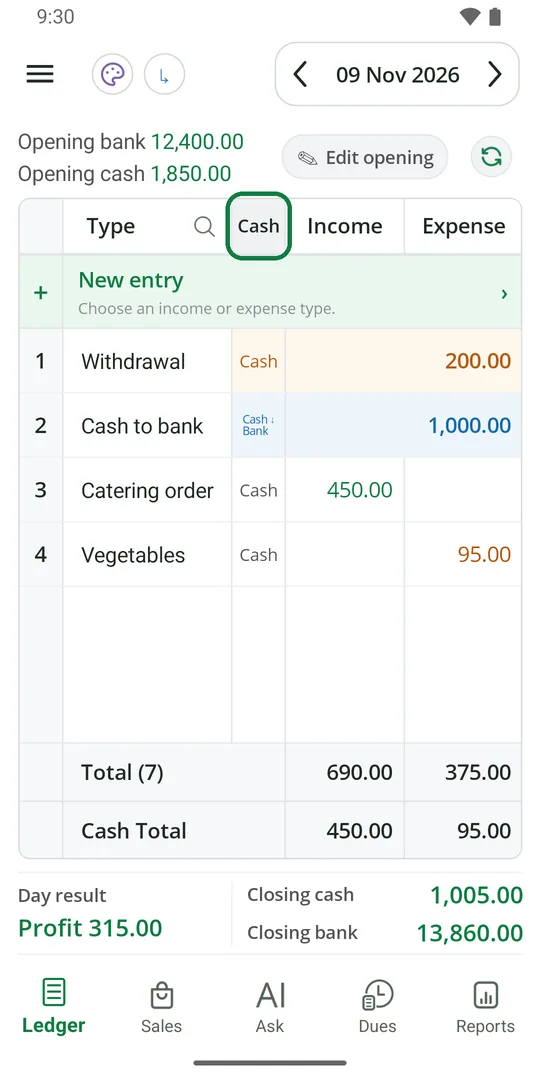
2Now only cash entries show. Tap again for bank, again for all
Colour an entry
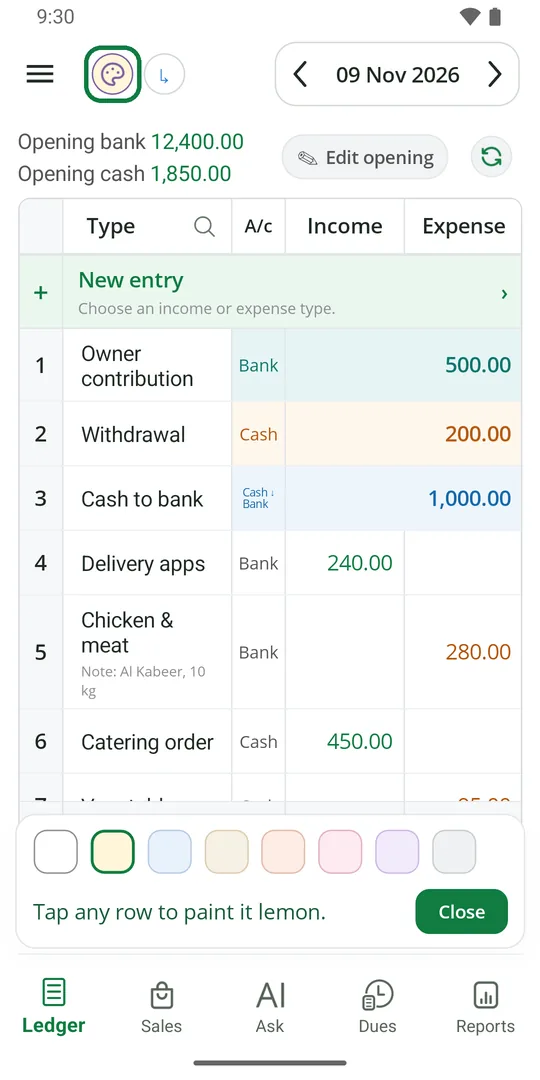
1Tap the palette at the top 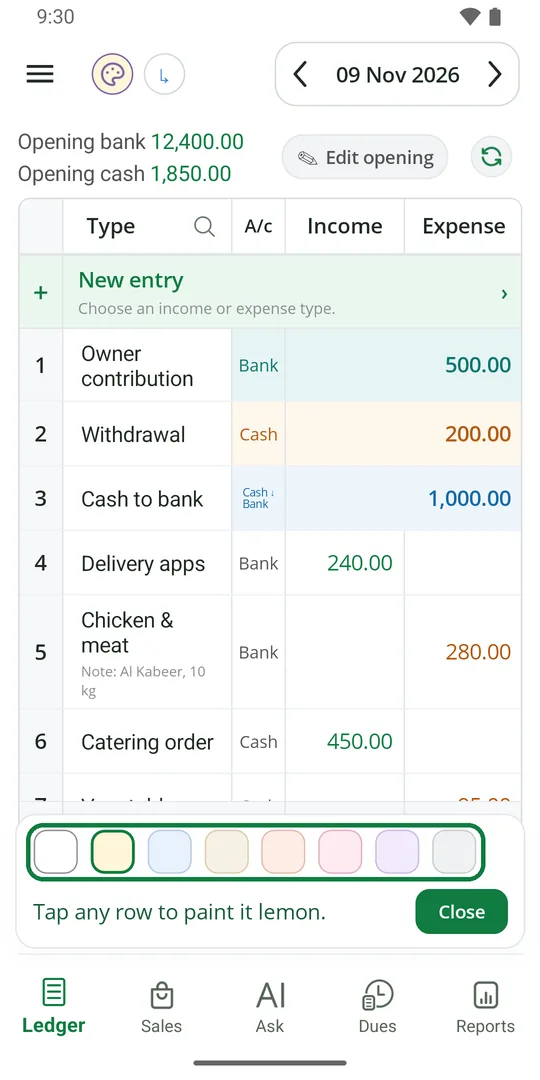
2Pick a colour 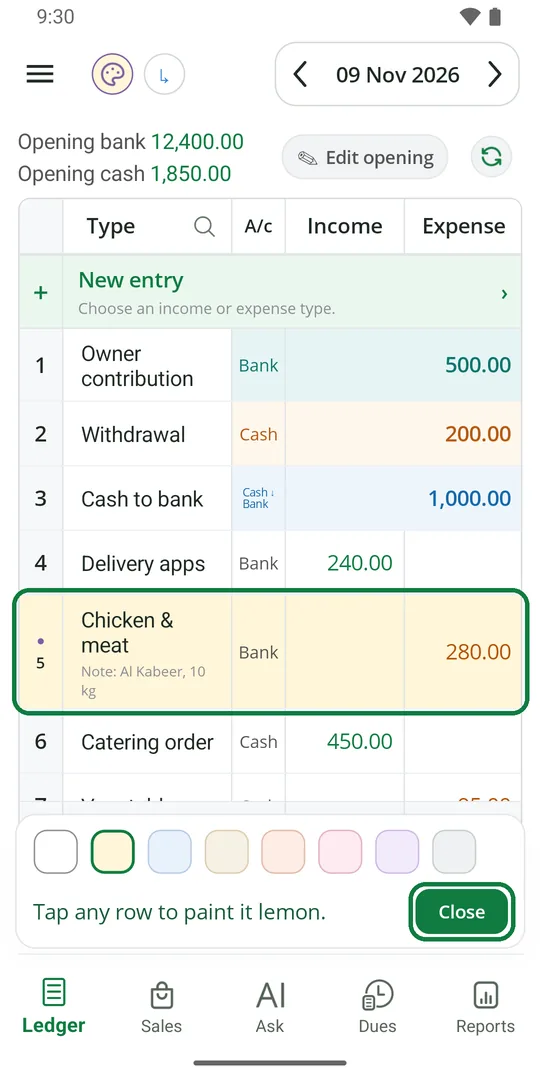
3Tap the entries to colour, then tap Close
See where money went
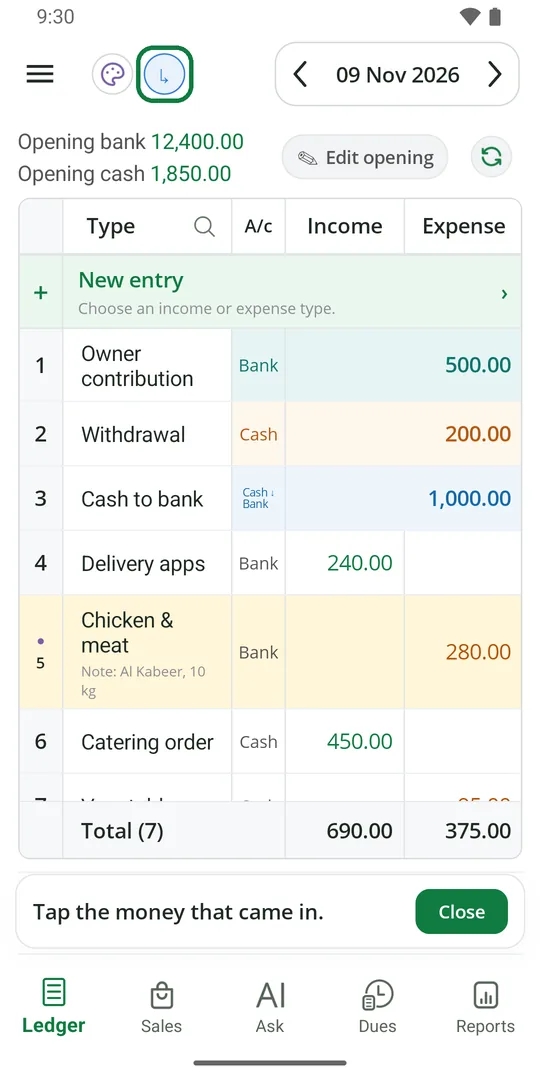
1Tap the arrow button at the top 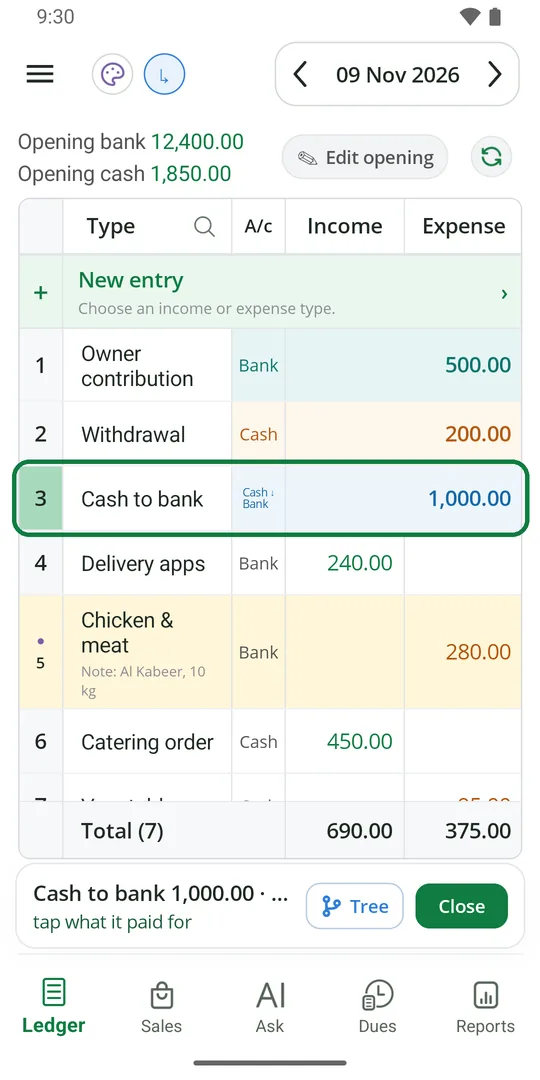
2Tap the money that came in 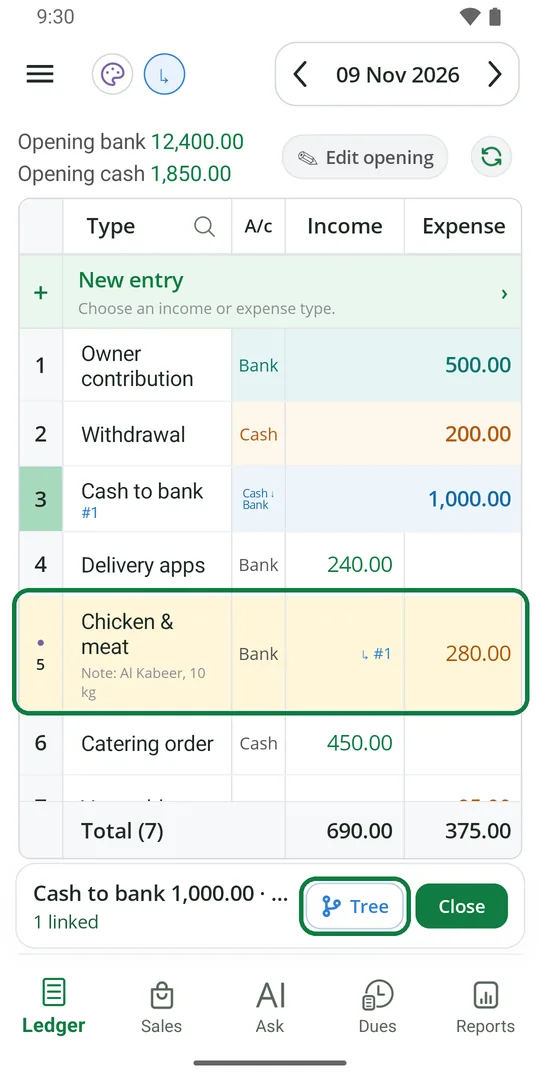
3Tap what it paid for. Tap Tree to see them all 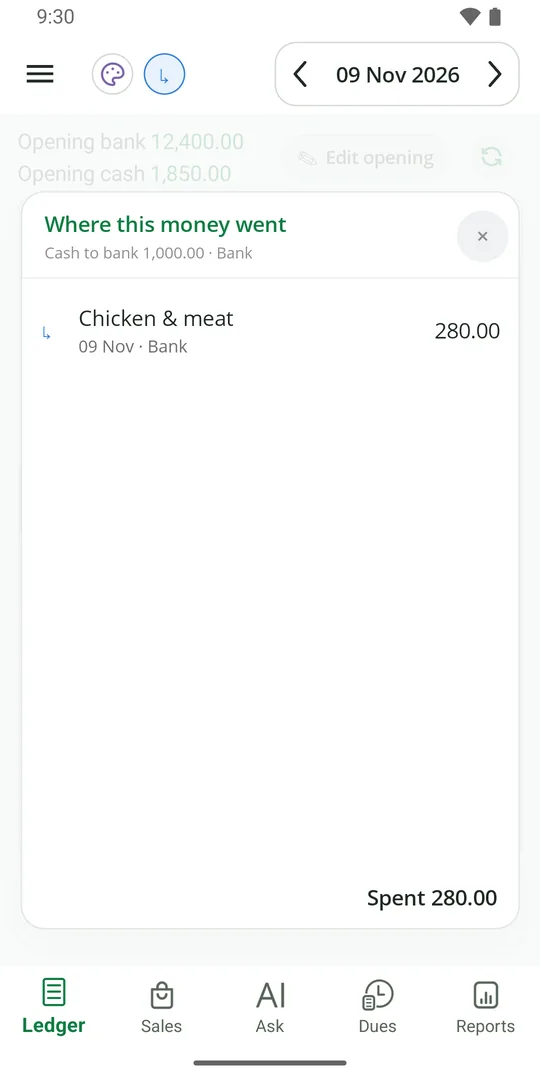
4Everything this money paid for, on any day
Rename or delete a type
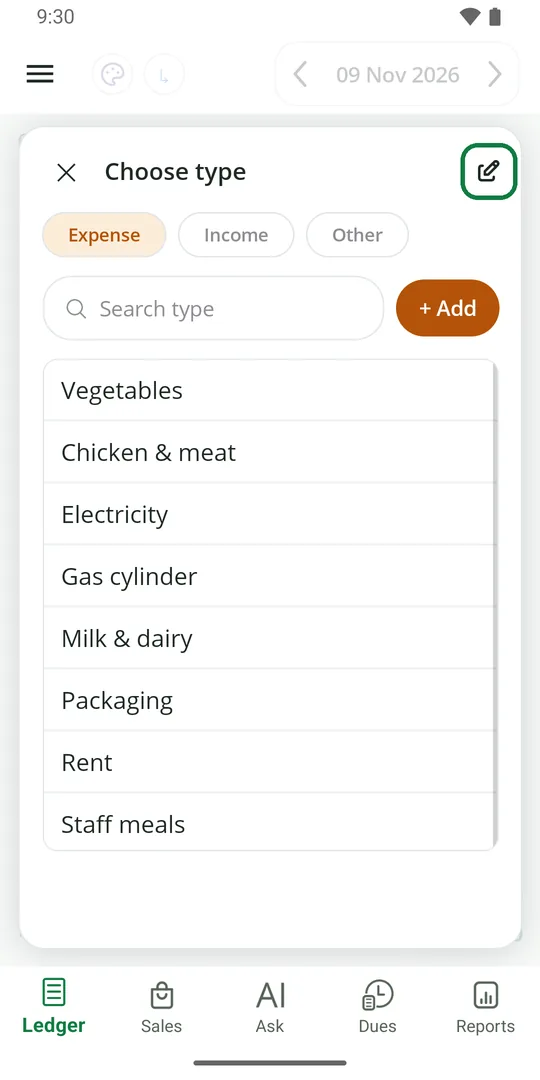
1In New entry, tap the pencil at the top right 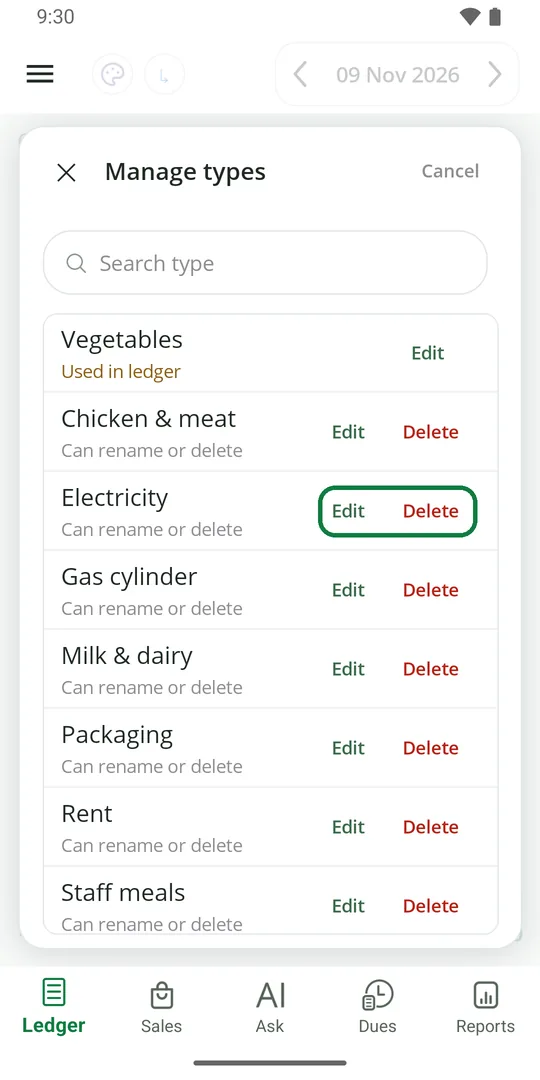
2Tap Edit to rename, Delete to remove
Also in ☰ › Business › Income & expense types. A type already used in the Ledger can be renamed, not deleted.
Show this month's totals
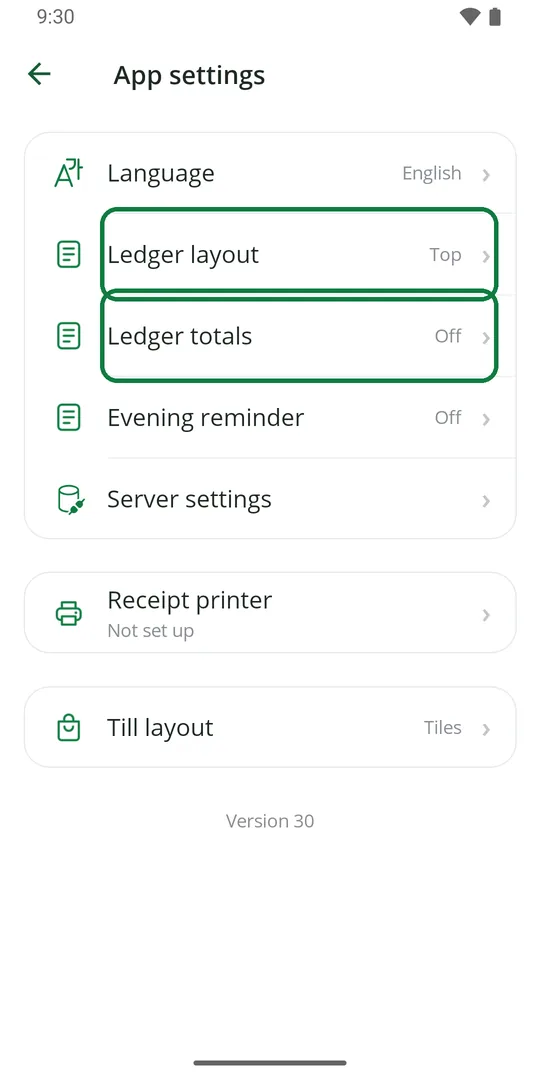
1Tap ☰, App settings, then Ledger totals 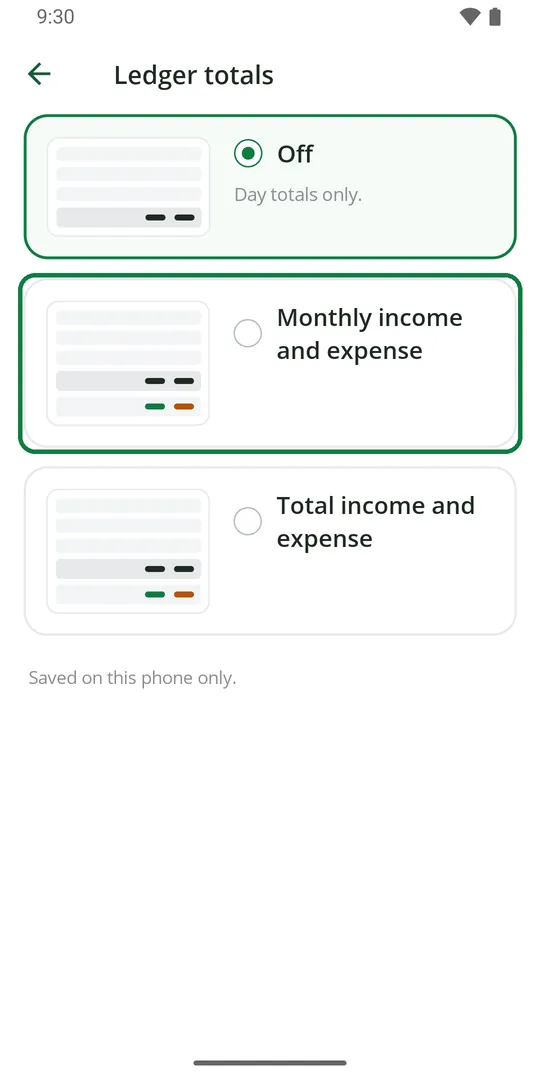
2Tap Monthly income and expense 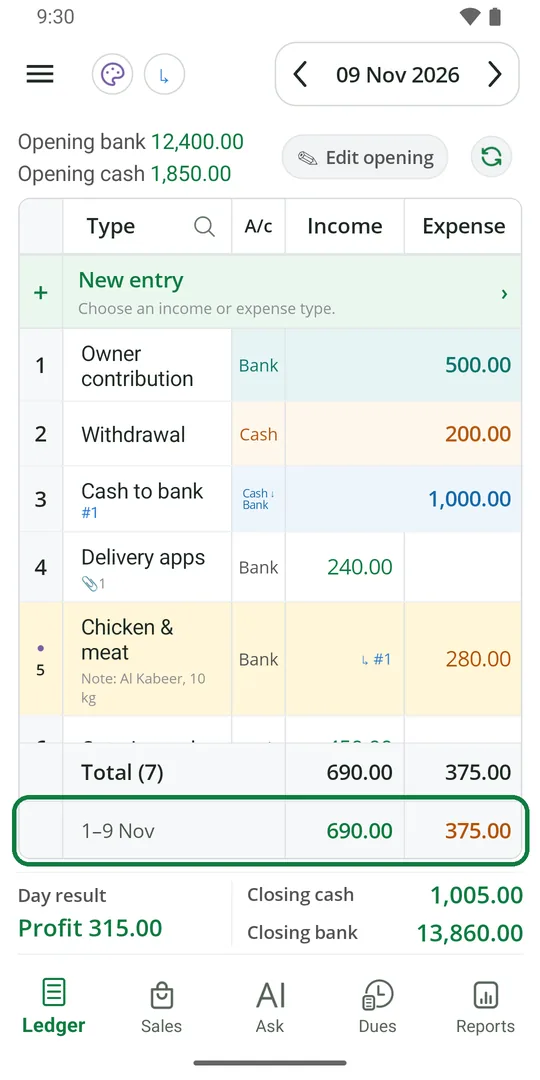
3The month so far shows under the day's total
New entry at the top or the bottom
1Tap ☰, App settings, then Ledger layout 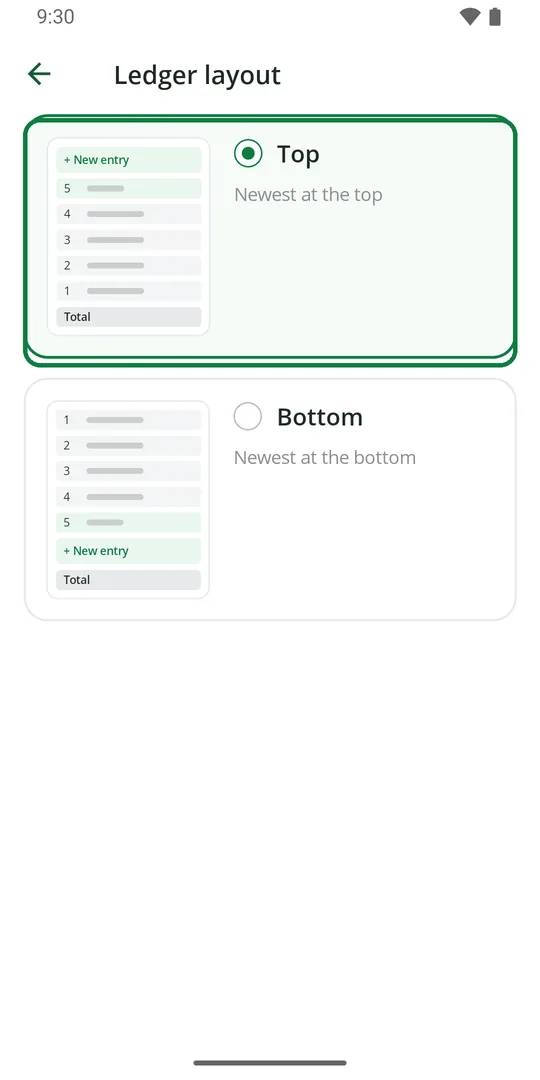
2Pick Top or Bottom
Keep sales or due payments out of the Ledger
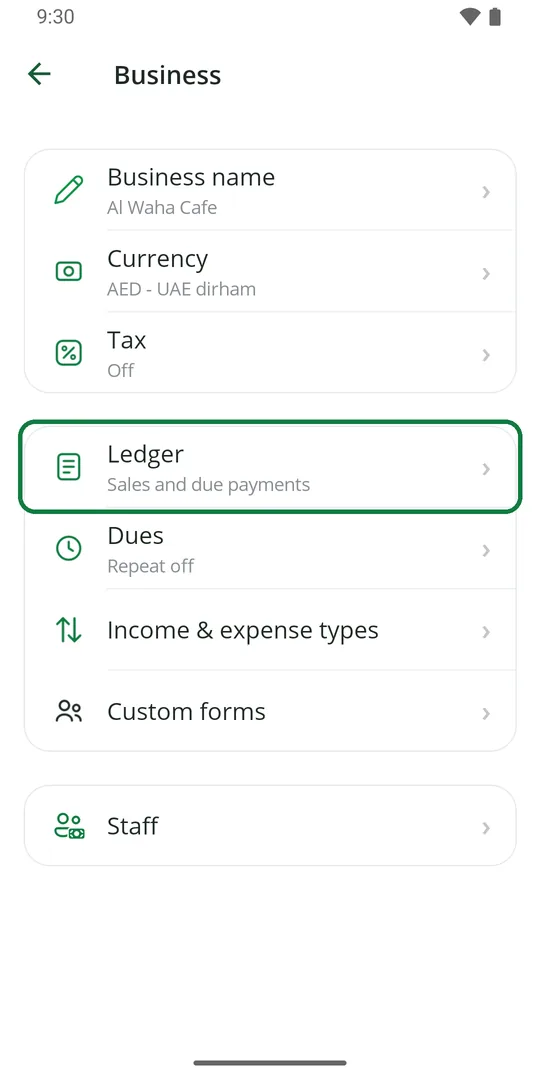
1Tap ☰, Business, then Ledger 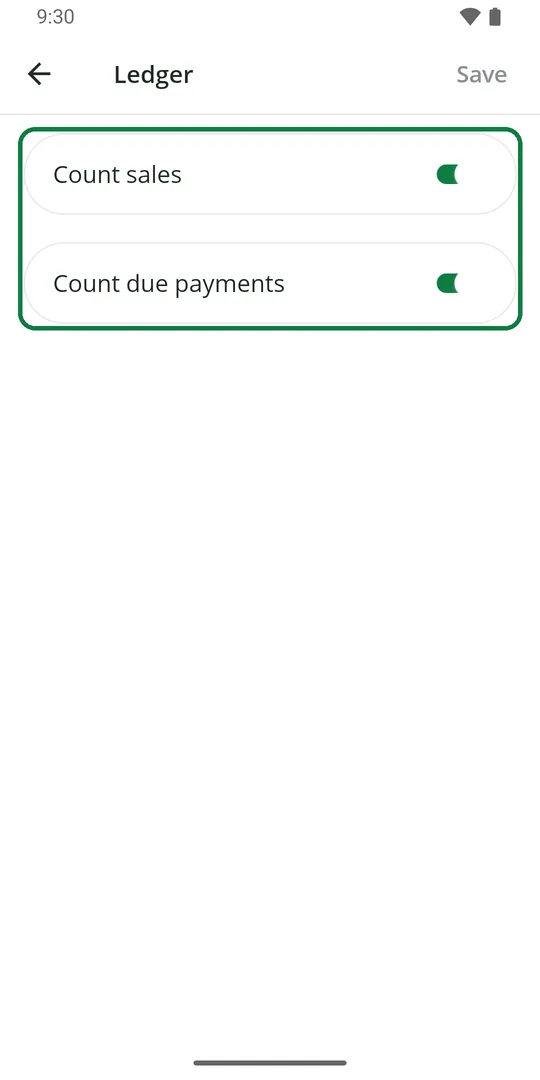
2Switch off Count sales or Count due payments, then tap Save
Get the latest entries
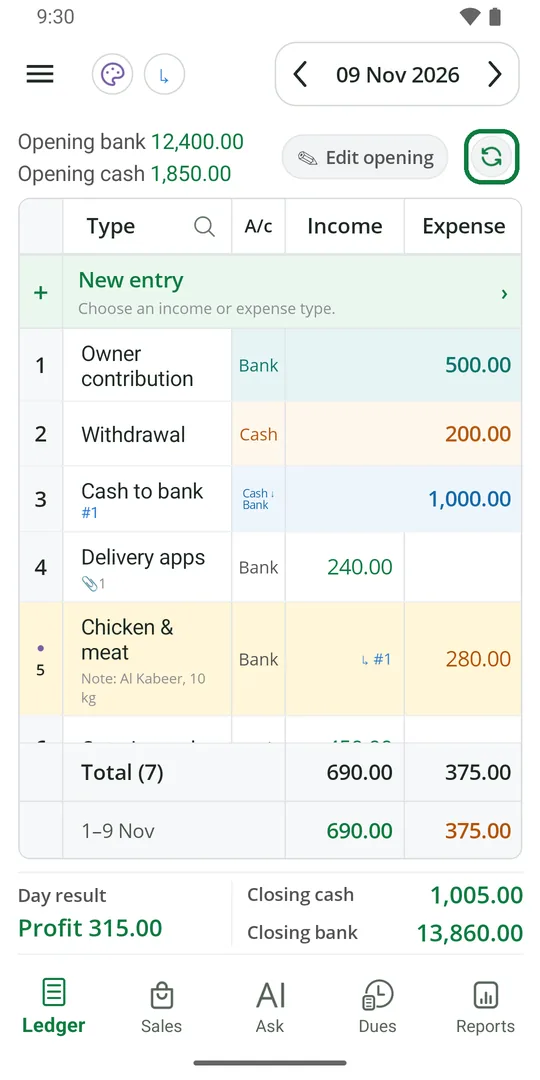
1Tap the round arrows to load entries added on another phone or computer